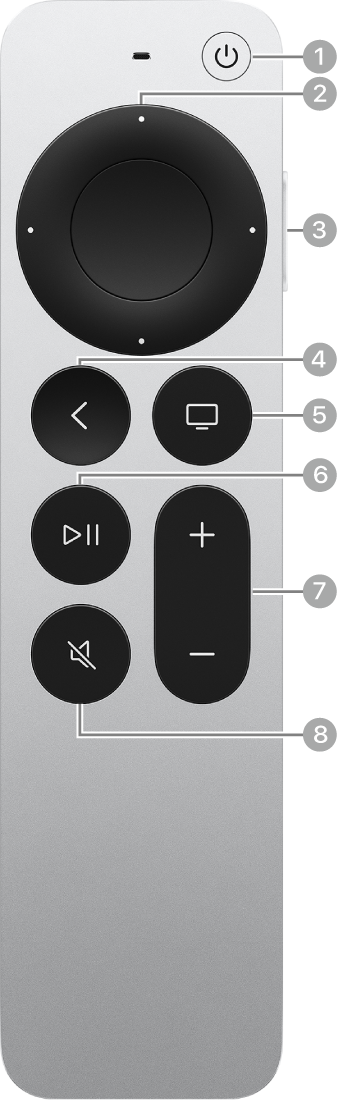
You can configure your Apple TV 4K remote to control your whole entertainment system, so you never have to switch remotes. It’ll turn your TV or receiver on or off along with Apple TV. It can control the volume of your TV, sound bar, or receiver, too.
Use the Apple TV remote to turn your TV or receiver on or off
- Go to Settings on Apple TV 4K.
- Go to Remotes and Devices and navigate down to the Home Theater Control section. Then do either of the following:
- If you have a receiver: Select Control TVs and Receivers.
- If you don’t have a receiver: Select Turn On Your TV with Your Remote.
From now on, your TV or receiver (or both) turn on or off, too, whenever you use the Apple TV remote to turn Apple TV on or off.
Use the Apple TV remote to control the volume of your TV, sound bar, or receiver
- Go to Settings on Apple TV 4K.
- Go to Remotes and Devices, navigate down to the Home Theater Control section, select Volume Control, and then choose from the following options:
- Auto: Choose this option to automatically pick the most compatible volume-control method based on your devices. (In most cases, it’s best to choose this option.)
- HDMI: Choose this option if your TV or receiver supports both HDMI-CEC and volume control over CEC.
- Receiver via IR: Choose this option if your receiver uses an infrared (IR) remote, but doesn’t support HDMI-CEC.
- TV via IR: Choose this option if your TV uses an IR remote, but doesn’t support HDMI-CEC.
- Off: Disable volume control for devices other than Apple TV 4K.
- Learn New Device: Choose this option if the above options aren’t working. Follow the onscreen instructions to teach your Apple TV remote how to control the volume on your TV, sound bar, or receiver.
Not all features and content are available in all countries or regions or on all Apple TV hardware models.