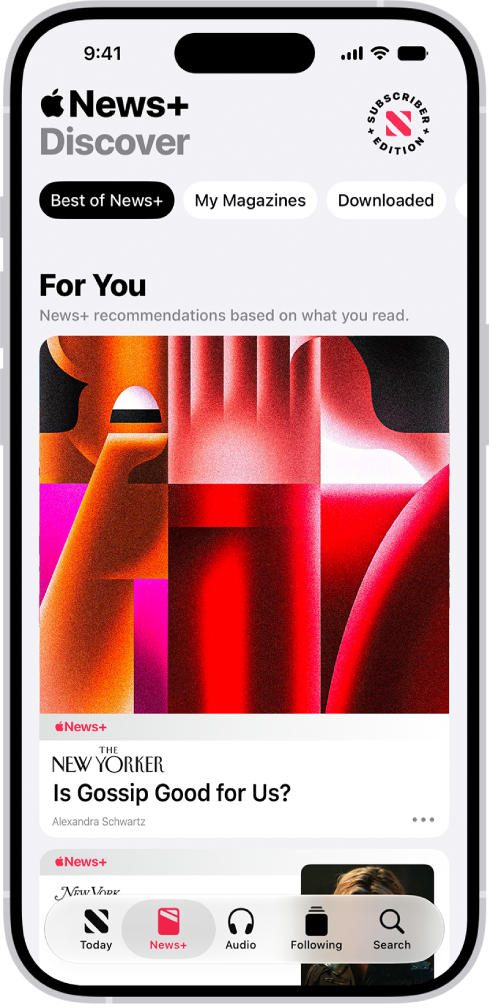
On iPhone, Apple News+ subscribers can automatically download News content, then access it when there’s no Wi-Fi or cellular connection, for example, when taking a flight or riding the subway.
Downloads can include stories, issues, audio stories, recipes, and puzzles, ready for Offline Mode.
Here’s how to use Offline Mode to read downloaded News content on iPhone.
Note: Content that can be downloaded for Offline Mode may include stories, issues, audio stories, recipes, and puzzles. Not all content types are available in all countries or regions.
Turn on Automatic Downloads for Apple News+
- Sign in to your Apple Account.
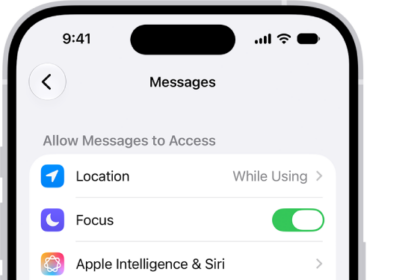
- Start the Settings app on your iPhone.
- Tap Apps, then tap News.
- Turn on Background App Refresh.
- Tap Automatic Downloads, turn on Allow Automatic Downloads, and turn on any of the following:
- Recent Stories: Downloads the latest stories in the Today feed, Best of News+ feed, Sports feed, Shared with You, and History.
- Saved Stories: Downloads the latest stories in your Saved Stories list.
- Magazine Issues: Downloads the latest issues of magazines you follow.
- Food & Recipes: Downloads the Food feed, the Recipe Catalog, and Saved Recipes.
- Puzzles: Downloads the Puzzles feed, the feed for each puzzle type, and the puzzles in these feeds.
- Audio Stories: Downloads audio stories in the Today feed and Audio tab.
Note: Turn on Optimize Storage to download smaller versions of images in stories and recipes.
As long as your iPhone has enough storage space and is connected to Wi-Fi and power, it downloads News content. On a cellular connection without Wi-Fi, only Top Stories in the Today feed download automatically.
Use News in Offline Mode
If you don’t have a Wi-Fi or cellular connection, No Internet Connection appears at the top of the screen and any content in the app that isn’t downloaded is dimmed. To switch from the currently loaded version of each feed to the downloaded version, tap Show Stories Downloaded for Offline Mode. When you reconnect to the internet, tap Check for New Stories at the top of the screen. All feeds in the app are refreshed and display the latest content.