You can use Messages on your iPhone to establish a SharePlay session.
To use SharePlay in Messages on your iPhone, you and your recipients must be using iMessage. Shared playback controls keep everyone in sync.
How to Use SharePlay in Messages on your iPhone
- Locate the content you want to share in the appropriate app, such as a song in the Music app.
- Do one of the following:
- Tap the Share button, then tap SharePlay.
- Tap the More button at the top right, tap the Share button, then tap SharePlay.
- Tap the More button next to the content, then tap SharePlay.
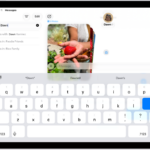
- In the To field, enter the contacts you want to share with, and then tap Messages.
- Tap Start or Play to begin using SharePlay.
To begin viewing or listening, recipients tap the content’s title at the top of the conversation, then tap Open. For everyone who has access to the content, the video starts playing at the same time.
Note: If the shared content requires a subscription, the service may ask those who don’t have access to subscribe, make a transaction, or sign up for a free trial, if available.
When you select content to share and tap the Play button, you can also select Play for Everyone (if it appears) to begin it for everyone in the conversation. (Others on the thread may have to tap Join SharePlay to see the video.)
Each person in the conversation can use the playback controls to play, pause, rewind, or fast-forward for everyone, but settings like closed-captioning and volume are controlled separately by each person.
Use Messages when you want no interruptions to the sound of the movie, show, song, or podcast, or tap the FaceTime button to switch to FaceTime when you want to see and hear other people as you chat.
See also: How to send message to group on iPhone