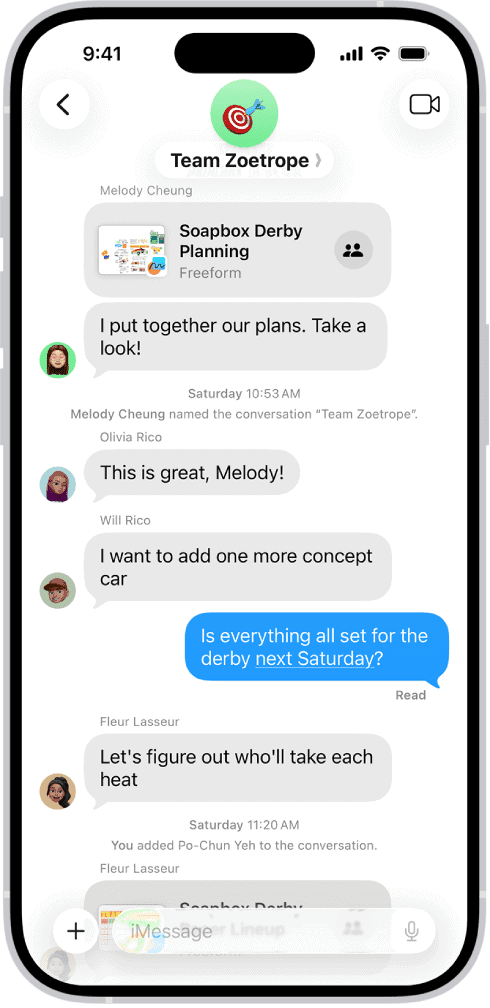
If one-on-one conversations in Messages are good, conversing with a group of people is even better.
Types of group text messages on iPhone
The Messages app on your iPhone automatically chooses the type of message to send based on settings, network connection, and carrier plan. For example:
- If all of the recipients are using Apple devices and iMessage is turned on, then the group message is sent as an iMessage.
- If any of the recipients aren’t using iMessage, then the message is sent as an MMS or SMS. In iOS 18 or newer, you can also send RCS messages.
Group iMessage
These messages appear in blue text bubbles. They go through Apple instead of your carrier, and are protected by end-to-end encryption. In a group iMessage, everyone can:
- Send and receive photos, videos, and audio messages
- See all responses from the group
- Send and receive message effects, like sketches, animations, bubble effects, and more
- Share their location with the group
- Collaborate on shared projects
- Give the group a name, add or remove people from the group, mute notifications, or leave the group
Group MMS
These messages appear in green text bubbles and go through your carrier instead of Apple. In a group MMS, everyone can:
- Send and receive photos and videos
- See all responses from the group
- Mute notifications
In a group MMS in iOS 17 or later, iMessage users can:
- Send tapbacks
- Use Messages effects
- Edit messages
- Reply to specific messages
Group SMS
These messages also appear in green text bubbles and go through your carrier. Group SMS messages don’t support multimedia attachments, like photos or videos. All responses in a group SMS are sent as individual text messages and the recipients can’t see the other responses from the group.
Group RCS
In iOS 18 or newer, RCS messages appear in green text bubbles and go through your carrier. In a group RCS message, everyone can send texts, high resolution photos and videos, links, and more. RCS also supports delivery and read receipts and typing indicators.
To turn RCS on or off, go to Settings > Apps > Messages > RCS Messaging.
Send a group text message on iPhone
To start a group conversation on your iPhone, just add two or more people in the To field. Other than that, group conversations work the same way as individual messages.
Here’s how to send a group text message on your iPhone:
- Go to the Messages app on your iPhone.
- Tap the Compose button.
- Enter the names or tap the Add button to add people from your contacts.
- Type your message, then tap the Send button
To run a poll in a group message, tap the add icon (+), and then tap Polls. A grid appears with three choices, provisionally titled Choice 1, Choice 2, and (three guesses) Choice 3. Type your poll items over these choices, continuing if necessary with the Choice 4 placeholder that appears when you complete Choice 3. Once you’ve finished your poll items, tap the Add Comment or Send prompt and type any explanatory text. Then tap the send icon. Each recipient sees the poll choices as radio buttons and can tap their choice.
To split a bill among the group in the chat, tap the add icon (+), and then tap Apple Cash on the menu. Use the + and – buttons to adjust the amount, or tap Show Keypad and key in the amount. Then tap the Request button.
Tap the circular pictures of the participants at the top of any group conversation and then tap the info icon (an i -in-a-circle). This brings up the details screen, where you can enter a name for this group chat, initiate a phone call or FaceTime chat with any participant, share your location, and more. When you’re in a lively conversation with a handful of friends and need to silence its all-too-frequent notifications, set the Hide Alerts switch on (green) to suppress alerts until you’re ready to participate fully again.
To remove yourself completely from a group chat that you didn’t start, tap Leave This Conversation.