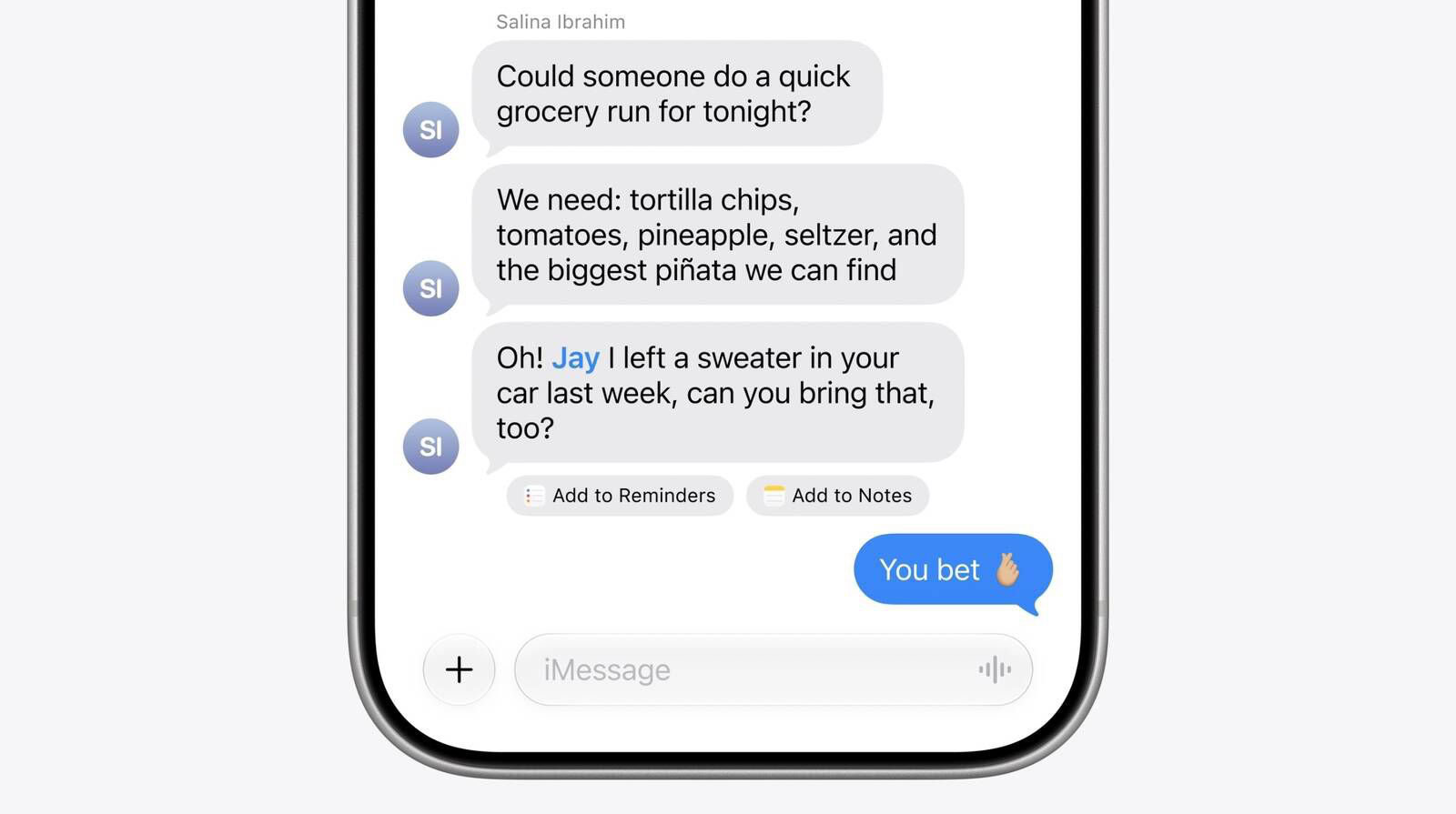
In this post, we will talk about the privacy implications of using iMessage read receipts. We’ll also show you how to turn read receipts on or off for all your messages or just for specific contacts on your iPhone, iPad, and Mac.
One of the features you can take advantage of in iMessage is sending and receiving read receipts, which are a type of confirmation that tells you when the recipient has read the message you’ve sent to them.
Should you enable or disable read receipts?
There are a few downsides to using read receipts on iMessage.
First, it can make you feel pressured to respond. If you’ve read a message but can’t respond immediately, the sender may assume that you’re ignoring them, which can cause unnecessary pressure on you.
Just as important, some will see read receipts as a breach of their privacy, as having them turned on may allow others to track when you’re online, and when you’re not.
In the end, the decision to enable or disable read receipts in iMessage depends on your personal preference and circumstances. If privacy is a concern, disabling read receipts can be a better choice. However, if you want to ensure message delivery and provide confirmation to the sender, enabling read receipts can be useful.
Turn iMessage read receipts on or off for all contacts
On iPhone and iPad
- Open the Settings app.
- Tap Apps, then tap Messages.
- Turn on/off the switch for Send Read Receipts.
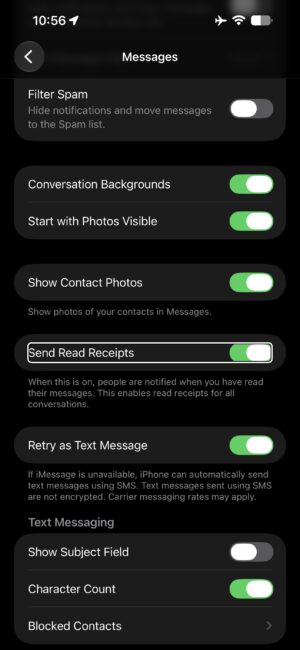
Once enabled, everyone that messages you will see when you’ve read their message. On the contrary, if you disable read receipts, they’ll just see the word "Delivered" instead.
On Mac
- Launch the Messages app on your Mac from the Dock, Applications folder, or Spotlight.
- Once open, choose Messages > Settings from the menu bar.
- Click iMessage, then click Settings.
- Select/deselect Send read receipts.
Once enabled, the person who messages you will be able to see you’ve read their message. If disabled, it will show "Delivered" for them instead.
Enable or disable read receipts for specific contacts
The Messages app offers finer controls and also lets you turn read receipts on and off on a per-contact basis. This way, you can keep read receipts on for all contacts but turn them off for a selected few, and vice versa.
On iPhone and iPad
- Open the Messages app and go inside an iMessage conversation. It should not be an SMS or iMessage group conversation.
- Tap the contact icon at the top of the conversation.
- Turn on/off Send Read Receipts for this person.
- Finally, tap Done to return to the conversation.
On Mac
- Open the Messages app on your Mac and select a conversation with the contact you want.
- Click the contact or icon at the top of the conversation.
- Select Send Read Receipts.
But I want to see when others read MY messages
Unfortunately, because iMessage read receipts are a matter of privacy, Apple only lets the receiver decide whether or not to share read receipts. Not all users are comfortable with people knowing when they’ve read someone’s message, and as a result, some people leave the feature turned off.
If you want to see when someone else reads your iMessages, you’re virtually powerless in that respect because there’s no setting to do so, but you can still ask the person if they’d be willing to turn on read receipts (and show them this tutorial so they know how to) so you can see when they’ve at least read your message, especially if they’re a busy person and often can’t reply on time. The worst they can do is say no and that they aren’t interested.
More details about iMessage read receipts
The Send Read Receipts settings above apply to iMessage in the Messages app. SMS messages do not come with read receipts because it’s an older technology that doesn’t support this feature, although RCS messaging does support them. iMessage bubbles appear blue in the Messages app, while SMS, MMS, and RCS bubbles appear green, and it’s important to be able to tell the difference.
Read receipts are a nifty thing to have, but you need to weigh whether or not they’ll do more harm than good or will actually be a useful tool. I personally use read receipts because I couldn’t care less what people think when they see I’ve read their messages, but others may disagree with my standpoint and choose to keep the feature disabled.
Other ways to see a message without sending the read receipt
Imagine you have read receipts on, but do not want to let the other person know you have read their message.
In that case, you can see the message on your Lock Screen. But do not long-press the message notification, as it will open the reply screen and send the read receipt. Obviously, this works well only if the received message is short and visible entirely in the notification bubble.
Secondly, you can open the Messages app and touch and hold an unread conversation to peek at the new message. After that, tap outside the message box to close it. This trick will also not send the read receipt to the sender.