On iPhone, in the Reminders app, you can easily filter items across all your lists using Smart Lists. You can create custom Smart Lists to automatically include items filtered by tags, dates, times, locations, flags, and priority, and you can choose more than one tag and combine them with other filters.
There are default Smart Lists, too, and you can convert a list to a Smart List.
Here’s how to use Smart Lists in Reminders on iPhone.
Note: Updated reminders in iCloud give you all the Reminders features described in this guide. Some aren’t available when using other accounts.
Automatically organize items using the default Smart Lists
- Start the Reminders app on your iPhone.
- Tap the More button and then tap Edit Lists.
- Turn on or off the following Smart Lists:
- Today: Items scheduled for today and overdue items
- Scheduled: Items scheduled by date or time
- All: All items across all your lists
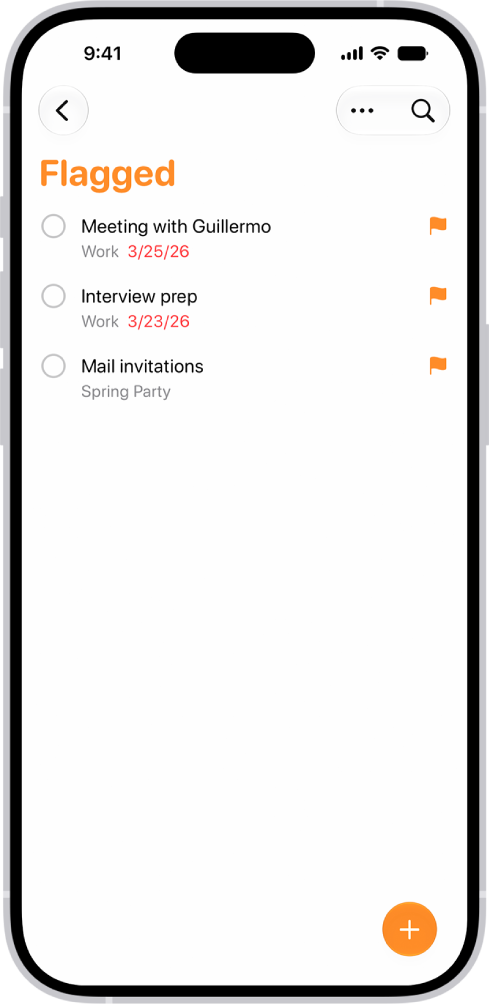
- Flagged: Items with a flag
- Completed: Items with a checkmark
- Assigned to Me: Items assigned to you in shared lists
- Groceries: Grocery items
- Siri Suggestions: Suggested items detected in Mail
Make a custom Smart List
- Start the Reminders app on your iPhone.
- Tap the Add List button.
- Enter a name for the list, tap List Type, and then choose Smart List.
- Tap Edit Filters, choose one or more filters, and choose to include items matching any or all of the selected filters. You can filter by tags, dates, locations, and more. Tap the Done button.
- Choose a color and symbol for the list (optional).
- Tap the Done button.
Convert a list to a Smart List
Converting a list moves its items to the top level of the default list and tags them with the name of the Smart List.
Note: You can’t convert a shared list.
- Start the Reminders app on your iPhone.
- View the list you want to convert.
- Tap the More button, tap Show List Info and scroll to the bottom. Tap Convert to Smart List.