- If YouTube is not working on your iPad, there are several ways to troubleshoot the problem to get it up and running.
- Start by making sure you have a reliable internet connection, and check YouTube’s status at DownDetector.
- You can also close and restart the YouTube app, update the app, and assess your overall internet speed.
There’s no question that YouTube is among the most pervasive video streaming services today; while Netflix and Hulu might have more commercial cachet, almost everything on YouTube is free. And though YouTube claims over 2.7 billion monthly active users worldwide, there are times when a platform even that large and relied upon experiences problems on an iPad.
It’s incredibly frustrating when YouTube isn’t working on your iPad, especially if you’re trying to show a funny video to your friend or listen to a music video at the gym. In this article, I’ll explain why your iPad won’t play YouTube videos and explain how to fix the problem for good.
How to troubleshoot when YouTube is not working on iPad
Like any app that may not be working, it can be hard to know exactly what the problem is — there might be a number of issues with YouTube, your internet connection, or your iPad. Work through your YouTube issue by trying each of the troubleshooting tips below until you uncover the problem.
1. See if you have a reliable internet connection
Despite myriad problems that might keep you from successfully playing YouTube videos on your iPad, the most likely one is also the easiest to troubleshoot: Do you have a reliable internet connection? Check the status icons at the top of your iPad’s screen to see if you have Wi-Fi or a cellular connection. If in doubt, open the Settings app on your iPad, tap Wi-Fi and turn the Wi-Fi off, then on again.
If your iPad still won’t play YouTube videos, try connecting to a different Wi-Fi network if you can. If YouTube is not working on one Wi-Fi network but does play on another, then there’s probably a problem with the malfunctioning Wi-Fi network, not your iPad. Check out our article on what to do when your iPad won’t connect to Wi-Fi for more tips!
It’s also a good idea to try using Cellular Data instead of Wi-Fi, if you are using Wi-Fi plus cellular iPad model. If YouTube works with cellular data, but not on Wi-Fi, you’ll know there’s a problem with your Wi-Fi network, not your iPad.
Tip: If the video lags and stutters or the audio is out of sync, your connection might not be fast enough. You can run an online speed test like Google’s Internet Speed Test to see how fast your connection is.
YouTube says your connection needs to be at least 1.1Mbps for a standard-definition 480p video, but the faster the better, and a high-resolution 1080p video will need at least 5Mbps.
2. Close the YouTube app and then restart it
If you have a working internet connection but your iPad isn’t playing YouTube videos, it’s possible the YouTube app is misbehaving. The remedy? Force the app to close and then restart it. This will give the app a “do-over” in case something went wrong when it was opened the first time.
To close your YouTube app, start by double-pressing the Home button. This will open the App Switcher, which allows you to see every app currently open on your iPad. Swipe up your YouTube app off the screen to close it.
If your iPad doesn’t have a Home button, don’t worry! You can still access the app switcher. Just open up the YouTube app (or any other app). Once it’s open, swipe up from the bottom of your screen and you’re all set! You should be able to toggle through and close your apps the same way you would on an older iPad.
3. Restart Your iPad
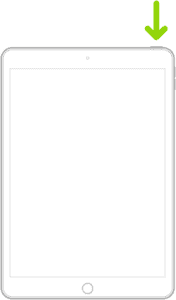
Try turning your iPad off and back on again. Rebooting your iPad gives it a fresh start and has the potential to fix minor software issues, which could be the reason why your iPad won’t play YouTube videos.
To turn off your iPad, go to Settings > General > Shut Down. A red power icon and “Slide to power off” will appear on the display of your iPad. Swipe the red power icon from left to right to turn off your iPad. Wait about half a minute before turning your iPad back on, just to make sure it has the opportunity to completely shut down.
4. Check For Updates: Is There An Update Available For The YouTube App?
If you rebooted your iPad but YouTube still isn’t working, check to make sure you’ve updated your YouTube app to its most recent version. Developers update their apps all the time to add new features and patch up software bugs.
To see if there’s an update available for your YouTube app, open the App Store. Next, tap the Account icon, and scroll down to the Available Updates section. If an update is available, tap the blue Update button next to the app.
5. Check to see if YouTube is down
YouTube is a relatively dependable video streaming service, but the platform has occasional outages. If you know your own internet access is solid, then it might be a good idea to see if the service is offline before you waste your time trying other troubleshooting tips. The easiest way to check is to go to YouTube’s status page at DownDetector, or just search for "Is YouTube down" in a Google search (DownDetector is typically at the top of the search results). If the site is down, wait a while and try again later.
6. Uninstall And Reinstall Your YouTube App
If there’s a more complicated software issue with your preferred YouTube app, you may need to delete and reinstall the app. When you uninstall the app, all of the software and settings from that app will be erased from your iPad. When the app is reinstalled, it will be as if you downloaded it for the first time.
Don’t worry — your YouTube account will not be deleted when you uninstall the app. If you’re using a paid YouTube app, you’ll be able to reinstall it for free as long as you are logged into the same Apple account you used when you bought the app originally.
Press and hold on the icon of your YouTube app on the Home screen or in the app switcher. Keep pressing until the quick action menu opens. From there, tap Remove App -> Delete App -> Delete.
To reinstall the app, go to the App Store. Tap the Search tab in the lower right-hand corner of the screen, then type in the name of your preferred YouTube app. Tap Get, then Install next to your preferred YouTube app to reinstall it on your iPad.
If you reinstall the app and YouTube is still not working, move onto the next step!
7. Turn Off Your VPN
Some of users on Reddit have said that they were able to fix the problem on their iPad by turning off their virtual private network. While VPNs are great for protecting your personal identity online, they can cause internet connectivity issues when configured incorrectly. It’s also possible that your VPN is making it appear you’re connecting to the internet from a country with restrictions on YouTube.
Open Settings and tap VPN. Turn off the switch next to Status to turn off your VPN. You’ll know your VPN is off when the Status says Not Connected.
If YouTube begins to work after turning off your VPN, then there’s an issue with your VPN, not your iPad or YouTube. You may contact the developer of the VPN to let them know about the issue.
8. Try it somewhere else
One of the best ways to troubleshoot a problem that could have a lot of possible causes is to try it on another device. If you have another iPad or an iPhone, check to see if YouTube has the same glitch on that device. If you don’t have easy access to other devices, you can try running YouTube in a browser.
YouTube Is Working On Your iPad!
YouTube is working on your iPad and you’re able to watch your favorite videos once again. Make sure to share this article on social media so your friends and family know what to do when their iPad won’t play YouTube videos. Thanks for reading this article, and leave a comment down below if you’d like to ask us any other questions about your iPad!