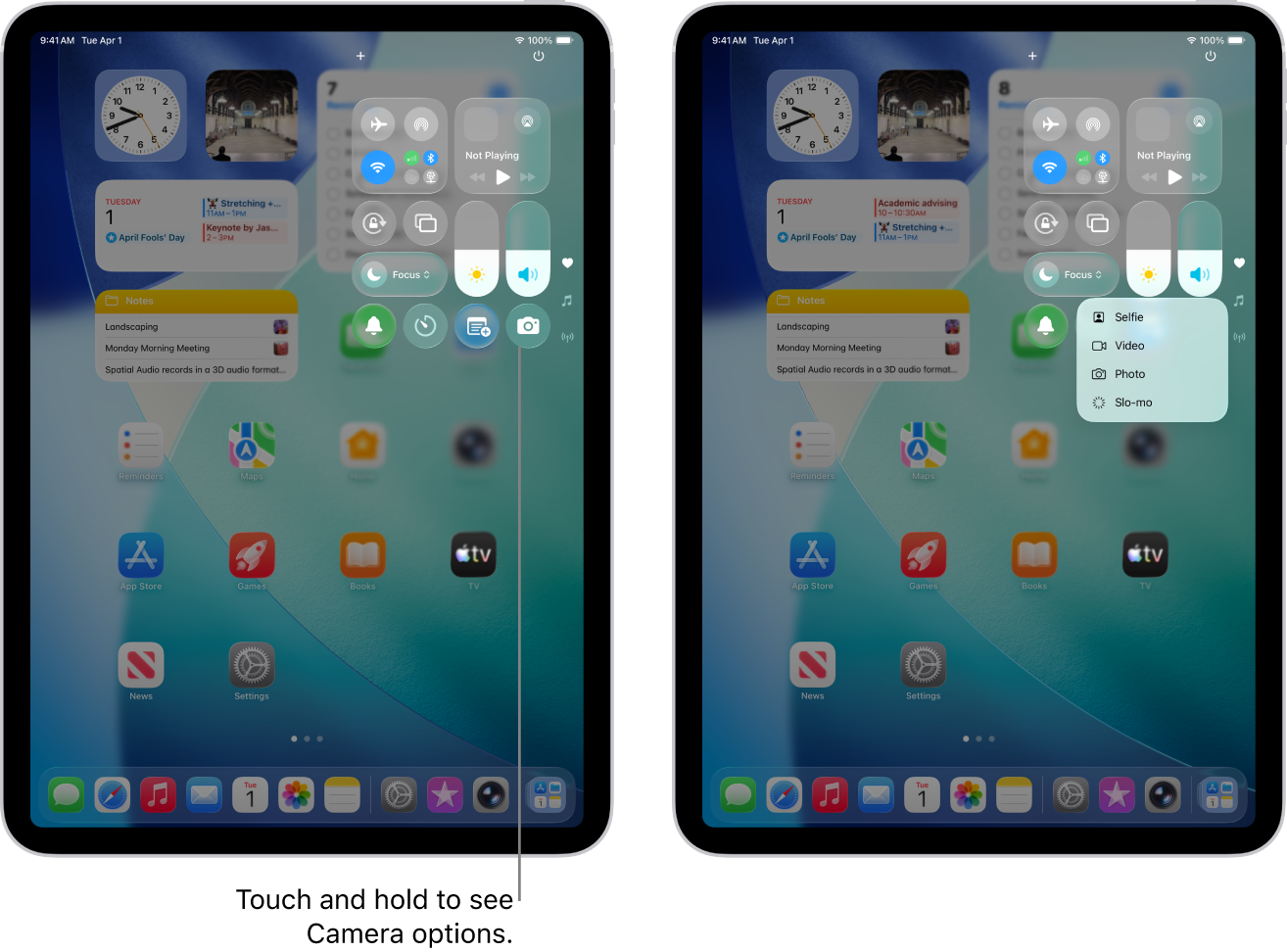
During its 2025 Worldwide Developers Conference (WWDC25), Apple unveiled a new Control Center for iPadOS 26. It’s crafted with Liquid Glass, a translucent material that reflects and refracts its surroundings, and Control Center is one of the places it really shows up. Control Center on iPad gives you instant access to useful controls—including Airplane Mode, Do Not Disturb, volume, screen brightness, and more. In this article, we’ll break down what’s new with the iPad Control Center in iPadOS 26 so you can find your way around.
What Are The New Features Of The iPadOS 26 Control Center?
The biggest change is the look. Liquid Glass refracts and reflects content in real time, so the glass catches the wallpaper and whatever else is behind each control. It’s striking on iPad — the bigger screen really shows it off.
Control Center is now spread across multiple pages instead of one. To jump to a specific group of controls, swipe down through the icons on the right edge of the screen. Swipe up through the icons to go back to the first group.
There’s more you can customize now too. You can rearrange, add, or remove controls, and resize most of them — make the Flashlight huge, shrink Wi-Fi down. Apple offers a much bigger library of controls to choose from, and third-party apps can add their own.
There’s also a new power button at the top right of Control Center. Touch and hold it, then drag the slider to power off the iPad.
One thing that hasn’t changed: you can still toggle Cellular Data on or off from Control Center (on cellular iPad models) — something that used to only be possible in Settings or by asking Siri.
What’s Staying The Same In New iPad Control Center?
The iPadOS 26 Control Center has all the same functionality of older versions of Control Center. The new iPad Control Center still gives you the ability to turn Wi-Fi, Bluetooth, Airplane Mode, Do Not Disturb, Orientation Lock, and Screen Mirroring off or on. You also have easy access to the iPad flashlight (on iPad models with a rear camera flash), timer, calculator, and camera.
You’ll also be able to connect your iPad to an Apple TV or an AirPlay 2-compatible smart TV by tapping the Screen Mirroring option.
iPad Control Center Customization In iPadOS 26
You can customize Control Center on your iPad to include the features you want and remove the ones you don’t. For example, if you don’t need access to the Calculator app, but you do want easy access to an Apple TV remote, you can change the settings of Control Center!
How To Customize Control Center On Your iPad
- Open Control Center by swiping down from the top-right edge of the screen.
- Tap the plus (+) button at the top left of Control Center to begin editing, or touch and hold an empty spot.
- To add a control, tap Add a Control, then choose the one you want.
- To remove a control, tap the minus (−) sign at the upper left of the control.
- To rearrange controls, drag a control to a new position.
- To resize a control, drag the handle at the lower-right edge of the control.
Using Touch And Hold In The New iPad Control Center
You may have noticed that the ability to turn Night Shift and AirDrop on or off are missing in the default layout of Control Center in iPadOS 26. However, you can still access these features!
To toggle AirDrop settings, touch and hold the box with the Airplane Mode, Cellular Data, Wi-Fi, and Bluetooth icons. This will open a new menu which allows you to adjust AirDrop settings as well as turn Personal Hotspot on or off.
To turn Night Shift on or off in the new iPad Control Center, touch and hold the vertical brightness slider. Then, tap the Night Shift icon at the bottom of the slider to turn it on or off.
The New iPad Control Center: Excited Yet?
The new iPad Control Center is one of many changes in iPadOS 26, and there’s plenty more to check out in Apple’s new Liquid Glass design. We’re very excited and we hope you’ll leave us a comment down below so you can tell us what you’re most excited about.
Thanks for reading,