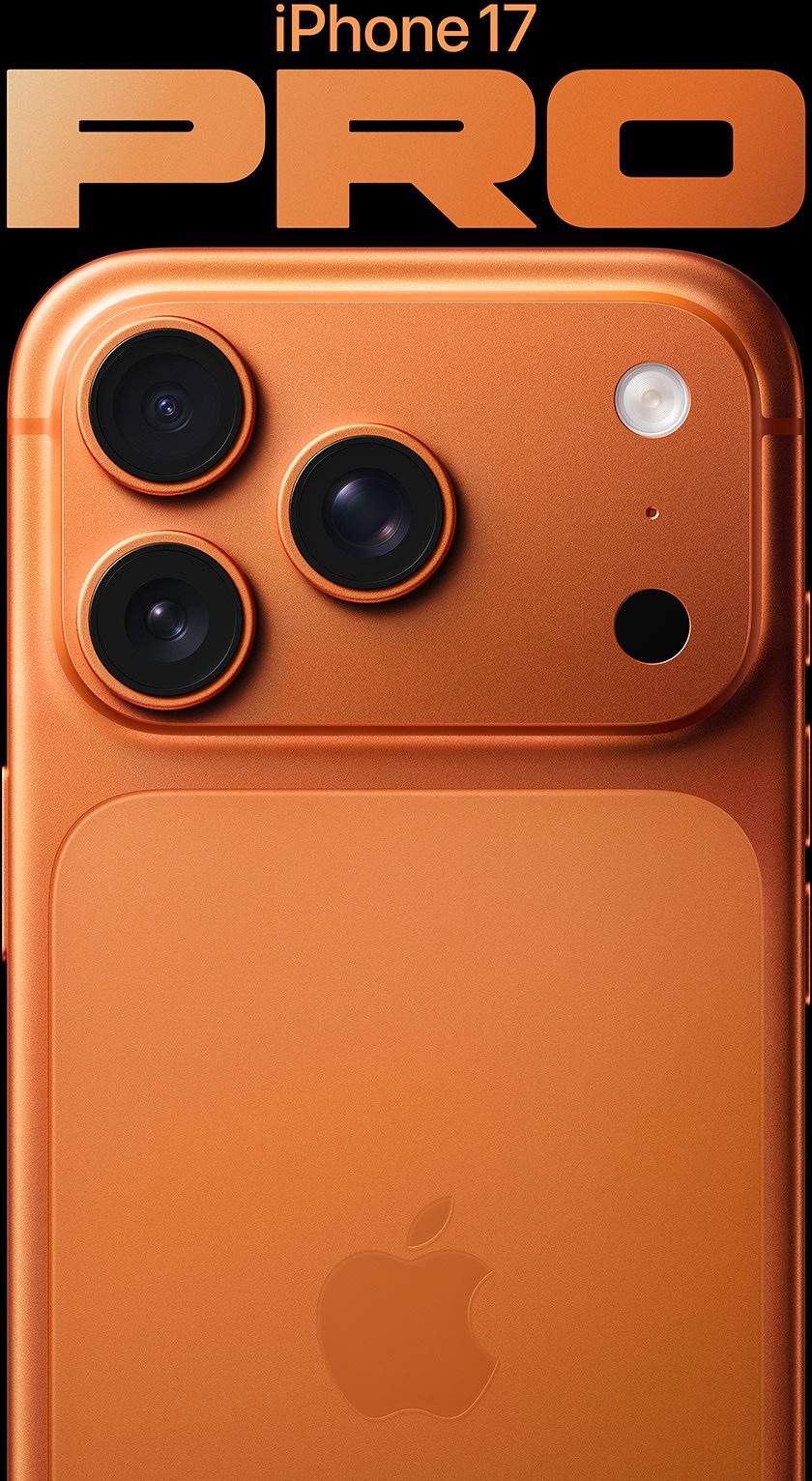
If your iPhone 17 Pro or iPhone 17 Pro Max is not receiving phone calls, the problem is fixable.
Usually some quick troubleshooting will do the trick. It works for most of us – a quick software update and you’ll be yammering away like there wasn’t a problem in the first place.
We spent some time searching and narrowing down the issue, so we thought we’d compile this quick and easy troubleshooting guide for what to do if an iPhone 17 Pro can’t receive calls. If it works for you, feel free to pay it forward – send it along to someone else in need and collect your good karma. And so, without further ado, here’s what to do if your iPhone 17 Pro or iPhone 17 Pro Max isn’t receiving phone calls.
1. Check Your Mobile Plan Status
Let’s start with a simple fix. First, check that you have an active mobile plan. If your plan has been suspended for more than three to four weeks, your iPhone 17 Pro won’t receive incoming calls because most carriers only allow expired accounts to receive calls for a limited number of days.
If this is the case, simply reload and reactivate your mobile plan, and your iPhone 17 Pro will ring when you get calls again.
2. Disable Airplane Mode and Focus
This worked for us. Turning off Airplane Mode and Focus mode is necessary before receiving calls.
If Airplane Mode is activated, your iPhone 17 Pro can’t receive any kind of communications signal. It also means you’ll have to switch it off if you want to receive calls. Open the Settings app, and if you see that Airplane Mode is on, tap to turn it off. If Airplane mode is already off, turn it on, wait five seconds, then turn it back off.
Focus is another feature that affects calls. It helps you control incoming calls, texts, and app notifications so that you can avoid distractions while working or resting. Unless you customize its settings, Focus modes such as Do Not Disturb and Sleep will disable incoming calls by default.
To check if this is the cause of your problem, open the Control Center and see if you have one of your Focus modes enabled. If yes, simply tap the mode’s icon to turn it off. Now, you should start hearing the ringtone when you get any calls.
3. Connect Your iPhone to the Internet
This fix applies if you intend to receive calls on your iPhone 17 Pro through FaceTime and third-party apps like WhatsApp and Messenger. For these apps, calls can’t come through if your iPhone 17 Pro is not connected to the internet.
So, all you need to do is enable mobile data or connect your iPhone to a Wi-Fi network to receive calls on such apps again. To turn on mobile data, go to Settings > Cellular and toggle on Cellular Data. To connect to a Wi-Fi network, go to Settings > Wi-Fi and select a Wi-Fi network from the list.
4. Check Your Phone Signal
If you’re at a remote outdoor location, or if it’s raining or snowing in your area, you may experience poor cell reception. Check the cell signal icon in your iPhone’s status bar to find out if this is why your iPhone 17 Pro is not receiving calls.
If you’re expecting a call at a particular time but notice that the icon only displays one or two filled bars, you can try going outdoors (if you’re in an indoor building) to obtain a stronger signal.
5. Disable Screen Incoming Calls setting
Call screening feature helps you to eliminate interruptions by gathering information from the caller and giving users the details they need to decide if they want to pick up or ignore the call. If Screen Incoming Callsis on, any caller who is not in the list of your contacts will be required to provide their name and reason for calling before iPhone rings. Turning this setting off can help avoid missing important calls..
So, if you are not receiving calls on your iPhone 17 Pro, you can try disabling the feature to solve the problem.
- Go to Settings > Apps > Phone
- Under Screen Unknown Callers section, select Never.
6. Disable Unknown Callers setting
- Go to Settings > Apps > Phone. If Unknown Callers is on, any call from a number not in your contacts will be silenced and moved to Unknown Callers list.
- Turning off Unknown Callers setting can fix iPhone 17 Pro not receiving calls issue.
7. Disable Call Forwarding setting
- Still in Settings > Apps > Phone, check if Call Forwardingis on.
- Even if it appears to be off, some carriers can override this setting—so it’s worth double-checking with your carrier.
8. Check if You’ve Blocked the Caller
If you’re expecting a call from a particular number, but it never comes (even when the other person tells you they’re trying to phone), you may want to check if you’ve previously blocked it. Blocking a number on your iPhone 17 Pro prevents that person from calling you, so if you want to receive calls from the number, it’s time to unblock. Here’s how to check your block list and unblock them.
Go to Settings > Apps > Phone > Blocked Contacts. In the list of blocked contacts, swipe left on the desired entry and tap Unblock. Alternatively, tap Edit, then hit the red minus (–) button and tap Unblock.
9. Restart Your iPhone 17 Pro
If your iPhone 17 Pro doesn’t receive incoming calls even after trying the above solutions, try restarting your device. A simple reboot often clears up temporary glitches.
- Hold the side button and either volume button until the power slider appears.
- Slide to power off, wait a few seconds, then press and hold the side button again to turn it back on.
10. Review Third-Party Call Blockers
Suppose you’re waiting for a call from your bank. Any third-party call identification and spam-blocking apps you have installed may think the customer service number is a robocall or spam and thus block it.
To fix this, open any of those apps on your iPhone and whitelist any numbers you keep missing calls from. You may also want to turn off all call blocking from inside the app or by going to Settings > Apps > Phone > Call Blocking & Identification. Then, turn off any call identification apps you see here.
11. Update Your iPhone 17 Pro and Other Third-Party Apps
By this point, one or more of the above solutions should have fixed your iPhone 17 Pro not receiving calls issue. But in case you’re still having problems, make sure your phone is running on the latest iOS. Go to Settings > General > Software Update to see if an update is available for your device.
You should also update apps like WhatsApp, Messenger, or Zoom if you intend to receive calls through them. It may be a bug that’s been causing call reception issues, so updating the respective iPhone app might resolve the problem.
12. Remove and reinsert SIM card
If your iPhone 17 Pro has a physical SIM card, try removing your SIM card and reinserting it again. Doing this effectively de- and reactivates the card, hopefully removing any issues that were preventing your iPhone 17 Pro from receiving calls.
Locate the SIM card tray on your iPhone. Open the SIM card tray by pressing a SIM card ejector tool, straightened-out paperclip, or an earring backing into the hole in the SIM tray. Push the tray back in to reseat the SIM card.
13. Reset Network Settings
The last method you can try is to reset the network settings on your iPhone. Go to Settings > General > Transfer or Reset iPhone > Reset > Reset Network Settings. This will erase all current saved settings, including Wi-Fi passwords, preferred networks, and VPN and APN settings that you’ve used before.
Receive Calls on Your iPhone 17 Pro Again
When you can’t receive calls at all on your iPhone 17 Pro, it’s usually due to two main reasons. One is phone signal issues, and the other is that there’s a setting on your iPhone that’s blocking the call from coming through.
By applying the fixes above, you should be able to receive calls normally again. However, If you’ve tried all of the above steps and you still can’t receive calls on your iPhone 17 Pro, you you should contact your mobile carrier service provider or Apple Support for further assistance.