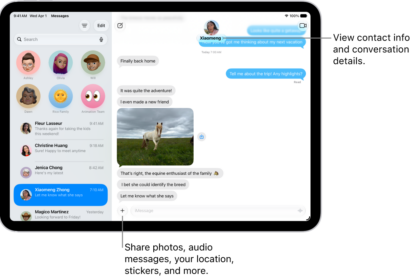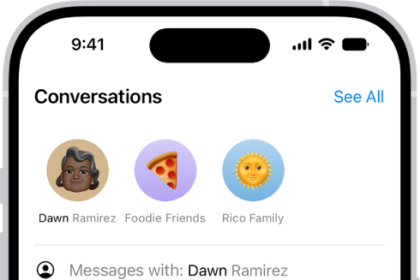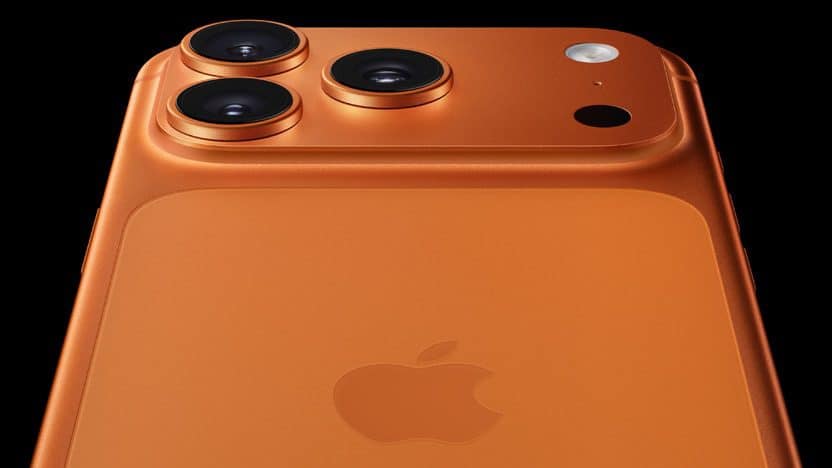
If your iPhone 17 Pro or iPhone 17 Pro Max isn’t receiving text messages, it can feel like a big problem. After all, you could be missing out on something important. With most people communicating by text nowadays, not getting a text can be a big deal. If you’ve missed out on a text before, you know exactly what this feels like.
There are many reasons why your iPhone 17 Pro or iPhone 17 Pro Max might not be receiving text messages—from incorrect settings to poor internet connection. So, try the troubleshooting steps below, and you’ll receive texts again in no time!
1. Make Sure Messaging Is Enabled
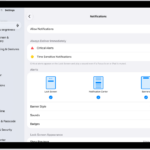
If you’ve just set up your iPhone 17 Pro or completed an iOS update, there is a chance iMessage isn’t enabled. If not enabled, you won’t receive texts from other iPhones. To turn this on, head to Settings > Apps > Messages > iMessage.
Below iMessage, tap Send & Receive. There, you’ll see a list of numbers and email addresses under the heading “You can receive iMessages to and reply from.” You can then select which ones you want to use with iMessage. Tap to go back to main Messages settings. Make sure both MMS Messaging and Group Messaging are enabled. If you scroll down, you will see the options for these.
Sometimes, certain emojis will be sent as an MMS message. If you have this off, you won’t receive the text. There are also cases where someone might tag another person in the text and make it a group text. If this option was off, you wouldn’t have received that text either.
If you’re receiving messages from other iPhones but not Android phones, this could be the reason. If that still doesn’t help, but you are receiving iMessage texts, you can learn more about what to do if you’re not receiving texts from Android.
2. Edit Send & Receive Settings
If your iPhone 17 Pro isn’t receiving picture messages from other iOS devices, or if you’re having an issue with iMessage, there is a simple solution. The solution is to edit your Send & Receive settings to include your email.
To do this, open Settings, scroll down and tap Apps. Scroll down again and tap Messages. Tap Send & Receive, and select your Apple account email address. This will allow you to send or receive messages over the internet using this email address.
Some people might be sending you messages to your email address unknowingly, so changing this particular setting will make it possible to receive these messages.
3. Make Sure You Have Cellular or Wi-Fi for iMessage
If you are waiting for an iMessage from another iPhone user and aren’t getting it on your iPhone 17 Pro, you could have a bad internet connection. iMessage requires Wi-Fi or cellular data to work.
If you have cellular data turned off or aren’t connected to Wi-Fi, you won’t receive iMessage texts on your iPhone 17 Pro. Also, if you are getting texts from some people and not others, you might be having issues with iMessage in general.
To solve this issue, reconnect to Wi-Fi or cellular data. And if you don’t have a good connection, you can try the next step.
4. Turn Off Screen Unknown senders
iPhone 17 Pro users can screen messages from unknown senders. While this is off by default, you may have accidentally turned it on. If that’s the case, you could be missing text messages from numbers you don’t have saved on your phone.
To resolve this, turn off Screen Unknown Senders on your device. You can do this by heading to Settings > Apps > Messages and disabling Screen Unknown Senders. You should start receiving text messages again if it was enabled all this time.
Once you turn it off, head to the Messages app to find any unread messages that the message screening feature hid. Messages from unknown senders are not deleted. Instead, they get stored in another folder. Once you turn off Screen Unknown Senders, you’ll see them in the Messages app.
5. Check for a Carrier Settings Update
Not many people know this, but your carrier settings sometimes need updating. This doesn’t happen often, but when it does, it means that updating it will fix many carrier problems. This includes not getting SMS on your iPhone 17 Pro.
Thankfully, updating your carrier settings is easy. Head to Settings > General > About to view your carrier settings. Wait for a few seconds; if your carrier requests an update, you’ll get a pop-up to install a carrier settings update.
It’s important to note that you should be careful with your carrier settings. This page contains information that should be kept private to avoid it getting into the wrong hands. Only share this information with your carrier or Apple.
6. Reset Your Network Settings
Sometimes, third-party apps, updates, and bugs can cause your network settings to malfunction. If this happens, you might not receive iMessages or text messages on your iPhone 17 Pro.
Before proceeding to more time-consuming fixes, you should try resetting your network settings. Some users reported that this does fix many issues related to your iPhone 17 Pro not receiving texts.
To do this, head to Settings > General > Transfer or Reset iPhone > Reset > Reset Network Settings.
After resetting your network settings, get someone to send you another text message. If you still can’t receive it, you can always try resetting your iPhone entirely. However, that is time-consuming and might not work.
7. Make Sure Your iPhone 17 Pro Is Updated
While the previous solutions usually fix an iPhone 17 Pro when it’s not receiving messages, there are some instances where there might be a problem with the iOS. To fix this, you would just need to update your iPhone. This may be the solution if you’ve avoided updating for a while or have automatic updates off.
To check for an update or confirm that you’re on the latest iOS version available, head to Settings > General > Software Update. If you have an available update, you can download and install it from here.
8. Contact Your Carrier
If you tried the above fixes and still aren’t receiving text messages on your iPhone 17 Pro, it’s time to reach out to your carrier. After all, there are many other ways your carrier can help you. For example, there could be a cell tower outage near you that they can inform you of, or you could have an issue with your account.
If you pay your carrier for service and aren’t receiving text messages on your iPhone 17 Pro, the carrier is responsible for restoring your text messaging. The carrier can verify your plan, check for outages, and try resetting your account if necessary. If you are using a physical SIM card, you may also want to consider trying a new SIM card and see if that helps.
When calling your carrier, just let them know you aren’t receiving text messages. If the carrier can’t help you, consider switching to a different network provider unless you have a carrier-locked phone.
iPhone 17 Pro Not Receiving Texts? There Are Things You Can Do
You could miss important events or updates if you’re not receiving text messages on your iPhone 17 Pro. This can be difficult for anybody. Because of this, you’ll want to get this fixed as soon as possible. After all, you might have already missed some important messages and don’t want to miss them anymore.
Luckily, there are several things you can try before contacting your carrier. Sometimes, a simple setting can change whether you receive messages. There are also cases when resetting your network settings fixes your carrier issues, so you don’t need to call and wait.
No matter what the issue with your iPhone 17 Pro is, you have several steps to try, and hopefully, you can get it fixed and start receiving messages again.