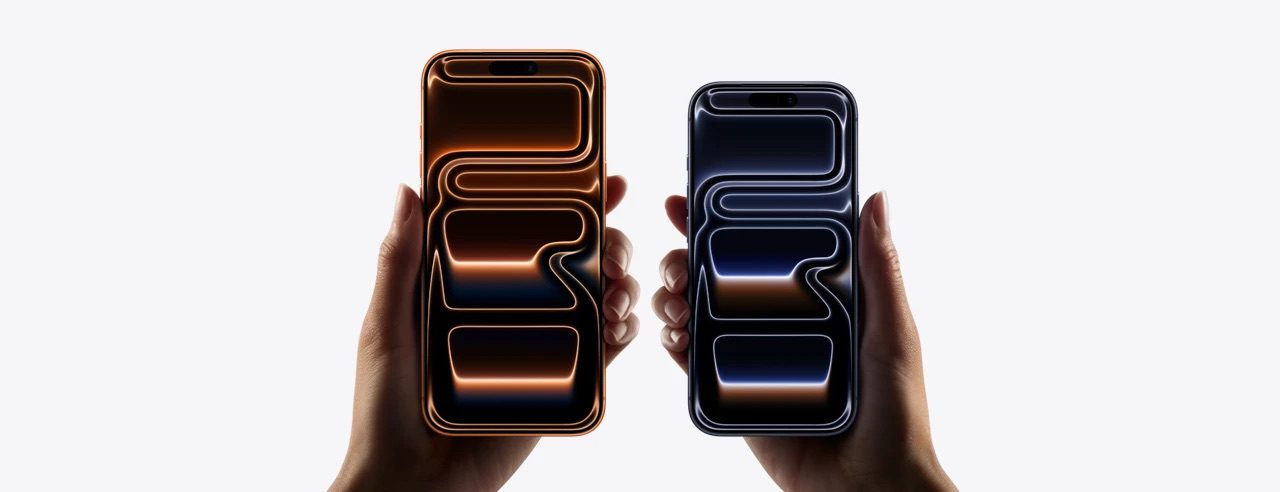
- If your iPhone 17 Pro or iPhone 17 Pro Max is stuck on the Apple logo screen, there are several ways you can troubleshoot and solve this problem.
- To fix iPhone 17 Pro stuck on Apple logo, make sure your phone is properly charged and, if connected to a computer, replace the USB cable.
You can also try to force restart your iPhone 17 Pro, use recovery mode or DFU mode, and perform a factory reset.
It’s rare for a new iPhone 17 Pro or iPhone 17 Pro Max to have a serious issue starting up, but it can happen. For example, you might be trying to restore an iPhone 17 Pro or iPhone 17 Pro Max from a backup or migrate data from a different iOS device, and your phone inexplicably gets stuck on the Apple logo. Or perhaps you simply turned the phone off and it remains on the Apple logo when you turn it back on.
Here, we’ll cover the reasons why your iPhone 17 Pro or iPhone 17 Pro Max might be stuck on the Apple logo and then show you the different ways to fix this issue yourself.
Why Your iPhone 17 Pro Won’t Turn On and Gets Stuck on the Apple Logo
There are several reasons why your iPhone 17 Pro is stuck on the Apple logo and won’t get past this booting stage, such as:
- Bugs or other data corruption issues in the iPhone’s iOS.
- You restored or transferred corrupted files from an iCloud or iTunes backup.
- The iPhone 17 Pro has been jailbroken, which may have caused some software issues like a boot loop.
- You dropped your iPhone, and the impact has messed up some internal components.
- Your iPhone 17 Pro suffered water damage. Remember that although the iPhone 17 Pro is water-resistant, it’s not waterproof.
How to fix an iPhone 17 Pro stuck on the Apple logo
Below are some repair tips that can help revive your beloved iPhone 17 Pro if it’s stuck on the Apple logo screen:
Make sure your iPhone 17 Pro is charged
While it’s not likely to resolve the problem, this troubleshooting step has a chance of getting your iPhone 17 Pro past the logo screen and it buys you additional time to see if the iPhone will eventually leave the logo screen on its own without additional steps. Simply make sure your iPhone is sufficiently charged: Plug the phone into a charger and leave it there for an hour or two to make sure the phone has enough power to complete the boot process.
Swap out your USB cable
If your iPhone 17 Pro is stuck on the Apple logo while connected to a computer via USB-C (such as to sync with iTunes, for example), the USB-C cable could be damaged or malfunctioning. Replace the cable and change the USB port you are using as well.
Force restart your iPhone 17 Pro
The quickest way to fix an iPhone 17 Pro that is stuck on Apple logo is to perform a Force Restart. Doing so ccan flush out bad data and give the phone a second chance to restart normally. To do this, quickly press and release the Volume Up button, then quickly press and release the Volume Down button, then press and hold the power button.
Use recovery mode
If you were trying to update your iPhone 17 Pro and something went wrong, then you might need to use the recovery mode method. Connect your iPhone 17 Pro to your computer using a USB-C connection cable. Then, do one of the following:
- Quickly press and release the Volume Up button. Quickly press and release the Volume Down button. Press and hold the Power button until you see the recovery mode screen.
- On a Mac with macOS Catalina 10.15 or later, open the Finder. On a Mac with macOS Mojave 10.14 or earlier, or on a PC, open iTunes. When asked to update or restore, choose Update. This will update your iPhone 17 Pro to the latest version of iOS. If it fails to solve the problem, repeat the process and choose Restore, which will wipe your iPhone and delete all your personal apps and data.
Reset your iPhone 17 Pro with DFU mode
If these steps don’t clear the problem, then you’ll need to use the DFU Mode method. Because this changes aspects of your iPhone’s software at a very low level, below the operating system, it’s inherently risky, so you might want to save this as a last resort. Check out our guide to learn how to put an iPhone 17 Pro in DFU mode.
Try a third-party repair tool
Another alternative is to use a third-party repair program. They usually require a PC or Mac, to which you’ll attach the iPhone, and cost money. In some cases, quite a lot of money. But, if you’re desperate to fix an iPhone 17 Pro stuck on the Apple logo then it might be well worth the investment.
Use Apple’s customer support
At this point, you’ve exhausted all the DIY troubleshooting options at your disposal. If your iPhone 17 Pro remains firmly stuck on the Apple logo, then we recommend booking an appointment at your nearest Apple Store, as they may be able to use more advanced tools to troubleshoot the problem.