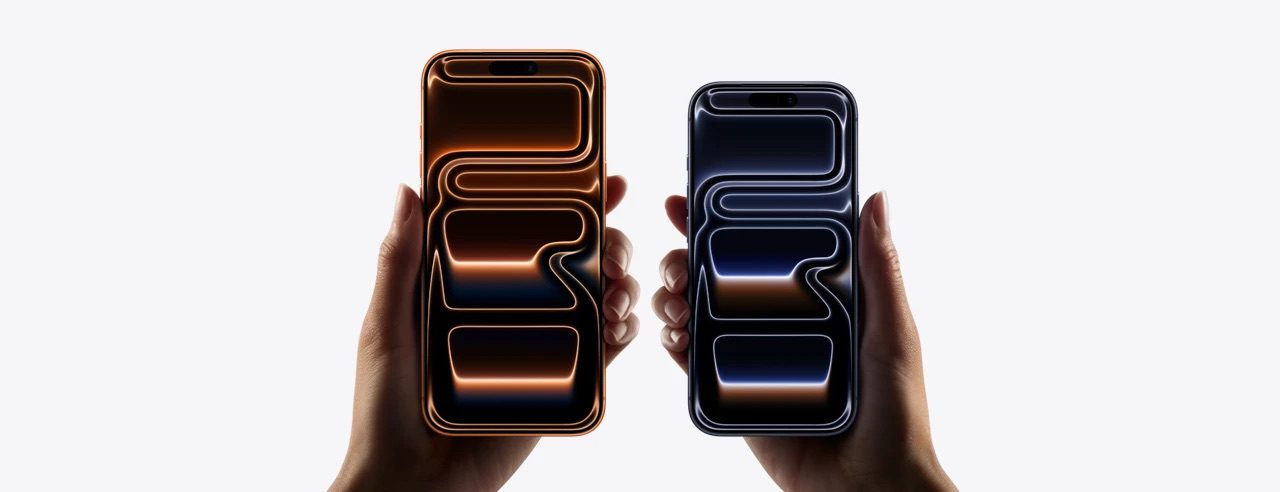
- Your iPhone 17 Pro or iPhone 17 Pro Max may keep disconnecting from Wi-Fi due to issues with either the router or phone.
- If the router is your problem, try power cycling, updating firmware, or switching frequency.
- If it’s the iPhone, try restarting it or resetting the network settings.
There are few things more annoying than when you’re trying to watch a video on your iPhone 17 Pro or iPhone 17 Pro Max, and it keeps dropping the Wi-Fi connection.
Unfortunately, Wi-Fi issues are incredibly common, no matter what phone or setup you have. Luckily, though, there’s a good number of ways to fix a Wi-Fi signal that won’t stop disconnecting.
Why your iPhone 17 Pro keeps disconnecting from Wi-Fi
There are many reasons why your iPhone 17 Pro or iPhone 17 Pro Max might be disconnecting from the Wi-Fi, but it typically boils down to problems with the phone or the router.
You just need to figure out which is which by connecting another device to the router, such as a laptop, game console, or different iPhone, and see if it stays connected. If they also keep disconnecting, then you can focus your efforts on troubleshooting the router. But if they stay connected, then the problem is most likely the iPhone.
Another way to figure out if it’s the phone or router is to connect the iPhone to a different network. This could be a friend’s network or the one you use at home or school. If it disconnects there as well, then it’s the phone. On the other hand, if it stays connected, then it’s the router.
What to do if your Wi-Fi keeps disconnecting on your iPhone 17 Pro
Before anything, rule out the simplest fixes:
- Make sure you haven’t accidentally put your iPhone into Airplane Mode (Settings ⇒ AirplaneMode).
- Make sure that Wi-Fi is turned on (Settings ⇒ Wi-Fi).
- Make sure you’re not out of the router’s network range – try moving closer to it just in case.
- Check that you’re connecting to the right Wi-Fi network, and have the right password.
- If there’s an update available for iOS, install it (Settings ⇒ General ⇒ Software Update).
If any of the above solutions don’t work, it’s time to get into some real troubleshooting. If you’re not sure why your iPhone 17 Pro keeps disconnecting from Wi-Fi, try these troubleshooting steps, one by one, testing in each step, until your problem is fixed.
1. Turn Wi-Fi Off And Back On
First, trying turning Wi-Fi off and back on. There may be a minor connectivity glitch that keeps disconnecting your iPhone 17 Pro from WiFi.
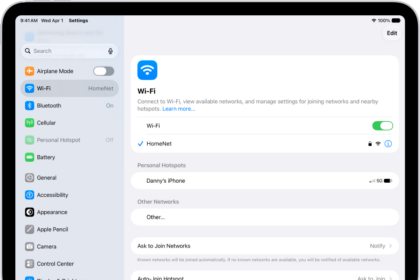
Go to Settings ⇒ Wi-Fi and tap on the switch at the top of the screen to turn off Wi-Fi. Tap the switch again to turn Wi-Fi back on.
2. Power cycle the Wi-Fi router
Don’t be intimidated by the name – power cycling your Wi-Fi router is super easy and can potentially resolve the problem you’re experiencing. Sometimes WiFi issues are router-related, not iPhone-related. Just unplug the Wi-Fi router from the power outlet and wait at least 15 seconds (this will give it enough time to truly power down) before plugging it back in and switching it on again.
3. Update the router’s firmware
If you’re sure that your router updates itself automatically, then you’re good to go. But if it doesn’t and it’s been a while since you last updated it, you should update it by going to the router’s control panel on a browser or using its companion mobile app (if it has one).
When you can’t see any available updates, it could be that your router’s too old and has stopped receiving updates from the manufacturer. In that case, you won’t be able to rule out that the issue is an outdated router. You should consider buying a new one.
4. Turn off devices that cause signal interference
Some devices and appliances in your home can interfere with your Wi-Fi connection if they use the same 2.4 GHz frequency that your router uses. These include Bluetooth devices, garage door openers, separate wireless networks, baby monitors, and microwave ovens, and they can overcrowd the frequency band, leaving no room for your iPhone.
Turn them off if you can. But if you can’t, switch to the 5 GHz frequency, which is less crowded and can potentially give your internet speed a boost.
5. Turn Your iPhone Off And Back On
Turning your iPhone 17 Pro off and back on is another way we can address and attempt to fix a minor software problem. Turning off your iPhone allows all of its programs to shut down and start fresh when you turn your iPhone back on.
To turn off an iPhone 17 Pro, go to Settings ⇒ General ⇒ Shut Down. Drag the red power icon from left to right to shut down your iPhone. Wait a few moments, then press and hold the side button until the Apple logo appears on the screen to turn your iPhone back on.
6. Forget and reconnect to the Wi-Fi network
If your iPhone 17 Pro still keeps getting disconnected from the internet, try forgetting the Wi-Fi network and then rejoining it.
Go to Settings ⇒ Wi-Fi and then tap the ”i” icon next to the name of the WiFi network your iPhone 17 Pro is connected to. Tap Forget This Network, then choose Forget to confirm. You’ll be taken back to the Wi-Fi settings screen. Tap the name of the same Wi-Fi network you forgot and select Join on the pop-up that shows. Type in the Wi-Fi password and then hit Join on the top-right corner. Once you rejoin, see if the network is stronger.
7. Reset your iPhone’s network settings
Still having problem? Next, you can reset your iPhone’s network settings for a fresh start. Resetting the network settings on your iPhone 17 Pro erases all of its Wi-Fi, Cellular, APN, and VPN settings and restores them to factory defaults. This means you’ll have to reenter Wi-Fi passwords and set up your VPN again, if you have one.
If there’s a software problem with your iPhone 17 Pro Wi-Fi settings, resetting network settings will usually fix it. Go to Settings ⇒ General ⇒ Transfer or Reset iPhone ⇒ Reset ⇒ Reset Network Settings. Enter your iPhone’s passcode and tap Reset Network Settings to confirm the reset. Your phone will restart, but you won’t lose any data or apps.
8. Turn off VPN
If you’re connecting to the Wi-Fi network through a VPN, it could be the reason your iPhone 17 Pro keeps disconnecting. If the VPN is an app, just turn it off from within, but if it’s in the Settings app, follow the steps below:
Go to Settings ⇒ General ⇒ VPN & Device Management. Turn off the toggle next to Status at the top, changing it from Connected to Not Connected.
9. Reset your iPhone
If you’ve tried all the software tricks we’ve discussed in this article, and your iPhone 17 Pro keeps disconnecting from Wi-Fi, it’s time for the nuclear option – resetting the iPhone back to its factory settings.
Resetting it will give you a brand new iPhone, as far as software is concerned, and may just get rid of the disconnecting from Wi-Fi problem. Before you invest in this drastic step, you may want to check the last solution explained in this article first.
Quick tip: Resetting your iPhone will wipe out all your data, so be sure to backup your iPhone. That will allow you to restore what you need later.
Go to Settings ⇒ General ⇒ Transfer or Reset iPhone ⇒ Erase all Content & Settings. Follow the onscreen instructions to complete the reset.
10. Contact your ISP or Apple for support
If you’ve done all this and your iPhone 17 Pro still can’t keep a stable Wi-Fi connection, it might be time to contact either your Internet Service Provider (ISP), or Apple support for a solution.
WiFi Connectivity: Fixed!
You’ve fixed the problem with your iPhone 17 Pro and now it’s staying connected to WiFi. Next time your iPhone 17 Pro keeps disconnecting from WiFi, you’ll know how to fix the issue! Leave any other questions or comments you have in the comments section down below.