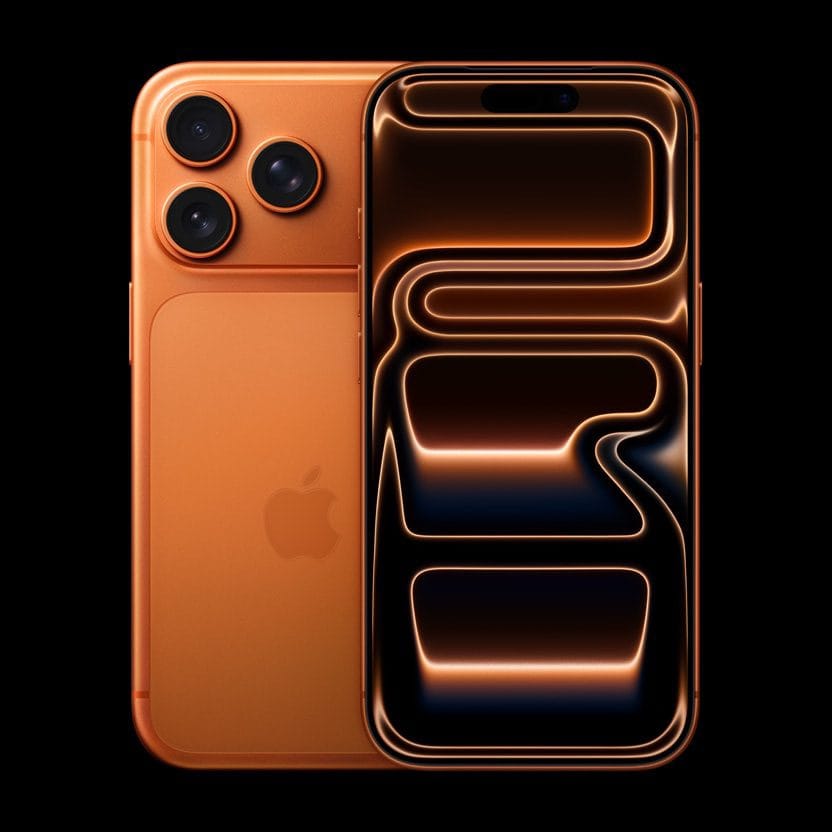
- If the microphones on your iPhone 17 Pro or iPhone 17 Pro Max aren’t working, there are steps you can take to troubleshoot and solve the problem.
- The iPhone 17 Pro and iPhone 17 Pro Max have three mics, so make sure all three of them are not blocked or obscured in any way.
- You should also test your mic, disconnect other audio devices, and ensure all your apps have permission to use the mic in Settings.
The microphones in your iPhone 17 Pro or iPhone 17 Pro Max does a lot. It is essential to phone calls and FaceTime, of course, but in addition, many apps rely on the microphone to record audio or listen for commands. Siri needs the mic to hear you as well. If the microphones on your iPhone 17 Pro aren’t working at all — or the audio it’s capturing is muffled, fuzzy, or unclear — that can lead to a lot of frustration. Here are the most common methods you can employ to resolve problems with your iPhone 17 Pro microphones not working.
Make sure the microphones are clear of any blockages
It’s easy for your iPhone 17 Pro microphones to get partially or completely blocked by all sorts of things, including dirt, dust, and pocket lint, as well as screen protectors, films, and cases. Your iPhone 17 Pro should have three microphones, so check each one for any possible blockage. If needed, remove any screen protectors, films, or cases from your iPhone if they’re getting in the way.
Not sure where iPhone 17 Pro microphones are? You should have one at the bottom of the phone (look for the series of small holes), one at the top in the front camera, and the third is on the back of the phone — the small pinpoint-sized hole near the camera lenses.
Test the microphone
If the sound is unclear during phone calls, during FaceTime calls, in video recordings, or in apps, you should test your iPhone’s microphones to check if they are working properly. It’s easy to test the mics on your iPhone 17 Pro:
Test the microphone for phone or FaceTime calls
- Launch the Voice Memos app on your iPhone 17 Pro.
- Tap the Record button, speak at the bottom of your phone, then stop the recording.
- When you play back the memo, you should hear your voice clearly.
If the audio is unclear, it’s likely you have a hardware problem with your iPhone 17 Pro, so contact Apple’s customer support for additional service.
Test speakerphone microphone
- Launch the Camera app on your iPhone 17 Pro.
- Record a video while speaking at the top of your iPhone.
- Tap the camera chooser to switch to the other camera. Then record another video while speaking at the top of your iPhone.
- When you play back the videos, you should hear your voice clearly.
If the audio is unclear, contact Apple’s customer support for additional service.
Disconnect any audio accessories
It’s possible that your iPhone 17 Pro is trying to use the microphone in an accessory like a headphone, earbuds, or portable speaker rather than the mic built into the iPhone 17 Pro, and that’s why the audio is distant or muffled. The easiest way to eliminate this possibility is to make sure no accessories are plugged into your iPhone and to turn off Bluetooth. Pull down the Control Center from the top of the screen and then tap the Bluetooth icon to temporarily disable the Bluetooth radio on your iPhone.
Restart the phone
The iPhone is a small computer, and you can solve a lot of perplexing glitches on any computer by turning it off and then back on again. That will flush out any corrupt data or glitchy software that might be causing your mic to misbehave. Restart your iPhone 17 Pro and then test your mic again.
Make sure your app has permission
If the microphone works in general and only appears to be a problem in a specific app, it’s possible that the app doesn’t have permission to use the mic. You can easily fix this problem by ensuring that any app which needs the mic has permission.
- Go to Settings ⇒ Privacy & Security ⇒ Microphone.
- Make sure that the app is enabled.
If the app has permission to access your microphone, or if it isn’t listed, contact the app developer.
Get service
If you still sound unclear during calls, recordings, or apps, your iPhone 17 Pro might need service. Visit Apple’s website to get service.