Your iPhone 18 Pro has a virtual on-screen keyboard, also called a touch keyboard. It is supposed to appear automatically when needed. For example, when you need to type an email message, this keyboard appears so that you can compose your email. Anytime you tap a text field, the keyboard is supposed to pop up.
However, I recently had this issue where this keyboard was not appearing, making it impossible to enter text. You may also notice that the keyboard appears sometimes and other times does not. If the iPhone keyboard has stopped working for you, too, here is how you can troubleshoot. The steps below are applicable for the native keyboard or third-party keyboards. This article focuses on nonfunctional, on-screen keyboards.
Are you using an external keyboard?
Before proceeding, let’s ensure that you do not have a Bluetooth keyboard connected to your iPhone. I am talking about external hardware keyboards. If your iPhone is paired to a keyboard, the on-screen keyboard will not show up because you are supposed to use the Bluetooth keyboard. You can easily check this. Go to Settings > Bluetooth and check your paired devices. Do you see any keyboards? If the answer is yes, disconnect it and try again.
Sleep and wake
As I said above, I have this problem occasionally too. When I experience this, I always do this to fix it:
- Using the side button, put your iPhone to sleep. Simply press once. Do not press and hold to turn off.
- Then, press the side button again to wake your iPhone. Then unlock it with Face ID or your passcode, if needed.
- Now, go back to whatever you were doing. The keyboard will probably show up now.
Restart
If sleep/wake does not work for you, the next step is to restart your iPhone 18 Pro. Restarting will likely fix your keyboard problem. Here is how:
Simultaneously press and hold the side button and either volume button until the sliders appear, then drag the Power Off slider.

Update your iPhone 18 Pro
There may be a bug in the software that Apple may be aware of, which could have already been fixed with a software update. Ensure that your iPhone is running the latest iOS version. Here is how you can check and update if needed:
- On your iPhone 18 Pro, tap Settings.
- Tap General.
- Tap Software Update.
- Wait for it to check for updates.
- The results will either show an update or say your iPhone is up to date. If there is an update, tap Update Now and follow the onscreen instructions.
- Also, while you are here, you may want to turn on Automatic Updates so that you won’t have to worry about updating your iPhone again.
Certain apps or websites
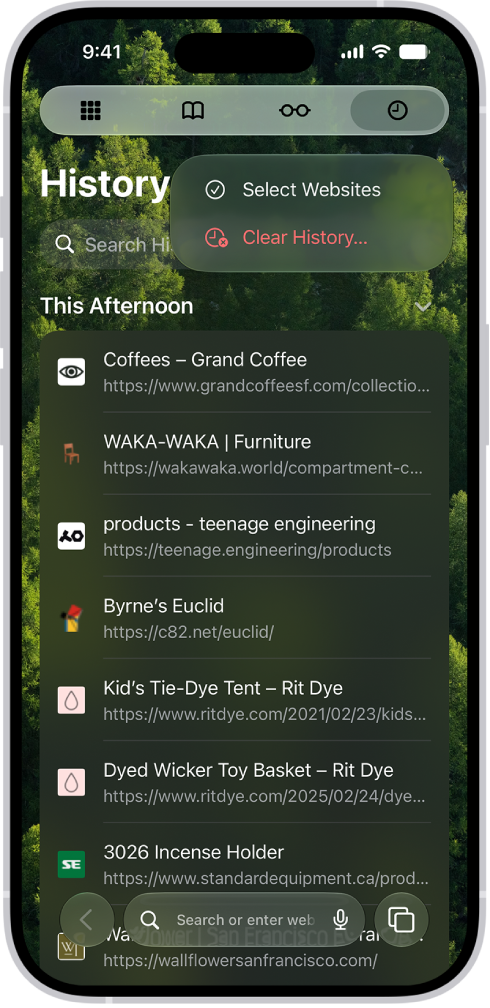
Are you having this keyboard problem only when using certain apps or websites? There may be issues with them. If this is a website, you can try to delete the cache and browsing history. If you want to do this, open Safari (if you are using Safari) and then tap the History button, tap the More button and then Clear History. If you are using another browser, use the appropriate steps to do this.
If this is an app, then you can contact its developer for help. You can also delete (or offload) and reinstall it.
Force restart your iPhone 18 Pro
If your issue continues, try force restarting your iPhone. Here is how:
Press and quickly release the volume up button. Press and quickly release the volume down button. Press and hold the side button. When the Apple logo appears, release the side button.