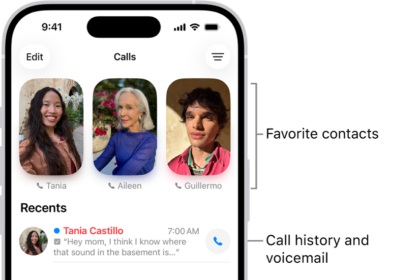
You’ll use the Phone app to make and receive phone calls on your iPhone. The Phone app has several features to help you manage incoming and outgoing phone calls, as well as voicemail. If your iPhone phone app is not working, you won’t be able to make phone calls, receive phone calls, or check your voicemails. Here’s how to fix the problem when the phone app is not working on your iPhone.
Make sure your iPhone has cell service
If you’re trying to make a phone call on the phone app but the calls are not going through, you might be having a problem with your cell service. Take a look at the upper left-hand of your iPhone’s display. Does it say “No Service,” “Searching,” or “SOS Only”?
If your iPhone displays any of those messages on the status bar, that’s probably the reason why the Phone app isn’t working. Check out our other article to learn how to fix the “No Service” or “SOS Only” problem on your iPhone.
If your iPhone does have service and the Phone app doesn’t work, follow the list of troubleshooting steps below!
Force Close and Reopen Phone App
A lot of iPhone software problems can occur when an app crashes. If the Phone app crashed in the background of your iPhone, it could be the reason your iPhone Phone app is not working. If the Phone app has crashed on your iPhone, closing it might get rid of the error!
First, you’ll want to open the App Switcher. To do this, double tap the Home button (iPhones without Face ID), or swipe up from the bottom of your screen (iPhones with Face ID).
Once the app switcher is open, use your finger to swipe the Phone app up and off the top of the screen. You’ll know the Phone app is closed when it no longer appears in the App Switcher.
Now that you’ve closed the Phone app, reopen the app to see if it’s working again. If it’s still not working, move on to the next step!
Restart Your iPhone
Restarting your iPhone will give all your apps the opportunity to shut down and get a fresh start. Sometimes, this can fix a minor software glitch making your iPhone Phone app malfunction.
If you have an iPhone without Face ID, press and hold the power button until Slide To Power Off appears. If you have an iPhone with Face ID, press and hold the side button and either volume button simultaneously until you see Slide To Power Off.
Once you see the power slider, swipe the red and white power icon from left to right to shut your iPhone down. Wait a few moments, then press the power button (iPhones without Face ID) or the side button (iPhones with Face ID) to turn your iPhone on again.
Check For A Carrier Settings Update
Apple and your wireless carrier occasionally release carrier settings updates. These updates generally improve your iPhone’s ability to connect and stay connected to your carrier’s cellular network.
Most of the time, you’ll know a carrier settings update is available because a pop-up will appear on your iPhone saying Carrier Settings Update.
You can also manually check for a carrier settings update by going to Settings -> General -> About. A pop-up will usually appear within ten seconds if a new carrier settings update is available.
Update Your iPhone
The Phone app is a native iPhone app, which means it can only be updated by an iOS update. Apple releases new updates to introduce new features and resolve known bugs, one of which may be causing the problem with the Phone app!
Open Settings and tap General -> Software Update. Tap Update Nowif an iOS update is available.
Diagnosing A SIM Card Issue
Skip this step if your iPhone doesn’t have a physical SIM card.
The SIM card is the small piece of technology that connects your iPhone to your wireless carrier’s network. If the SIM card has become dislodged or damaged, your iPhone might not be able to connect to your carrier’s network, which would prevent you from making or receiving phone calls on your iPhone.
Remove SIM card from your iPhone. Take a close look at the SIM Card and SIM Tray for any damage. If they’re dusty, wipe them off with a soft damp cloth, but be sure they’re completely dry before reinserting them into your iPhone.
Reset Network Settings
Resetting your iPhone’s network settings will restore all of its Cellular, Wi-Fi, APN, and VPN settings to factory defaults. By restoring these settings to factory defaults, we may be able to get rid of any software bug preventing the Phone app from working properly.
You’ll have to reenter your Wi-Fi passwords and reconfigure any installed VPNs after this reset is complete, so make sure you write down any information you feel is necessary before proceeding.
To reset network settings on your iPhone, go to Settings -> General -> Transfer or Reset iPhone -> Reset -> Reset Network Settings. Then, tap Reset Network Settings when the confirmation alert appears on the display. Your iPhone will reset and turn back on once it’s finished.
Contact Your Wireless Carrier
It’s time to get in touch with your wireless carrier if your iPhone Phone app still isn’t working. Even if your signal looks good, there could be an issue with your cell phone plan.
We recommend contacting your wireless carrier before Apple. If you go to an Apple Store and tell them your iPhone is not making or receiving calls, they’ll probably tell you to go talk your wireless carrier first!
Visit The Apple Store
If you’ve contacted your wireless carrier and they can’t help you, your next trip should be to the Apple Store. Schedule an appointment and have an Apple tech or Genius take a look at your iPhone. In rare cases, an iPhone Phone app may stop working because of damage to one of antennas.
Hold The Phone!
Your iPhone Phone is working again and you can get back in touch with the important people in your life. Next time your iPhone Phone app is not working, you’ll know how to fix the problem! Leave any other questions or comments you have about your iPhone down below.
Thanks for reading,