Learn how to fix iPhone Reminders and easily get tasks back on track.
Is your iPhone’s Reminders app not working? The Reminders app on iPhone allows you to create and organize reminders to keep track of events, day-to-day tasks, shopping lists, projects and others things that you want to track. So it can be incredibly frustrating if Reminders are not working properly, especially if you rely on them day-to-day.
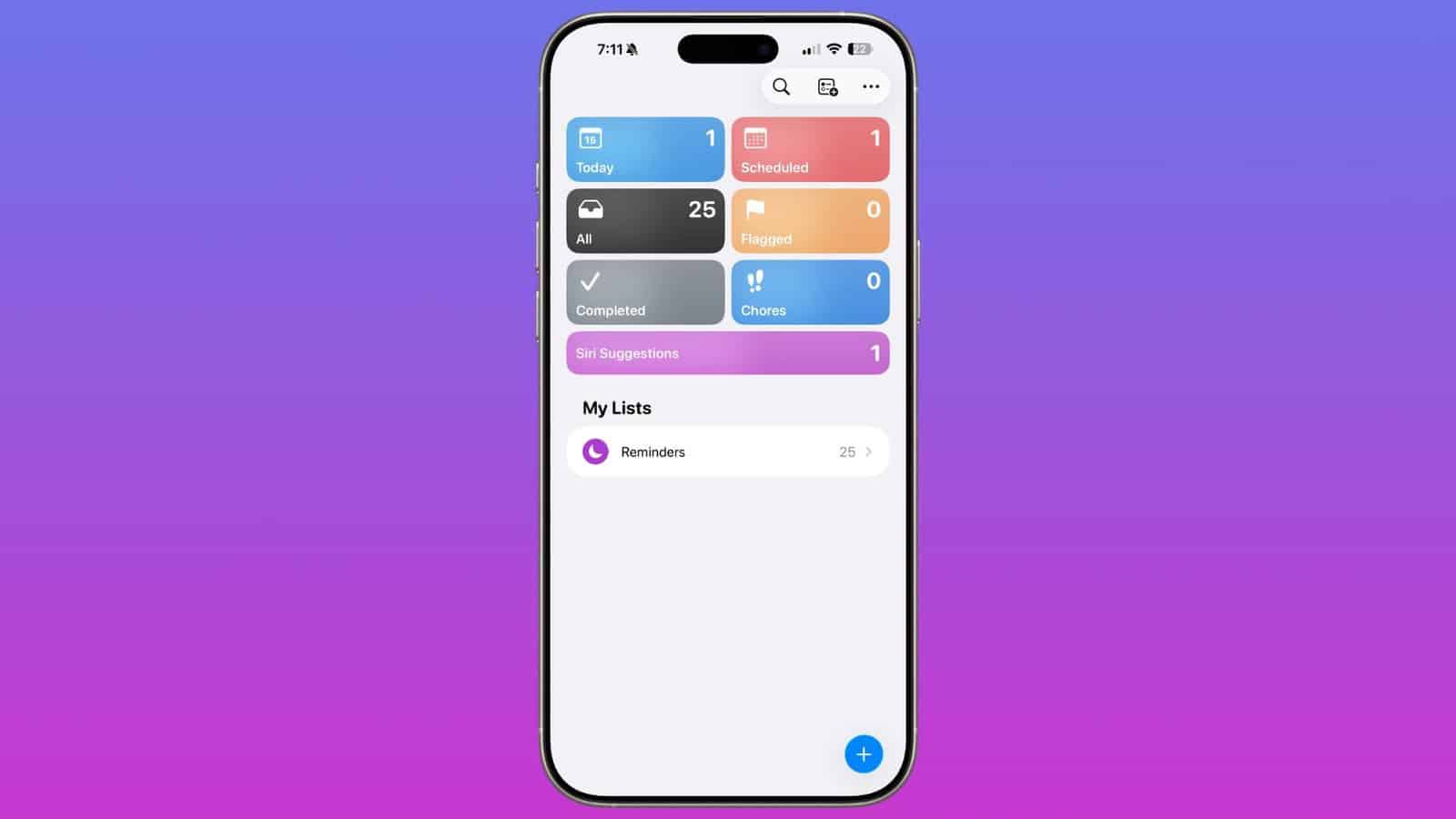
In iOS 26, Apple added a Siri Suggestions section to the Reminders app, which will bring up items that you might want to add to your to-do lists that are found in conversations in Mail and Messages. Reminders is able to suggest tasks automatically, taking in information from notes, grocery items in a list, and more.
In iOS 26, the Reminders app is able to categorize related tasks into sections that are grouped together. If you need to pick up several items at the grocery store, for example, the Reminders app can aggregate these in one area.
In iOS 26, Apple added a Control Center option for creating a new reminder. You can use it from the Control Center, assign it to the Action Button, or access it from the Lock Screen by assigning it to one of the Lock Screen buttons.
Some users have reported that reminders is not working on their iPhones after iOS 26 update. If you’re also facing problem with Reminders, it could be that you accidentally turned off Reminder notifications or that there’s a glitch after upgrading to iOS 26. No matter what the issue, let’s troubleshoot and look at solutions to fix iPhone reminders when they’re not working as expected.
How to Fix Reminders Not Working on iPhone in iOS 26
1. Close And Reopen Reminders
It’s possible Reminders app crashed, causing it to stop working. Closing and reopening Reminders is a quick way to fix an app crash.
If you have an iPhone with Home button, double-press the Home button to bring up the app switcher. Then, swipe Reminders up and off the top of the screen.
If you have an iPhone with Face ID, swipe up from the bottom to center of the screen to bring up the app switcher. Swipe Reminders up and off the top of the screen to close it.
2. Check Notification Settings for Reminders
When Reminders are not showing up on your iPhone as notification, make sure the Reminders app is permitted to show them on the Lock Screen, Notification Center, and elsewhere.
To do this, follow these simple instructions:
- Open Settings and go to Notifications > Reminders.
- Make sure Allow Notifications toggle is turned on.
- Next, check the boxes for Allow on Lock Screen, Allow in Notification Center, and Allow as Banners. You should also enable Sounds and Badges for Reminders if you want those to fire for new notifications.
Under Always Deliver Immediately section, make sure Immediate Delivery is selected so that your reminders can be delivered right away.
Next, ensure the Notifications for Reminders are not muted. From the Settings app on your iPhone, go to Apps > Reminders, then ensure Mute Notifications switch is toggled off.
3. Confirm Focus Is Disabled
The Focus feature on iPhone disables sound and vibration for calls, texts, and app notifications. If you’ve accidentally enabled Focus, your iPhone won’t notify you of Reminders.
To check this, open Control Center and see if Focus is enabled. If it’s enabled, tap the Focus icon to turn it off. Now you should start hearing a tone for your reminders.
4. Restart Your iPhone
Restarting your iPhone is a quick fix for a variety of minor software problems. The programs and apps running on your iPhone get to shut down naturally and get a fresh start when you turn it on again.
Press and hold the power button (iPhones with a Home button), or simultaneously press and hold the side button and either volume button (iPhones without a Home button). Let go of the button or buttons when “slide to power off” shows up on the screen. Swipe the power icon from left to right to turn off your iPhone.
Wait about 20 seconds to give your iPhone a chance to turn off completely. Then, press and hold the power button or side button until the Apple logo shows up on the screen.
5. Check For iOS Update
You might be running the previous version of iOS 26, which can cause problems with Reminders. It’s always a good idea to update to the latest iOS 26 version, as that update can fix bugs with Reminders app.
Head over to the Settings app on your iPhone and tap General. Tap on Software Update to see if an iOS update is available. If one is, tap Update Now.
6. Enable iCloud for Reminders
Set up iCloud to keep your reminders updated across all your devices. Open the Settings app, then tap [your name] > iCloud > See All and turn on Reminders. Inside the Reminders app, you’ll see all of your reminders on all of your Apple devices that are signed in to the same Apple account.
7. Check Date and Time
For Reminders to function properly, your iPhone need to have the correct date and time. One effortless way to ensure this is by having the device set it automatically.
Open Settings and tap General. Go to Date & Time and turn on the switch next to Set Automatically. After enabling this, also ensure the displayed Time Zone is correct.
8. Delete And Reinstall Reminders On Your iPhone
Sometimes app files will become corrupted, preventing the app from working properly. If there’s a core issue with Reminders, uninstalling and reinstalling the app on your iPhone can potentially fix the problem.
Press and hold on the Reminders icon until the menu appears. Hit Remove App > Delete App > Delete to uninstall Reminders.
Open App Store and tap the Search tab at the lower right-hand corner of the screen. Tap the redownload button to the right of Reminders. Since Reminders was previously installed on your iPhone, the button will look like a cloud with an arrow pointing down.
Easily Fix iPhone Reminders Not Working issue!
It can be frustrating if your iPhone’s Reminders app is not working, but now you know what to do in case it happen again. Have any other Reminders questions? Leave them in the comments section below.