Several iPhone 18 Pro users have said that they have been experiencing keyboard lags when typing texts, mails or iMessage messages. This article explains how you can fix the typing lag or delay problem. Some users have said that they only started noticing lagging problems after updating iOS software.
It appears that some users find the iPhone keyboard sometimes responds very slowly when using various apps. It further appears that this problem may occur in different apps, from Messages and Mail to Safari and Notes and more. Common symptoms of keyboard lag include delayed response time in typing, meaning it takes a few seconds (usually 1-3 seconds) for the text you type to appear on your screen. Obviously this problem can be frustrating as it can impact work negatively.
Are you also having issues with lagging when typing text? If you are experiencing this problem also, please try the following troubleshooting steps in order until you fix your problem.
Before you do anything, please ensure that your device has the latest version of iOS. You can update your device wirelessly by going to Settings > General > Software Update. Furthermore, please also ensure that all of your apps are up to date. You can open the App Store app to update your apps.
1. Reset Keyboard Dictionary
First try this to fix this problem. Here is how you can do this:
- On your iPhone 18 Pro, tap Settings.
- Tap General.
- Tap Transfer or Reset iPhone, then tap Reset.
- Tap Reset Keyboard Dictionary.
You will need to enter your passcode and then follow the onscreen instructions.
Please note that resetting the keyboard dictionary will remove the words that you’ve added to the user dictionary.
2. Restart your iPhone 18 Pro
Simply restart your device. Here is how you can restart your device:
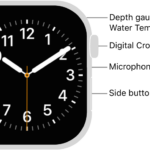
- Simultaneously press and hold the side button and either volume button until the sliders appear, then drag the Power Off slider.

3. Remove, restart and re-add keyboard
Here is how you can do this:
- On your device, go to Settings > General > Keyboard.
- Tap Keyboards.
- If you have only one keyboard (e.g. English (US)), you will not be able to delete it. To be able to delete, you will need to have more than one keyboard. Thus if this is the case, add a keyboard.
- Remove a keyboard: Swipe left on the keyboard, then tap Delete.
- Now restart your device.
- And then add the keyboard you deleted by going to Settings > General > Keyboard > Keyboards. Simply tap Add New Keyboard and select the keyboard from the list.
4. Force restart your iPhone 18 Pro
If you are still having this problem, force restart your iPhone 18 Pro to see if this fixes your problem.
- Press and quickly release the volume up button. Press and quickly release the volume down button. Press and hold the side button. When the Apple logo appears, release the side button.

After force restarting your device, your device will restart and hopefully this problem will be fixed in the process.
5. Check storage and clear space
How much free data storage space is left on your device? Your device requires at least, between 2-3 GBs of free space to function properly.
You can check how much storage you have available on your device in the Settings app. Simply go to Settings > General > iPhone Storage. This page may have a list of recommendations that you may want to follow. You may also want to delete apps that you no longer use.
6. Reset All Settings
If you are still having this problem, reset all settings. Doing so will restore default iPhone settings without erasing your data. Meaning this will not delete your data like photos, videos, messages, notes, music, and other content. All settings—including network settings, the keyboard dictionary, location settings, privacy settings, and Apple Pay cards—are removed or reset to their defaults. Here is how:
- On your device, go to Settings > General > Transfer or Reset iPhone > Reset.
- Tap Reset All Settings.
- Then follow the onscreen instructions.