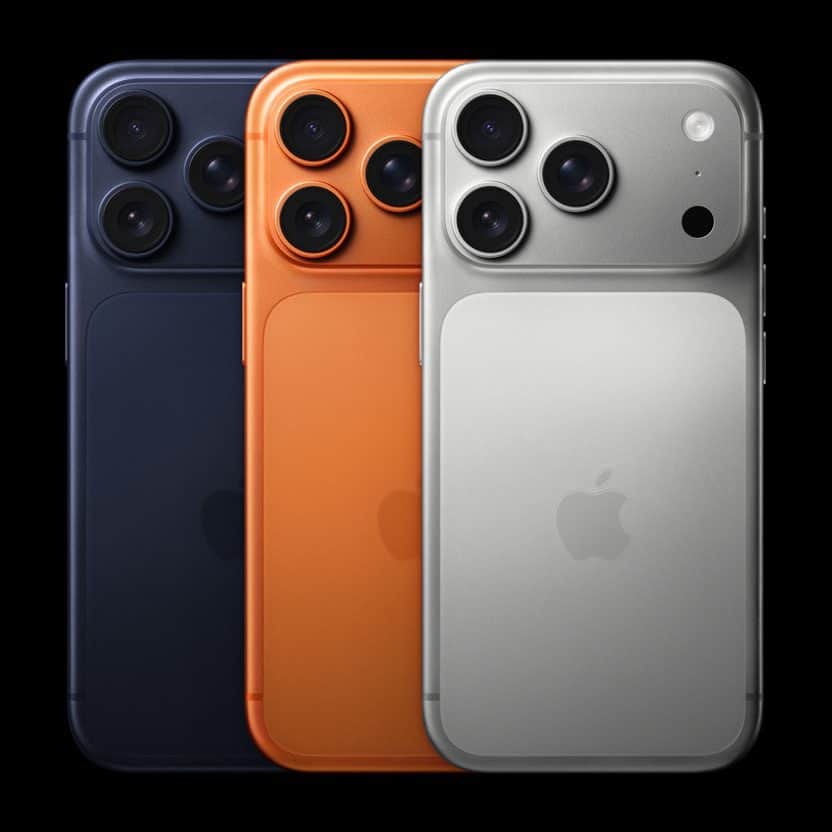
- If your iPhone 17 Pro or iPhone 17 Pro Max is so slow, making a few tweaks in the settings can significantly improve performance.
- Common fixes include restarting your iPhone 17 Pro and updating to the latest iOS version.
- You can also try to remove unused apps and clear the cache on your iPhone.
After you’ve had your iPhone 17 Pro for a while and the excitement wears off, it might feel like it runs slower than when you first took it out of the box.
If you are scratching your head wondering “why is my iPhone 17 Pro so slow?” I feel your pain. There are many reasons why your iPhone 17 Pro or iPhone 17 Pro Max might be running slower, and you can fix some of them, restoring your phone to its original glory. In this article, I’ll explain the real reasons why your iPhone 17 Pro is so slow and show you the fixes that will make your device run as fast as possible.
Restart your iPhone
It might sound like a cliche, but it’s useful advice: If you are experiencing an unusual problem with your phone, just restart it.
Turning your iPhone 17 Pro off and on again purges the iPhone’s memory and gives it a fresh, clean start. Simultaneously press and hold the side button and either volume button until “slide to power off” appears. Slide your finger across the display and wait as your iPhone powers all the way off. After your iPhone is off, press and hold the Side button again until the Apple logo appears, and then let go. If you’ve completed the steps above, you’ll see a noticeable increase in speed after it reboots. You’ve lightened the load on your iPhone 17 Pro, and your device will show you its gratitude with increased speed.
Update your iPhone’s operating system
It’s always a good idea to keep your iPhone17 operating system up to date since iOS updates often include important security patches.
But just as importantly, they sometimes include performance tweaks that can make your iPhone 17 Pro slightly faster or manage the battery life better.
Head to Settings -> General -> Software Update, and if there is an update waiting to be installed, tap on Update Now.
Update your iPhone apps
One way to keep your iPhone 17 Pro and your apps running efficiently is to update them regularly. Developers release app updates to fix bugs and introduce new features.
To see which apps have available updates, open the App Store and tap on the Account Icon in the upper right-hand corner of the screen.
Scroll down to the Available Updates section, then tap Update next to an app you want to update, or tap Update All to update every single one of your apps simultaneously.
Offload apps that you don’t use often
Apps can slow down your iPhone 17 Pro in two different ways. Firstly, if you’re running low on storage, that can slow down your phone. Secondly, rarely used apps running in the background can gum up your phone as well.
That’s why you should look at the apps you have installed on your phone and offload any that you rarely (or never) use. Offloading an app means the app is removed from your device, but all data is retained, for when you decide to reinstall it. Take advantage of this trick, especially if you have apps like Google Maps that use a lot of space but don’t store much data. To offload an app, go to Settings -> General -> iPhone Storage, tap on the app that you want to offload and then Offload App.
Get rid of widgets you don’t need
An iPhone Widget after it has been
If you have too many Widgets on your Home screen, they can significantly impact your iPhone 17 Pro performance. Luckily, removing them is super easy.
- Locate and press on the Widget you want to remove.
- Tap on Remove Widget.
Clear your cache
If Safari is running slowly, one of the most common reasons for sluggish speed is that your iPhone 17 Pro accumulated lots and lots of saved website data. This is a normal process, but if too much data builds up over a long period of time, Safari can slow down. Fortunately, clearing this data is easy.
Head to Settings -> Apps -> Safari and tap Clear History and Website Data. Select All History and then hit Clear History to remove the history, cookies, and other browsing data from your iPhone 17 Pro.
Dial down the graphics
Your iPhone 17 Pro can run a little faster if you reduce the work the CPU puts into displaying fancy graphics. Unlike a desktop computer, there are relatively few graphic settings on an iPhone.
Here’s what you can do:
- Open the Settings app and then tap Accessibility.
- Tap Display & Text Size.
- Tap the toggle for Reduce Transparency to turn the option on.
- Tap Back and then tap Motion.
- Tap the toggle for Reduce Motion to turn the option on.
Disable some automatic background processes
We don’t recommend doing this unless you have a serious performance issue with your iPhone. But the fact is you can make your iPhone 17 Pro faster by turning off a few automatic background processes.
First, head to Settings -> General -> Background App Refresh to see a list of apps on your iPhone 17 Pro that are currently allowed to continue running even when they’re not open.
I don’t recommend turning off Background App Refresh entirely, because allowing certain processes to run in the background is most definitely a good thing. Instead, ask yourself this question for each app:
“Do I need this app to alert me or send me messages when I’m not using it?”
If the answer is no, then I’d recommend turning off Background App Refresh for that specific app. Go down through the list, and if you’re like me, you’ll only have a select few apps left on by the very end.
Next, head to Settings -> Apps -> App Store, and then switch off the toggles for App Downloads, App Updates and In-App Content in the Automatic Downloads section.
Finally, open Settings and go to Apps -> Mail -> Mail Accounts. Tap on the account you’d like to change the settings of. Then, tap Fetch New Data and turn off the switch next to Push at the top of the screen. Finally, select how often you’d like your iPhone to Fetch new mail. When Push Mail is on, your iPhone 17 Pro stays constantly connected to your mail server in order to push new emails to you as soon as they arrive. While this may sound convenient, your iPhone can slow down when it’s always checking if there’s new mail. We recommend switching mail from Push to Fetch to help speed up your iPhone (and save some battery life too).
Reset All Settings To Speed Everything Up
If you’ve tried everything above and your iPhone 17 Pro is still too slow, Reset All Settings is often a magic bullet that can speed things up.
Sometimes, a corrupted settings file or misconfiguration of a specific app can wreak havoc on your iPhone, and tracking down that type of a problem can be very, very difficult.
Reset All Settings erases and restores everything in the Settings app to factory defaults, but it doesn’t remove any apps or data from your iPhone. I only recommend doing this if you’ve exhausted all of your other options. You’ll have to sign into your apps again, so make sure you know your important usernames and passwords before you do it.
If you’ve decided you’d like to give it a try, go to Settings -> General -> Transfer Or Reset iPhone -> Reset -> Reset All Settings to restore your iPhone back to its factory default settings.
Wrapping It Up
If you’ve been wondering why your iPhone 17 Pro is so slow, I sincerely hope this article has helped you get to the core of the issue. We’ve gone over the reasons why iPhone 17 Pro is running slow, and we’ve discussed how to make your iPhone 17 Pro faster. I’d love to hear from you in the comments section below, and as always, I’ll do my best to help you out along the way.