By default, when you open Safari on iPhone 18 Pro, the last viewed tab will be opened if you have multiple tabs. In other words, Safari launches with a last visited website. This feature ensures that you can continue whatever you were doing before closing Safari and the tab. For example, if the last website you opened was apple.com, the next time you open Safari, the apple.com website should load.
An issue may occur where Safari may open to the first tab instead of the most recent tab. If Safari keeps opening the first tab, sometimes even deleted tabs, not the last tab you were viewing, this can be a huge inconvenience if you have a lot of tabs like many people. Some people can have 100s of tabs. It will take some time to find the correct tab. This will look like Safari is closing the tabs you left open. If you run into this particular problem where Safari skips to the first tab, I explain in this article what you can do. Keep following the steps below until your tab problem is fixed.
1. Update your iPhone 18 Pro
Ensure that your device has the latest version of iOS. This will ensure that Safari is up to date, too, because iOS updates include updates to built-in apps like Safari. Here is how you can check for updates:
- Tap Settings, then select General.
- Tap Software Update.
2. Clear the history and cookies
This will delete all of your history, cookies and cache. Your autofill data won’t be affected.
- On your device, tap Settings.
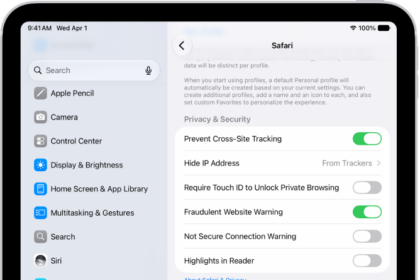
- Tap Apps, then select Safari.
- Scroll down and tap Clear History and Website Data. Tap Clear History again to confirm.
3. Check your Safari tab settings
Your tab settings may cause this problem. Review these settings:
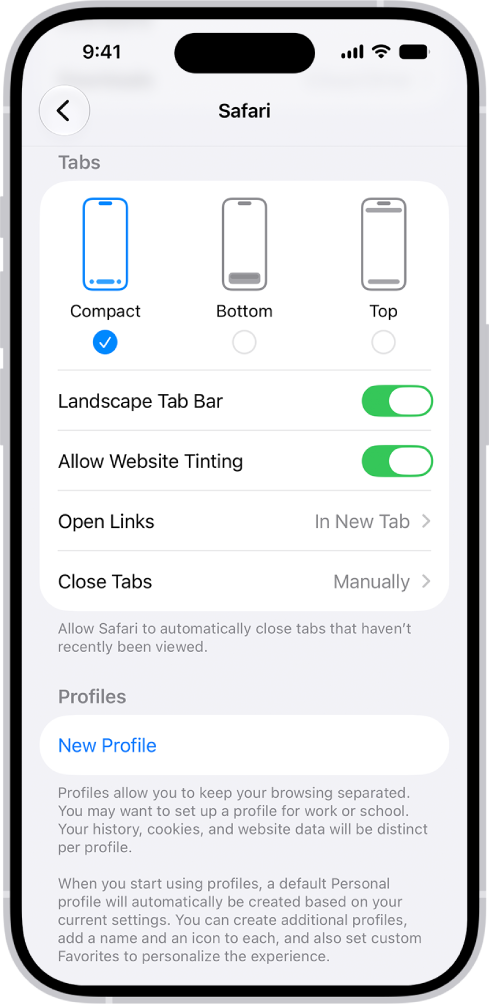
- If you experience tabs disappearing, go to Settings > Apps > Safari. Find the Tabs section and tap Close Tabs. Ensure that Manually is selected so that Safari won’t delete them automatically after a period of time.
- Check your download settings. Go to Settings > Apps > Safari and find the General section. Tap Downloads. Is iCloud Drive selected? Then this may cause it to delete tabs after items are downloaded. Select On My iPhone and then tap Remove Download List Items. Choose Manually.
4. Change your tab type
- On your iPhone 18 Pro, tap Settings.
- Tap Apps, then tap Safari.
- Scroll down and find the Tabs section.
- You will see three options: Compact, Bottom and Top. Whatever your selection is, select another one.
- Restart your iPhone 18 Pro.
- Open Safari, do your tabs load correctly?
- Go back to Settings > Apps > Safari, and you can revert back to the original tab type.
- Restart your device again.
5. Reset All Settings
Reset all settings if your issue continues. Doing so will erase all of your settings and restore them to the factory defaults, but your content and media will stay intact. Here is how:
- Tap Settings > General > Transfer or Reset iPhone > Reset.
- Tap Reset All Settings.