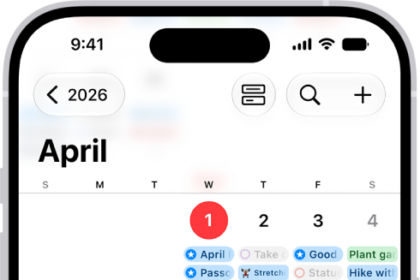
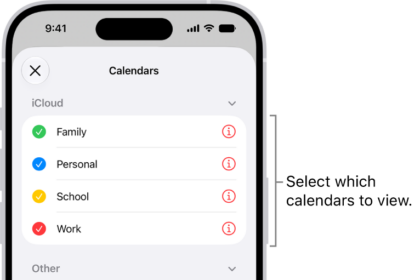
Several users have said that the “Time to Leave” option text is crossed out in the Calendar app. Users have also said that they see the following error message when they want to use the option for Time to Leave as an alert for the calendar events:
“Time to leave alerts are not available because Location-Based Alerts are disabled.”
When you see a strikethrough text, it means that “the text” is unavailable and not working. The Time to Leave feature can be used if your calendar events include a location in them. It is a very useful feature as it will let you know when to leave your current location so that you do not miss your next appointment. Basically, the Calendar app will calculate, using your location, the event’s location, and the current traffic conditions, to alert you when to get going. If you are having this issue, you will not be able to use this feature.
This short article explains how you can fix this problem. Please note that iPhone 18 Pro users may be affected by this problem.
1. Location-Based Alerts
As the error message indicates, ensure that Location-Based Alerts are enabled in the Privacy settings. Here is how:
- On your iPhone 18 Pro, tap Settings.
- Tap Privacy & Security.
- Tap Location Services.
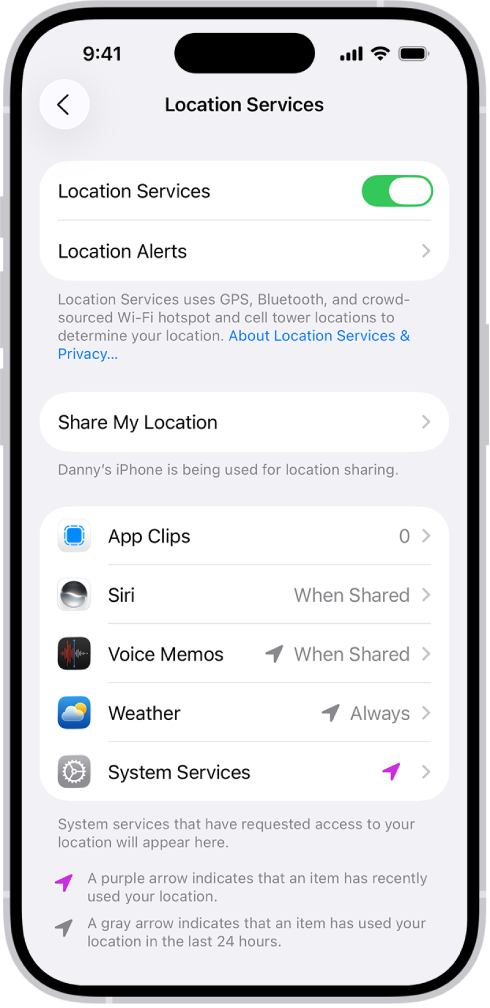
- Tap an app (if any appear in the list), then choose whether you want to share your location while using that app.
And now, open Calendar and test to see if you have fixed your problem.
2. Update and Restart
Ensure that your device has the latest version of iOS. You can easily check for updates and update your iPhone 18 Pro by going to Settings > General > Software Update.
Restart the Calendar app and your iPhone 18 Pro. Here is how you can restart the app.
- Swipe up from the bottom of your screen. Find the Calendar app and swipe up on the app.

Then open the Calendar app and try again. If you are still having this problem, then try to restart your device.
3. Reset
If you are still having this problem, it is possible that Location Services may not be working properly. Resetting your location settings to the factory default may help. Here is how:
- Tap Settings.
- Tap General.
- Tap Transfer or Reset iPhone, then tap Reset.
- Tap Reset Location & Privacy. Then follow the onscreen instructions.