- If there’s no sound on your iPhone after iOS 27 update, there are a number of possible causes.
- Make sure your iPhone isn’t on silent mode, and turn off any Focus modes in the Control Center.
- You can also make sure audio isn’t being routed to a nearby Bluetooth device.
iOS 27 introduced new settings that let users set separate volume levels for alarms and timers, as well as for alerts and system sounds, independently from ringtone volume.
Up to now, iOS has used a single sound setting for ringtones and alerts. With iOS 27, users will be able to set one volume level for ringtones, another for alarms and timers, and another for alerts and system.
For alarms and timers, Apple says that when the “Match Ringtone Volume” toggle is off, “this volume will not affect Wake-Up alarm and other alarms with their own volume control.”
As for alerts and system sounds, Apple explains that the setting applies to “sounds for alerts, such as incoming texts, and for system sounds, such as keyboard clicks, the camera shutter, and more.”
The controls live in Settings > Sounds & Haptics, where you can also toggle "Match Ringtone Volume" to unlock separate sliders for alarms and system alerts.
No sound on your iPhone after updating to iOS 27? It’s a more common problem than you might expect, because there are so many things that can go awry, preventing your audio from working properly. If you’re having trouble with Apple Music not playing, podcasts remaining silent, or any other absence of audio on your iPhone, then obviously something is wrong. Here are a few different methods to fix an iPhone making no sound after iOS 27 update.
Make sure your iPhone isn’t muted
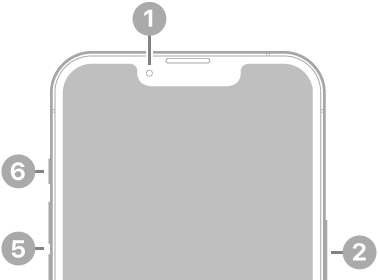
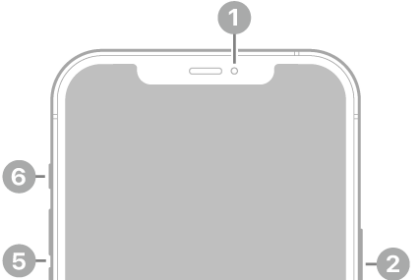
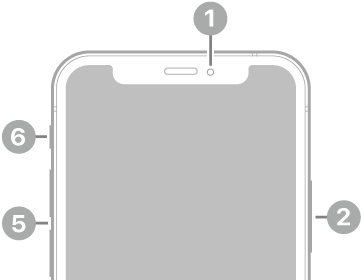
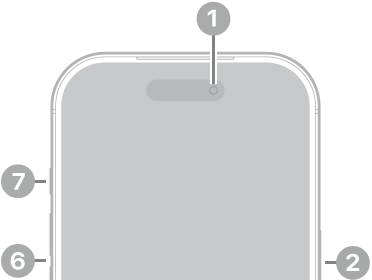
This might seem obvious to some, but it’s easily overlooked if you’re perplexed why there’s no sound coming out of your iPhone when you get a phone call — make sure the iPhone isn’t set to Silent. Take a look at the Ring / Silent switch on the side of your iPhone. If the switch is pulled toward the screen, your iPhone’s ringer is turned on. If the switch is pushed toward the back of the iPhone, your iPhone is on silent and you’ll see a small orange stripe next to the switch. Simply flip the silent switch to the “Ring” position.
If you are using an iPhone 15 Pro, iPhone 15 Pro Max, iPhone 16, iPhone Air, or iPhone 17, go to Settings ⇒ Sounds & Haptics and make sure that the Silent Mode switch is off.
Turn off any Focus modes
You can use Focus to prevent distractions from interrupting you while you work, exercise, drive, or sleep. But it can also sometimes be confusing and prevent sound from playing when you expect it to. Open the Control Center by swiping down from the top right) and check the Focus icon. If it says anything other than Focus, tap the icon to turn it off.
Adjust the volume in the app
It’s possible the sound is dialed too far down to hear, so start the app you are trying to use and then press the volume up button on the side of your iPhone, or slide down from the upper right of the screen to open Control Centre and use the volume control icon to turn up the volume.
Turn off Bluetooth
It’s possible that your iPhone is still securely connected to a Bluetooth audio device like a Bluetooth speaker or earbuds that are too far away to hear. The easiest way to ensure that’s not the case is to simply disable Bluetooth entirely, at least temporarily. Open the Control Center by swiping down from the top right) and tap the Bluetooth icon to turn off the Bluetooth radio. That will release any Bluetooth devices and force the iPhone to use its own built-in speaker.
Make sure your speakers aren’t blocked
It’s possible that some sort of physical obstruction could be muting the sound enough that you can’t hear it. If your iPhone has any sort of case or screen protector, remove it — especially if it might be covering the phone’s speakers. Then inspect the speaker to see if they are possibly blocked or muted by dirt or debris. If so, carefully clean the speakers.
Restart your iPhone
It’s possible that there’s some sort of software glitch preventing your iPhone from playing audio properly. The easiest way to resolve any remaining issues is to restart your iPhone — in other words, to turn your phone off and then back on again. In many cases, your phone will work properly when it’s restarted.
Check the sound settings
If your iPhone still isn’t playing any sound even after the previous troubleshooting steps and restarting the phone, check your sound settings.
- Open the Settings app.
- Tap Sounds & Haptics.
- In the Ringtone section, drag the volume slider to the left and right. You should hear some sound.
If you don’t hear anything, it is likely there’s a serious problem with your phone’s hardware. Book an appointment with Apple Support to have your iPhone repaired or replaced.