Is Wi-Fi not working on your iPhone after iOS 27 update? There can be many reasons for this, as Apple might have made some underlying changes that could bork the Wi-Fi feature on your iPhone.
Some common Wi-Fi related problems that many users are reporting after installing iOS 27 update on their iPhones include not being able to connect to Wi-Fi network, dropping connection intermittently or Wi-Fi speed being extremely slow.
In this article, we will show you how to fix Wi-Fi problems after installing iOS 27 update on iPhone.
Fixing Wi-Fi problems after iOS 27 update on iPhone
1. Verify Wi-Fi Is turned on
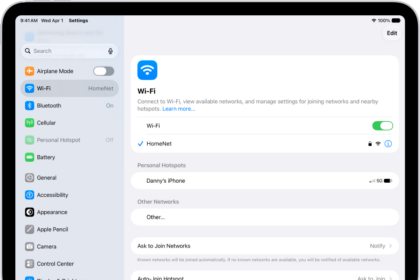
It’s possible that the iOS 27 update or stray touch turned off Wi-Fi on your iPhone without you realizing it. Therefore, you should first check to ensure that Wi-Fi is turned on:
- Open the Settings app.
- Confirm the toggle next to Wi-Fi is turned on.
2. Toggle your Wi-Fi off and on again
I know this sounds like a cliché fix, but you’ll be surprised how often turning Wi-Fi off and then back on again will troubleshoot the problem you are experiencing.
- Open the Settings app from your Home screen.
- Tap on Wi-Fi.
- Tap the Wi-Fi On/Off Switch twice. Once to turn it off and another time to turn it back on.
3. Are you connected to the right network?
If you’re somewhere with multiple Wi-Fi networks that your iPhone could connect to — like in a coffee shop or at a business — your iPhone will pick the first one that pops up in the list, which is less than ideal. Head into your Wi-Fi settings and make sure you’re connected to the right network.
- Open the Settings app.
- Tap on Wi-Fi.
- Tap the Wi-Fi network you want.
4. Forget and Re-Add the Wi-Fi Network
Forgetting a network removes its password and all other network information from your iPhone. This can help clear up issues with connecting to specific networks. Keep in mind that you’ll need the password to reconnect after forgetting a network.
To forget a Wi-Fi network in iOS 27:
- Start the Settings app and tap on Wi-Fi.
- Tap the i icon next to the network you want to forget.
- Tap Forget This Network.
For best results, try restarting your iPhone before rejoining the network.
5. Is your iPhone running the latest version of iOS 27?
After rejoining your Wi-Fi network, check which iOS 27 version is running on your iPhone.
If it is an older version, then consider updating to resolve the iOS 27 Wi-Fi problems.
- Open the Settings app.
- Go to General.
- Select Software Update.
- If there is an update, install it. That may solve your problem.
6. Disable VPN
Now that you have updated your iPhone to the latest iOS 27 version and are still facing Wi-Fi problems, then you need to check if the VPN is interfering with your connection. If you have enabled it via the Settings app or a VPN app, then try to disable it to see if it resolves the issue. You can disable VPN by going to Settings > General > VPN & Device Management, tapping your VPN profile, and turning the connection off. If you are not able to disable it there, then launch the VPN app to disable VPN temporarily to figure out if it resolves the Wi-Fi problem on your iPhone running iOS 27.
7. Reboot your router
If you’re having problems with a specific network, it’s time to check out what’s going on under that network’s hood. If the Wi-Fi network is yours to tinker with, you can dive into your router’s settings to try and reboot or reset it. Alternatively, unplug all the cords from the router and then wait a few minutes. After you plug it back in, wait a minute or two for it to set up.
If you’re having problems with a network that isn’t yours, check with the proprietor or IT administrator — are other people having this problem? Can the network be rebooted? If not, you may be out of luck.
8. Reboot your iPhone
Another way to fix Wi-Fi problems after iOS update is to restart your iPhone.
How to reboot your iPhone with Face ID
- Press and hold the On/Off button on the iPhone’s right side.
- While still holding the On/Off button, press and hold either of the volume buttons on the left side until you see the power-off slider on the screen.
- Drag the slider from left to right to turn your iPhone off.
- To turn your iPhone back on, hold the On/Off button again until the Apple logo appears.
How to reboot your iPhone without Face ID
- Press and hold the Side button on your iPhone until the power-off slider appears.
- Drag the slider from left to right to turn your iPhone off.
- To turn your iPhone back on, hold the Side button again until you see the Apple logo.
Once your iPhone is back up and running, turn on Wi-Fi to see if this solved your problem. If it didn’t, it’s time to move on to the next step.
9. Reset your network settings
If one of the Wi-Fi settings was corrupted in the process of the iOS 27 update, it could prevent you from connecting to Wi-Fi. Although this deletes some preferences, sometimes it’s your only option.
- Open the Settings app.
- Select General.
- Tap Transfer or Reset iPhone.
- Tap Reset.
- Tap Reset Network Settings.
- Type in your Passcode if prompted.
- Tap Reset Network Settings to confirm.
Once this is complete, you’ll have to reconnect to every Wi-Fi and Bluetooth device you own or use, but if your Wi-Fi starts working again, then it will all be worth it.
10. Reach out to your internet service provider
If you are still experiencing Wi-Fi problems on your iOS 27 device after trying all the above troubleshooting steps, then you may need to make a call. But before you do, try to figure out if the problem is with your device or router. Try connecting as many devices as possible to your Wi-Fi network. If none of them can get online, the problem is with the router or the network. But if only one of them can’t connect, it’s likely there’s something wrong with that specific device.
Give your ISP a call. It can check if there’s any work being done in your area that’s causing interference with the network, or if there is a problem with your router. If the router is to blame, your ISP will send a guy over to replace it.
11. If All Else Fails, Reach Out to Apple
If you’ve tried all the software options available and you still can’t connect to any Wi-Fi network in iOS 27, your iPhone may have a hardware issue. Wi-Fi chip or antenna failure is rare, but it can happen — and the only way to fix it is to visit your local Apple Store or Apple Authorized Repair Shop.
Wi-Fi not working after iOS 27 update: Fixed!
These are the best solutions for your iOS 27 Wi-Fi problems. Running into any other Wi-Fi problems after the iOS 27 update? Drop a comment and let us know.
See also: How to fix Wi-Fi and Cellular Bars Missing on iPhone in iOS 27