In iOS 27, iPadOS 27, and macOS 27 Golden Gate, there is a dedicated Siri app where you can start new conversations or revisit past conversations you’ve had with Siri. The Siri app uses iCloud to privately sync conversational history across your Apple devices, so you can start chatting with Siri on iPad and continue the conversation on your iPhone, Mac, Apple Watch, or Apple Vision Pro, bringing together rich conversations in one place. Here’s how to continue a Siri Conversation From Your iPad on Your iPhone.
Because Siri conversation sync across devices, if you make a change in one place, you see it everywhere. So if you pin or rename Siri conversation on your iPad, those changes are saved in iCloud. The next time your iPhone goes online, you can see the updated chat in the Siri app on your iPhone.
Siri app compatibility in iOS 27
The Siri app is not available on all iPhone models. It is available on devices that support Apple Intelligence, which covers the iPhone 15 Pro and newer:
- iPhone 15 Pro
- iPhone 15 Pro Max
- iPhone 16
- iPhone 16e
- iPhone 16 Plus
- iPhone 16 Pro
- iPhone 16 Pro Max
- iPhone 17
- iPhone 17e
- iPhone Air
- iPhone 17 Pro
- iPhone 17 Pro Max
Continue a Siri Conversation From Your iPad on Your iPhone
- Make sure you are signed in to the same Apple Account on your iPhone and iPad, then open the Siri app on your iPhone.
- Go to your conversations. The most recent conversation will be at the top.
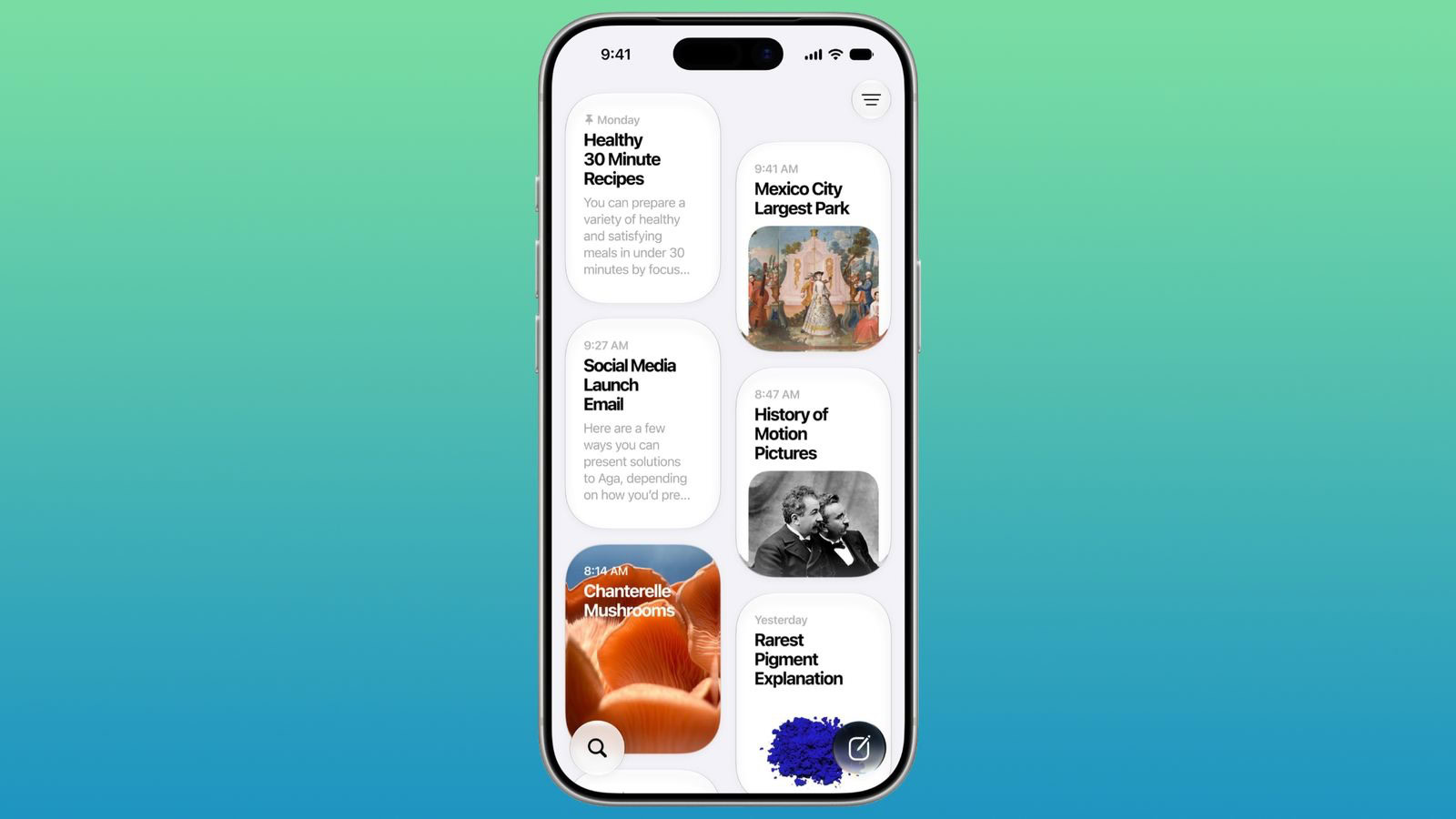
Siri app has a card-style interface with details on your most recent conversations across all of your devices. You can also use the search button to find conversations, and there’s a pin option for conversations that you revisit frequently.
See also: How to Stop Siri Conversations Syncing Across Your Devices in iOS 27
- On the main page of the Siri app, you can tap the new conversation icon (it looks like a sheet of paper with a pencil) to start a new conversation with Siri.
- Tap the search icon to search your conversations.
- Tap the three lines menu icon and select Grid or List styles.
- If you want to delete any conversations
- Tap Select.
- Tap the circle next to a conversation to select it.
- Tap the delete icon (it looks like a trashcan) to delete the conversation. Note: The Siri app does not ask for confirmation when deleting the conversations and there is no recently deleted folder, so be absolutely certain you want to delete the conversation before tapping the delete icon.
- To rename a conversation, touch and hold a conversation, select Rename, and give it a new title.
- To pin a conversation, touch and hold a chat and select Pin. This will stick it to the top of this screen.
- You can also swipe left on a conversation for extra options.
- Tap the pin icon to pin a conversation, which moves it to the top of the list.
- Tap the delete icon to delete it.
That’s how to continue Siri conversation from your iPad on your iPhone.
What do you think of the new Siri app in iOS 27? Do you find it useful? Let us know down in the comments.