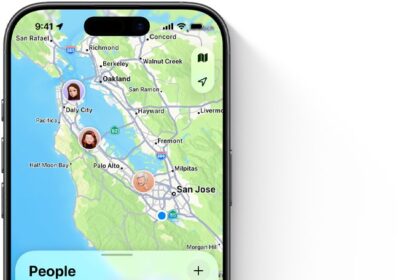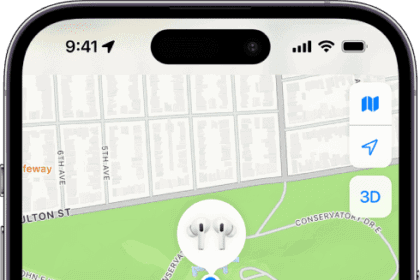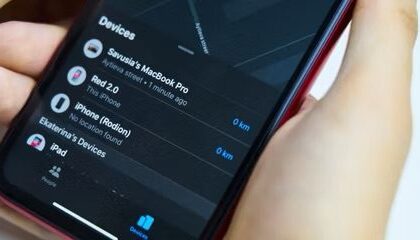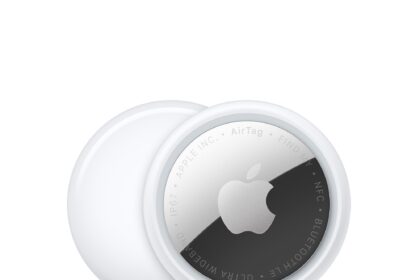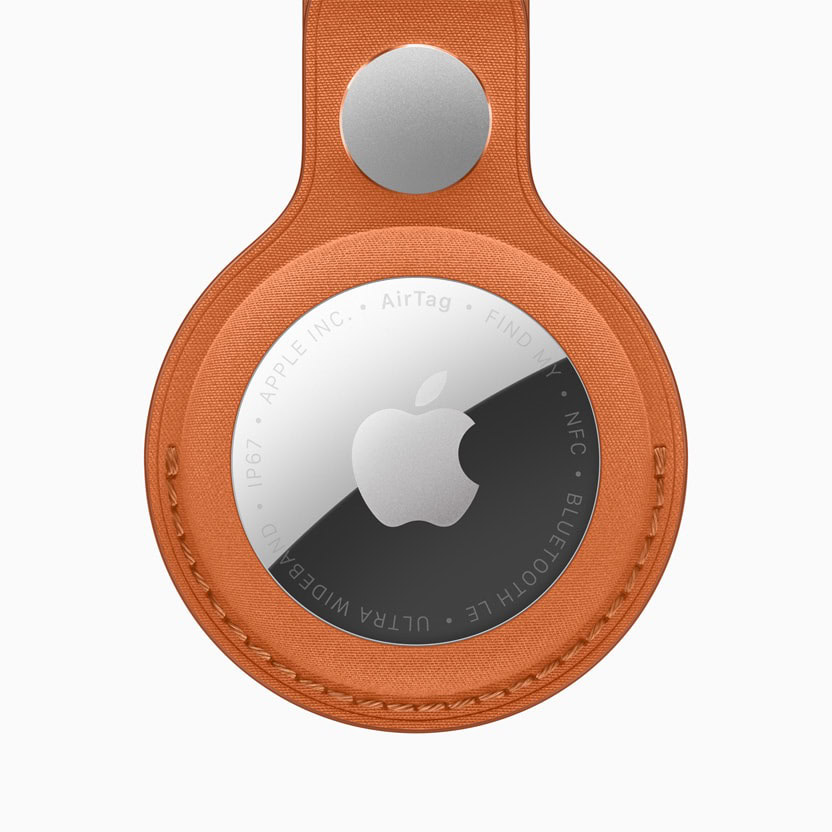
In a native Find My app or the Find Items app on an Apple Watch, you can discover the location of your AirTags and other Find My items in the Items view and any someone else has shared with you. The map zooms in as with Devices; in the version 27 releases, select again to deselect the item, and the map zooms out.
If you have any 2nd-generation AirTags, they appear only on devices updated to at least version 26.2.1 of Apple’s operating systems.
Ultrawideband (UWB) can be used for short-range finding, which Apple calls Precision Finding. (See AirTag 2 vs AirTag for the explanation of UWB.) A Find button with a Nearby label beneath it appears as an option if you have an iPhone 11 or later and you are trying to find an AirTag that’s nearby. It can also be used—in a more complicated manner—with certain Apple Watch models; see below. Precision Finding works with your own Find My items and any that other people have shared with you.
Tap Find and Find My pops up a wayfinding mechanism that tries to detect, range, and point to the item. Apple doesn’t provide details about the distance over which they expect Precision Finding to function. However, in my testing and that of many others, you typically start seeing a signal connection display within about 30 feet (10 meters). As you get within about 10 to 15 feet (3 to 4.5 m), a proximity indicator shows distance and direction.
That’s the baseline capability with a 1st-generation AirTag or either generation of AirTag with an iPhone that has a 1st-generation UWB chip. Apple upgraded UWB with a 2nd-generation chip in the 2nd-generation AirTag and in the iPhone 17 series, the iPhone Air, the Apple Watch Ultra 3, and the Apple Watch Series 11. A 2nd-generation AirTag and any of these devices should see about 50% greater range, according to Apple.
If your device has haptic feedback and it’s enabled, an iPhone vibrates more or less strongly as you lock onto the correct direction and come closer. You can tap the speaker button to briefly play a sound from the AirTag to aid in finding it.
When you’re adjacent to the item, Find My replaces the distance with the label “here” (yes, in lowercase), and shows a 3D rotating image of the item at the center of the display.
Why it says More Light Required
If you use Precision Finding when it’s dark around you, Find My might show the error “More Light Required.” It’s not that UWB requires light. Rather, it appears Apple uses some camera and sensor inputs to help orient your iPhone relative to an AirTag or AirPods Pro (2nd generation) charging case. You can tap the Flashlight button to help.
UWB is not available at all in 10 countries. Indonesia and Nepal allow its use only with items and devices that have the 2nd-generation UWB chip: the 2nd-generation AirTag, the iPhone 17 series, the iPhone Air, the Apple Watch Series 11, the Apple Watch Ultra 3, and the MagSafe Charging Case for AirPods Pro 3.
Precision Finding on an Apple Watch
Apple built a 1st-generation UWB chip into the Apple Watch starting with the Apple Watch Series 9 and the Apple Watch Ultra 2. But Apple didn’t enable Precision Finding until watchOS 26.2.1, and limited it to Apple Watch models with a 2nd-generation UWB chip: the Apple Watch Ultra 3 and the Apple Watch Series 11, as noted above.
Further, you don’t use Find Items for Precision Finding. Perhaps due to its late addition, Precision Finding can be used only via the Apple Watch Control Center. Press the side button to reveal Control Center, and scroll down to Edit and tap it. Tap the plus button, and any available AirTag appears. Tap to add it. Return to the Control Center when you want to use Precision Finding with that AirTag.
As you turn towards the AirTag, the display lights up green, indicating you’re getting warmer. If the item moves while you’re trying to find it, Find My shows a diffuse display indicating it’s in motion.
What else an item’s sheet offers
Select an item in the list and view its sheet of actions. Many of the actions are the same as for devices; here are the exceptions:
- Share AirTag: Share or manage sharing of an AirTag. See how to share an AirTag with someone else. (For AirTags shared with you, a Shared AirTag label appears.)
- Change Name and Emoji/Rename Item: On an iPhone or iPad, this option lets you change the item’s name, required because all items lack a display or interface. You can also change the emoji.
- Find: When using the Find My app on any iPhone 11 series phone or later with an AirTag and the item is within a short distance, Directions is replaced with Find.
- Serial number and other details: You can obtain the serial number of a Find My item in one of two ways when viewing its sheet of actions:
— AirTag: On an iPhone or iPad, tap the name area, and the serial number (and firmware release) appear.
— Find My item: On the sheet shown on an iPhone, iPad, or Mac, scroll or swipe down to see a panel of information, including the manufacturer’s name, the item’s model, serial number, and firmware version.
— Apple Watch: Select the item, scroll down, and tap Show Details for either an AirTag or Find My item.