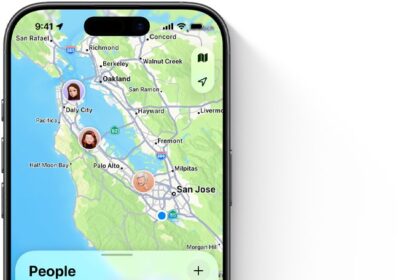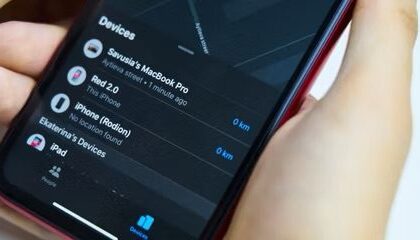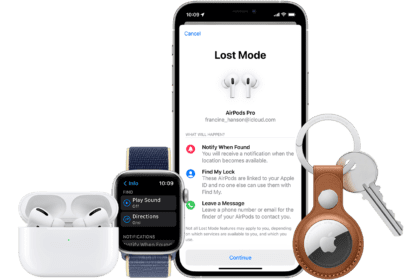
Apple lets you create a link you can share beyond the maximum of five people who can have continuous shared access. You can create a link to track an item that you can share with anyone.
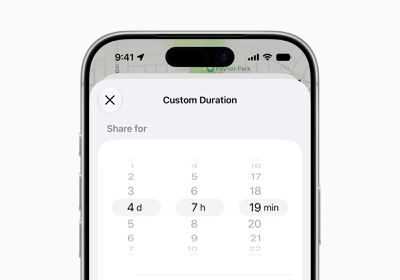
The link expires after seven days, or you can disable it manually. It immediately stops working as soon as you are within Bluetooth range of the AirTag or Find My item, or if someone you shared the link with is close to it. Airlines have also added a way to use this link for baggage traffic, either for normal use or when your baggage is misplaced.
This requires at least iOS 18.2/iPadOS 18.2 or 15.2 Sequoia on your sharing device and the person who wants to view the link.
Create the AirTag luggage link
Share Item Location under Lost AirTag or Item is the pathway to obtain this link. Tap or click that label to start. First, you’re given a disclosure about what someone with the URL will see. If the item is nearby, you can’t obtain this URL and see an alert about it. Otherwise, tap or click Continue.
Find My generates a URL on a screen labeled Item Location Ready to Share. Tap or click the copy button to copy the URL or tap or click Share Link to use an option on the share sheet.
Apple continues to preserve end-to-end Find My item privacy, even when you’re sharing a link. In fine print, Find My notes, “At least one of your iPhone, iPad, or Mac devices needs to be online to provide updated locations.” That’s because the only way to retrieve the crowdsourced location is via one of those devices.
After the link is created, you can return to the same location to copy the URL. If you want to stop sharing, tap or click Stop Sharing Item Location. Disabled links can’t be reused: Apple generates unique links for each shared item every time.
What the other person sees
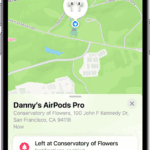
If the recipient has an iPhone, iPad, or Mac with an operating system recent enough to support Find My item sharing, the link—labeled Find Lost Item in some contexts, such as when sent via Messages—will prompt to open in the Find My app. Tap or click Continue in Find My. In the Find My app, you see an alert that lost items appear only when viewed in this fashion; tap or click Continue. Finally, you see the item tracked.
For people opening the link on any device other than a supported Apple one, they are taken to a webpage that automatically updates when the item’s reported location changes.
Share the link wisely! Anyone in possession of the link can use it to track the item’s current location for as long as the link is valid.
Once an item is found, Apple automatically disables the links and notifies the lost item’s owner.
Give the link to an airline
Share Item Location can also be used in a privacy-protecting way with airlines and baggage-handling services to report a missing or delayed bag. Apple said 50 airlines had signed on to support the feature. The last count, as of February 2026, was that 36 were online, including American, Delta, and United in the United States, along with major airlines worldwide. However, there’s no official list.
Apple says that safeguards will be in place at airlines so that only a limited number of people with authenticated logins can view shared tracking information.
If your bag is delayed on a supported airline:
- In a native Find My app, use the process above to generate a shared item link.
- Open the airline’s iPhone or iPad app or go to their website. Find the delayed-baggage form.
- In the field labeled Find My in some variation, paste the URL.
Because the 2nd-generation AirTag requires version 26.2.1 or later of Apple’s operating systems to use this kind of item tracking, it is possible that some airlines and baggage-handling services still don’t support these newer trackers. Big organizations tend to lag in updating their devices. I haven’t heard any reports, however.