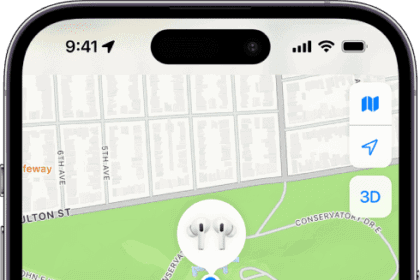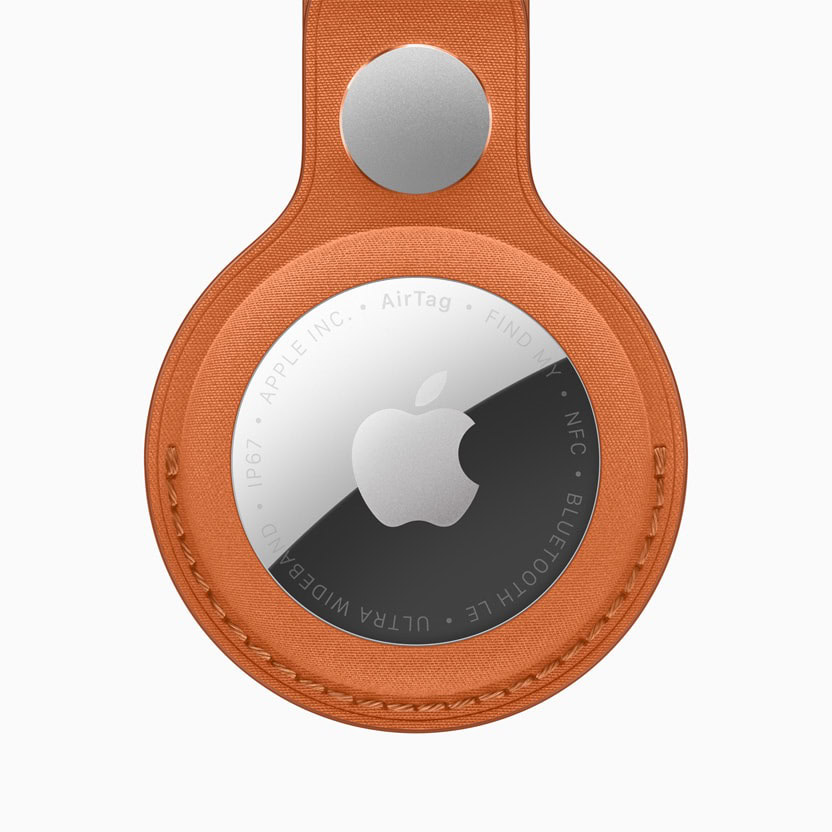
You can tap or click Play Sound when you can’t find a device or item but think it may be nearby, or for a device when you’re trying to alert someone remotely to notice that it’s there—and potentially get in touch with you. This includes everything from iPhones to earbuds to AirTags.
After you tap or click Play Sound, a loud pinging noise will play on a device (if sound is active) or the device will vibrate (if muted) for two minutes. You can also tap to stop it sooner.
With a 1st-generation AirTag, the sound has an ostensibly friendly tone and lasts for about 10 seconds; the 2nd-generation AirTag may seem less so, as Apple measures it as 50% louder. They also raised the pitch one whole tone (from F to G). Other Find My items vary in the sound they produce: the Chipolo ONE Spot says it blares at up to 120 decibels during its sound pattern—the level of a chainsaw or a plane taking off.
An Apple/Google anti-stalking specification (see how Apple and Google detect an unwanted AirTag) now in effect requires devices produce sound of a “minimum 60 Phon peak loudness” at 25 cm (10 inches), a measurement which means 60 dB at 1000 hertz (Hz), a mid-range in human speech, and about 75 dB for higher-pitched tones.
Play Sound communicates differently with devices and items:
- For an iPhone, iPad, Mac, or Apple Watch, the signal is sent via a local network or the internet.
- AirTags, Find My items, all AirPods models, and Beats audio devices with Find My support have to be within Bluetooth range to receive the signal from a paired device. (This is true even for Apple and Beats audio devices.)
The 2nd-generation AirTag includes a newer generation of Bluetooth chip, and should be reachable at dozens to hundreds of feet (say, 10 m to 100 m) further than the 1st-generation model.
- AirPods Pro (2nd generation) can play a sound on their charging case as well as through earbuds.
For audio hardware, you should receive a warning about the potential for hearing damage.
With Apple and Beats earbuds, you can typically pick which earbud should play a sound: either or both.
If your earbuds are in their case or haven’t been “seen” by Find My for some period of time—Apple doesn’t say how long—you won’t see the left/right option.
Apple also alerts people who discover an item traveling with them and gives them an option to play a sound on it; see what an “AirTag Found Moving With You” alert means.
If a device is unlocked, a notification appears that reads “Find My Device Alert”. If an iPhone or iPad is locked, it has to be unlocked to disable the ping or vibration. On a Mac, the dialog can be dismissed at a sign-in screen.
Ping your watch from your phone
On an iPhone, you can add an Apple Watch ping option to Control Center. Swipe to reveal the Control Center, touch and hold on the background of one of the views, tap Add a Control, search for Watch, and add Ping My Watch. Swipe to reveal Control Center and tap the icon to ping. Waking or tapping your iPhone or Watch stops the terrible sound!
Get directions to a person or item
The Maps app offers a quick way to retrieve a path to a person, a device, or an item via Directions. You can tap or click Directions on the sheet in People, Devices, or Items in a native app. You can also use an info pane for a person in Messages, where it appears as a blue-tinted button with a suggested travel method and a time estimate derived from Maps.
Selecting Directions in Find My or tapping the blue directions button in Messages opens the Maps app on your device with the destination being the current location of the person, device, or item. You can then fine-tune things in Maps, such as choose a method of transportation (walking, public transit, driving, etc.)
If someone can’t be reached by car or transit, you just see their location, of course. Maps doesn’t plot boat or air trips.
Work out when someone will arrive
While Directions takes you to someone, you can also figure out how long someone will take to get to you—though it requires a few steps. When certain relatives visit us with their families or when we’re trying to figure out when our kids are due home, my spouse and I use Directions like this:
- In Family Sharing, select the person or device associated with them.
- Bring up the actions sheet and tap Directions.
- In Maps on an iPhone, iPad, or Mac, reverse the direction by dragging the hamburger button to the right of the person’s name to the position above the entry labeled My Location.
- Select the mode of transportation the person is using.
Now you have the approximate time someone will arrive. While you can use the more direct method, this is a quick method less reliant on the accuracy and notification delivery of Find My and Apple.