Facebook-f Twitter
GeeksChalk Logo GeeksChalk Logo
Notification
  • Home
  • iPhone
  • iPad
  • Mac
  • Apple Watch
  • Pages
    • About Us
    • Contact Us
    • Advertise With Us
  • 🤩 Trending:
  • 100 new iOS 26 features for iPhone
  • 10 Best iOS 26 Tips & Tricks
  • iPhone 16: Everything We Know
  • iPhone 16 Pro: Everything We Know

GeeksChalk is the leading source for all things iPhone, Mac, iPad, Apple Watch, Vision Pro, and more

GeeksChalkGeeksChalk
  • Home
  • iPhone
  • iPad
  • Mac
  • Apple Watch
Search

Popular Post

iPhone 15 Pro in black titanium, white titanium, blue titanium, and natural titanium finishes.
iPhone

Apple CarPlay GPS Not Working, Showing Wrong Location: Fix

iPhone 14 Pro and iPhone 14 Pro Max are shown in gold.
iPhone

How to Fix iPhone not sending text messages to Android

Connect an iPhone to car Bluetooth
Troubleshooting

How to fix Bluetooth not working on iPhone after iOS 26 update

iPhone outline with an Apple logo
iPhone

Need to restore an iPhone backup? Here’s how

Follow US
Copyright Ā© 2026 www.GeeksChalk.com
iPhone 18 Pro in glacier is paired with the glacier Wrist Strap.
GeeksChalk > Troubleshooting > Can’t Tap Your Name in Settings on iPhone 18 Pro? How to Fix

Can’t Tap Your Name in Settings on iPhone 18 Pro? How to Fix

If you can't tap your name in Settings on your iPhone 18 Pro or iPhone 18 Pro Max, allow Accounts changes in Screen Time's Content & Privacy Restrictions.

Last updated: September 28, 2026 11:10 am
By Chris Smith - Senior Editor
Share
1 Min Read

Some iPhone users have complained that they are unable to tap their name in the Settings of their iPhone 18 Pro or iPhone 18 Pro Max. Users have said that the section appears to be grayed out and tapping does nothing.

When you go to Settings, you will see your name along with your profile photo at the top. Tapping your Apple Account name shows the options to change important account settings, including, but not limited to:
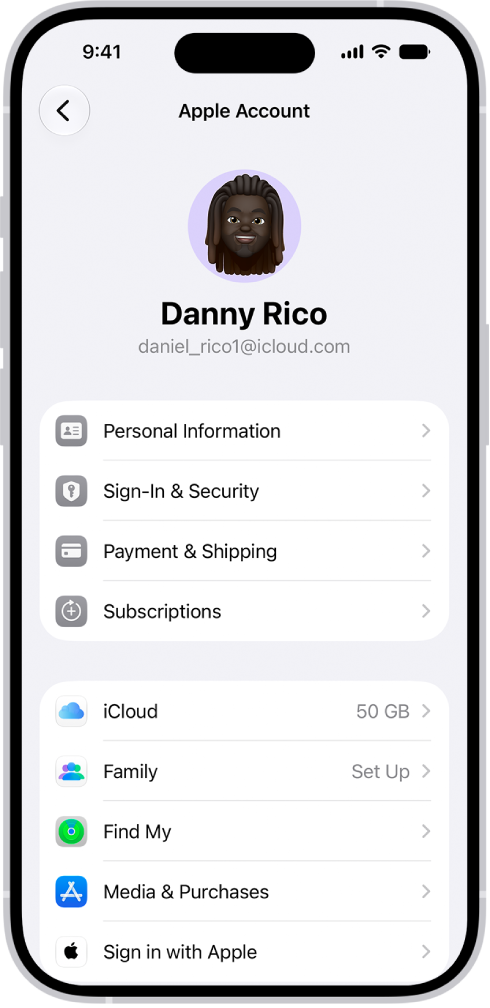
The Apple Account Settings shown with a list of options including personal information, subscriptions, Find My, and more.

  • Apple Account settings
  • Find My
  • iCloud settings
  • Subscriptions
  • Payment & Shipping
  • Media & Purchases

If you cannot access these settings, there are two likely causes:

  • It may be because you have Content & Privacy Restrictions turned on in Screen Time.
  • You have an MDM (mobile device management) profile.

1. Check for restrictions preventing account changes

  1. Open Settings and then tap Screen Time.
  2. Tap Content & Privacy Restrictions.
  3. Scroll down and find the Allow Changes To section. Tap Accounts. You will need to enter your Screen Time passcode.
  4. Ensure that this setting is set to Allow.

Now exit Screen Time and go back to Settings. You will see that your Apple Account name is now accessible.

Note: If you are a child and part of a family group, your parents may have set up Screen Time, and you will need to ask your parent (or whoever set up the family group) for the Screen Time passcode.

2. Check for profiles

If your iPhone 18 Pro is provided to you by your work or school, there may be a profile installed. To check if there is a profile, go to Settings > General > VPN & Device Management. If Screen Time is not causing your problem, this could be the problem. Contact your company or school.


TAGGED:Apple AccountiPhone 18 ProScreen Time
ByChris Smith
Senior Editor
Follow:
Chris Smith is a senior editor at GeeksChalk based in Canada. He likes to think of himself as a jack of all trades (and a master of at least a few), though he mainly focuses on iPhones and Macs. Often covering both at the same time. When not surrounded by various Apple devices while putting them through their paces, Chris can be found streaming the latest movies or series, gaming on his PS5, or getting fresh air on a hike in the beautiful wilderness of British Columbia.
Leave a Comment Leave a Comment

Leave a Reply Cancel reply

Your email address will not be published. Required fields are marked *

Recent News Flash

iPhone 18 Pro, burgundy finish, partial back exterior angled to show pro camera system in top left corner, 3 lenses, microphone, flash

Not Enough Space to Transfer a Backup to iPhone 18 Pro

The front of a burgundy iPhone 18 Pro is displayed next to a rear-facing burgundy iPhone 18 Pro Max.

iPhone 18 Pro Not Showing Up in Finder on Mac? Here’s Why

A burgundy iPhone 18 Pro with coordinating case is paired with a magenta Crossbody Strap.

Notes Disappeared on iPhone 18 Pro? How to Recover Them

iPhone 18 Pro in glacier is paired with the Clear Case.

Wordle Shows a Blank Page on iPhone 18 Pro? Here’s the Fix

Trending Now

Facebook home page on an Apple iPhone 14 Pro

How to see your Facebook video watch history and delete it

Apple Account

How to find your Apple ID on iPhone, iPad, or Mac

List and Grid view for past Siri conversations on iPhone

How to Change Siri conversation view style in iOS 27

Explore More

Recommended For You

iPhone 18 Pro Max, iPhone 18 Pro, a hand holds each model

Can’t Transfer Photos From iPhone 18 Pro to Windows? Fix

iPhone 18 Pro is displayed in black, silver, glacier, and burgundy.

Notifications Disappearing From iPhone 18 Pro Lock Screen

The front of a burgundy iPhone 18 Pro is displayed next to a rear-facing burgundy iPhone 18 Pro Max.

Google Unusual Traffic Error on iPhone 18 Pro? How to Fix

iPhone 18 Pro and iPhone 18 Pro Ma iPhone 18 Pro, back exterior, burgundy color (dark red)

iPhone 18 Pro Unable to Download App From The App Store? Fix

GeeksChalk Logo GeeksChalk Logo
  • Home
  • Contact Us
  • Advertise
  • Our Staff
  • Editorial Guidelines
  • Terms
  • Privacy
  • Accessibility
  • Copyright
  • About Us
  • Fact Checking Policy
  • Correction Policy
  • Ethics Policy
  • Ownership Policy
Copyright Ā© 2026 www.GeeksChalk.com
Welcome Back!

Sign in to your account

Username or Email Address
Password

Lost your password?