Some users have said that they are not able to print documents, messages, or photos because AirPrint is not working. They further said that this problem started after updating their iPhones. Users have said that when they attempt to print anything, the print screen does not show the AirPrint connected printer; thus users are unable to select their printers. Some said they see a “No AirPrint Printers Found” or “No Printer Selected” error when they want to print something.
AirPrint makes it much easier to print from an Apple device, such as iPhone or Mac, to an enabled printer. It is a great technology when it works. Sometimes, your printing abilities may stop working for no apparent reason.
In this article, my focus is on what you can do to fix things when AirPrint suddenly stops when it had been working previously. Obviously, something changed that caused your AirPrint printer not to connect and print. In other words, you were successfully printing with AirPrint, but then suddenly, you were not.
Many things could cause this problem. For example, you may have changed some settings to troubleshoot another issue, and then, unknown to you, you may have caused this issue as a side effect. One or more of your devices may be experiencing this issue. Fortunately, I will cover what you can check to get it working again.
Check these first
- Ensure that your device has the latest version of its operating system. To check for an update on your iPhone 18 Pro, go to Settings > General > Software Update.
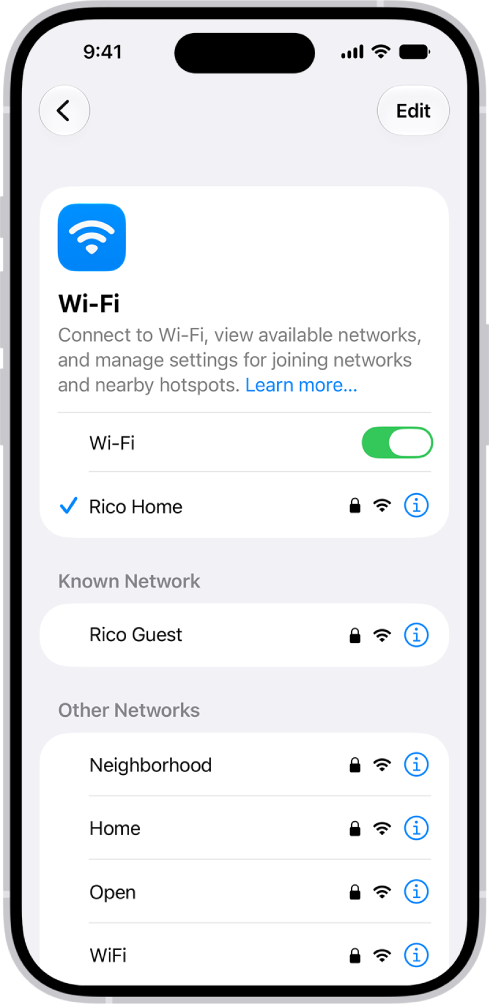
- For AirPrint to work, your iOS or macOS device and the printer must be connected to the same Wi-Fi network. For example, if your iPhone 18 Pro is connected to the Internet via a cellular network, it won’t work. This happens to me a lot. Sometimes, I turn off Wi-Fi and connect to the Internet over cellular, and then I can’t use AirPrint until I turn on Wi-Fi again.
- Do you have a VPN app installed on your device (regardless of whether you are connected through the VPN)? Delete the VPN profile. You can do so by going to Settings > General > VPN & Device Management > VPN and tapping the (i) next to VPN. Then tap Delete VPN.
- Try forgetting your Wi-Fi network. On your iPhone 18 Pro, open Settings > Wi-Fi and then tap the (i) next to the Wi-Fi network. Then tap Forget This Network. And then re-connect to it.
Restart the Bonjour network
If the issue continues, restarting Bonjour will likely fix this AirPrint problem. Bonjour is Apple’s networking technology. It is used for printer discovery and communication. Sometimes, Bonjour may have issues, and restarting will fix them. You can restart by following these steps:
- Turn off your printer.
- Turn off the device you can’t print with, like your iPhone 18 Pro or Mac.
- Unplug the Wi-Fi router from the power source, wait 15 seconds and then plug it back in.
- Wait for your router to start working again. This may take a few minutes. Ensure that your router is ready before going to the next step.
- Turn on your Apple device.
- Ensure that your Apple device is connected to the Wi-Fi network. It will probably connect automatically. If not, connect to the Internet over Wi-Fi.
- Turn on the printer and wait for it to get ready and connect to the Wi-Fi as well.
Following the steps above will restart Bonjour. Check if your AirPrint issue has been resolved.
If you are still having issues, reset your network settings. When you do this, it essentially erases all network-related settings and configurations on your device. This includes Wi-Fi passwords, VPN/APN settings, and Bluetooth connections. This, however, does not delete your data or content, such as your photos or apps. On your iPhone, go to Settings > General > Transfer or Reset iPhone > Reset > Reset Network Settings and then follow the onscreen instructions.
Confirm your printer supports AirPrint
Some printers show up in the print list but do not officially support AirPrint. Verify that your exact printer model supports AirPrint.
If AirPrint is not supported, printing may only work through the manufacturer’s app.
I am telling this because printers without proper AirPrint support often break after major iOS updates.
You can search your model/brand here: https://mfi.apple.com/account/airprint-search
Likewise, some printers allow AirPrint to be disabled. Check the printer’s screen, settings menu, or web interface. Confirm AirPrint is turned on.
Even when AirPrint appeared enabled, some users found it only worked again after firmware updates or a reset.
Update the printer firmware
Updating the printer firmware was the most successful fix mentioned.
- Many users restored AirPrint after installing the latest firmware or service pack.
- This applied to printers from HP, Xerox, and Epson.
In some cases, the printer could not update itself automatically. Users had to:
- Access the printer’s web interface using its IP address, or
- Download the firmware manually from the manufacturer’s support site and install it following their instructions.
Once updated, AirPrint may begin working again.
Reset the printer to factory settings
If updating firmware does not help, try a full factory reset.
- Reset the printer using its control panel or settings menu.
- Reconnect it to Wi-Fi and set it up again from scratch.
A reset can also clear expired certificates or corrupted network settings inside the printer.