Are you having AirPrint problems? Several users have said that their printers do not show up and they get the error message saying “No AirPrint Printers Found” when they attempt to print documents or photos from the iPhone 18 Pro or iPhone 18 Pro Max. This error message occurs when your Apple device is unable to find your printer. You may also start experiencing this problem after a software update.
This guide will help you troubleshoot the most common AirPrint problems. More specifically, the focus of this article is on resolving the “No AirPrint Printers Found” issue. It can be a big problem for you if your printer won’t print a document. With AirPrint, you can print from your iPhone 18 Pro without installing drivers.
The steps below are in order. After trying each step below, try to print again to see if you’ve fixed your issue.
Basic checks
Before you proceed with any of the fixes on this list below, check the following:
- Please make sure that your printer is connected to the same Wi-Fi network as your iPhone 18 Pro.
- Make sure that your printer has toner installed or enough ink.
- Make sure that your printer is turned on. Some printers may take several minutes before it can print after you turn it on.
- Make sure that your printer and your device are within range.
- Make sure that your iPhone 18 Pro is using the latest version of iOS.
- iOS: Go to Settings > General > Software Update.
- Check with your printer’s manufacturer to see if any firmware updates are available, if there are, update your printer.
- Check with your router’s vendor to see if any updates are available. If there are, update the firmware on your router. Most routers let you update it with a web browser.
- Make sure that your printer has paper.
- Make sure that your printer supports AirPrint. Furthermore, some printers may have additional settings to turn off or on AirPrint. Make sure that AirPrint is enabled on your printer. What you can do is to check your printer’s documentation or contact the printer manufacturer for additional assistance.
Restart everything
Restart everything to see if this can help you:
- Restart your iPhone 18 Pro.
- Restart your printer. You can restart your printer easily: Unplug it, wait for one minute and then replug it.
- Restart your Wi-Fi router. Unplug the power cord, wait for one minute and then replug.
Reconnect
Try to forget your Wi-Fi network and then reconnect. This is a helpful step when you are having Wi-Fi problems. Here is how:
iPhone
- Tap Settings.
- Tap Wi-Fi.
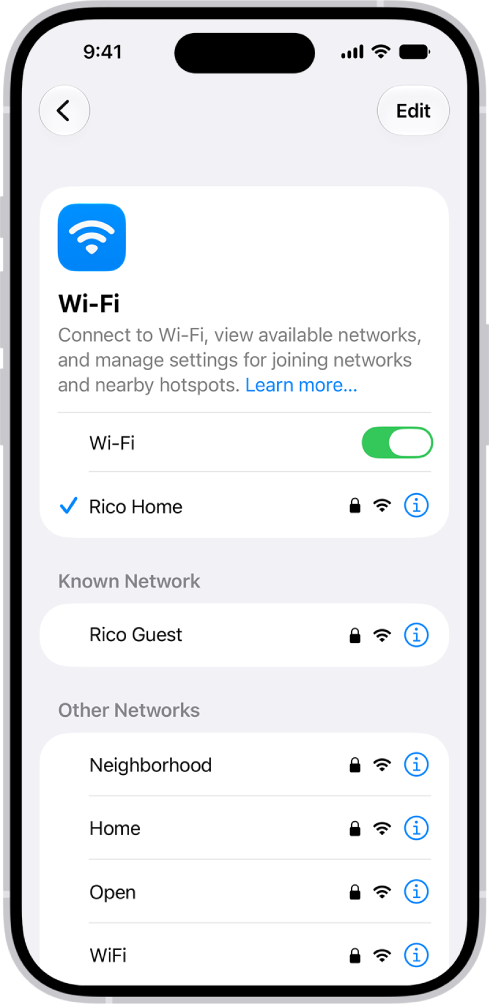
- Tap the (i) icon next to the Wi-Fi network you want your iPhone to forget. You will also see the blue check icon on the left.
- And tap Forget This Network. A popup will appear saying “Forget Wi-Fi Network “MyNetwork”? Your device and other devices using iCloud keychain will no longer join this Wi-Fi network”. Tap the red Forget button.
- Then reconnect again. Go to Settings > Wi-Fi and tap the name of the network and enter the password to connect.
2.4 GHz and 5.0 GHz
Most routers support 2.4 GHz and 5 GHz Wi-Fi. But not all AirPrint printers may support both frequencies. The main difference is that while 2.4 GHz offers internet to a larger area, 5 GHz provides faster internet speeds to a smaller area. Most printers can only connect to the 2.4 GHz wireless band. Your printer will not see or connect to the router 5 GHz band.
Stick your wireless printer on 2.4 GHz. Some routers provide different network names (SSIDs) for each frequency. If this is the case, connect your printer to the 2.4 GHz band.