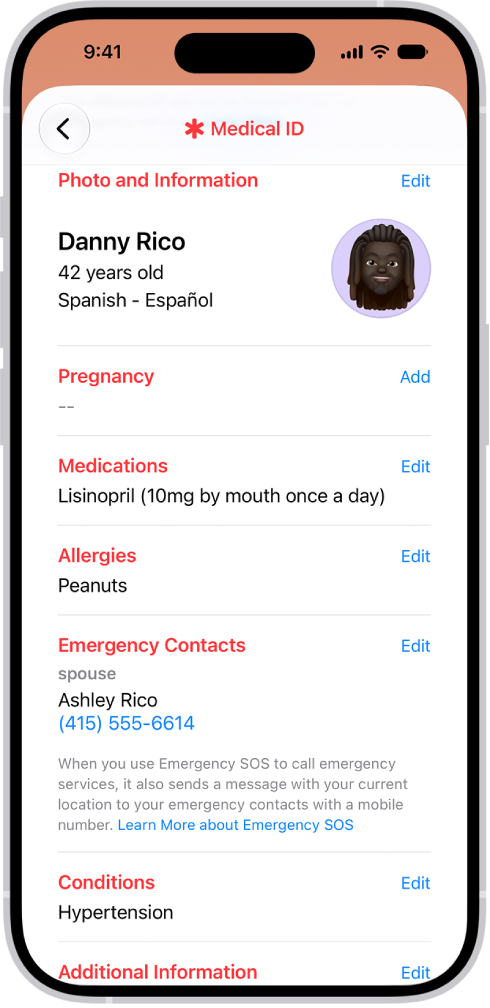
On iPhone, to personalize your experience, add your name, date of birth, sex, blood type, and other basic information to Health Details. To help first responders and others in case you have a medical emergency, create a Medical ID that contains information about medical conditions, medications, allergies, blood type, emergency contacts, and more.
To better manage your health with the help of the Health app, periodically review the Health Checklist. And if you skipped any details when you first opened Health, you can add them later.
Fill out the Health Details screen
The first time you open Health, it asks you to provide basic health information about yourself. Anything you don’t supply then, you can add later on the Health Details screen.
- Start the Health app on your iPhone.
- Tap Summary, then tap your picture or initials.
- Tap Health Details and tap Edit.
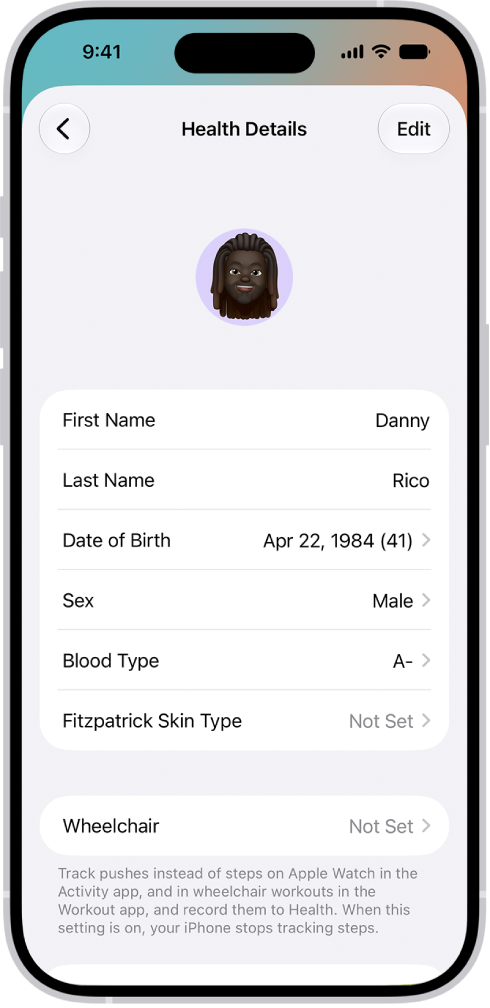
- To make a change, tap a field.
- When you’re finished, tap the Done button. Then swipe down to exit.
Create a Medical ID
Your Medical ID lets first responders and others view critical medical information about you, even while your iPhone is locked.
Review your Health Checklist
- Start the Health app on your iPhone.
- Tap Summary, then tap your picture or initials.
- Tap Health Checklist.
- To turn on or learn more about an item in the list, tap it.
- When you’re finished, tap the Done button.