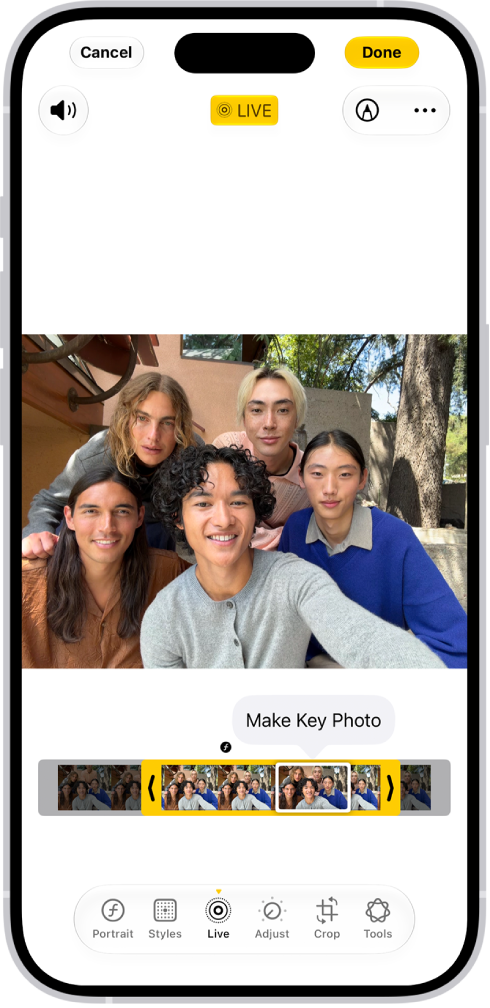
Use Camera to take Live Photos with your iPhone. A Live Photo captures what happens just before and after you take a photo, including the audio. You take a Live Photo just like you do a normal photo.
In Photo mode, Live Photo is on by default, and you can turn Live Photos off and on whenever you like. And you can play one back to see the moment move.
Here’s how to take Live Photos with your iPhone camera.
Take a Live Photo
- Open Camera on your iPhone.
- Make sure Camera is set to Photo mode.
Note: Live Photo is on by default.
- Tap the Shutter button or click the Camera Control to take a Live Photo.
- To play the Live Photo, tap the photo thumbnail at the bottom of the screen. Touch and hold the screen.
Your Live Photos save automatically to your photo library in the Photos app.
Turn Live Photos off and on
- Open Camera on your iPhone.
- Make sure Camera is set to Photo mode.
- Tap the Camera Controls button or swipe up from Photo mode at the bottom of the screen.
- Tap Live. Tap one of the three options: Auto, On, or Off.
- Tap the screen to close.
Quick tip: Keep the Live Photo button on the camera screen at all times: Go to Settings > Camera > Indicators, then turn on Live Photo.
Note: With ProRAW or HEIF Max turned on, Live Photos aren’t available.