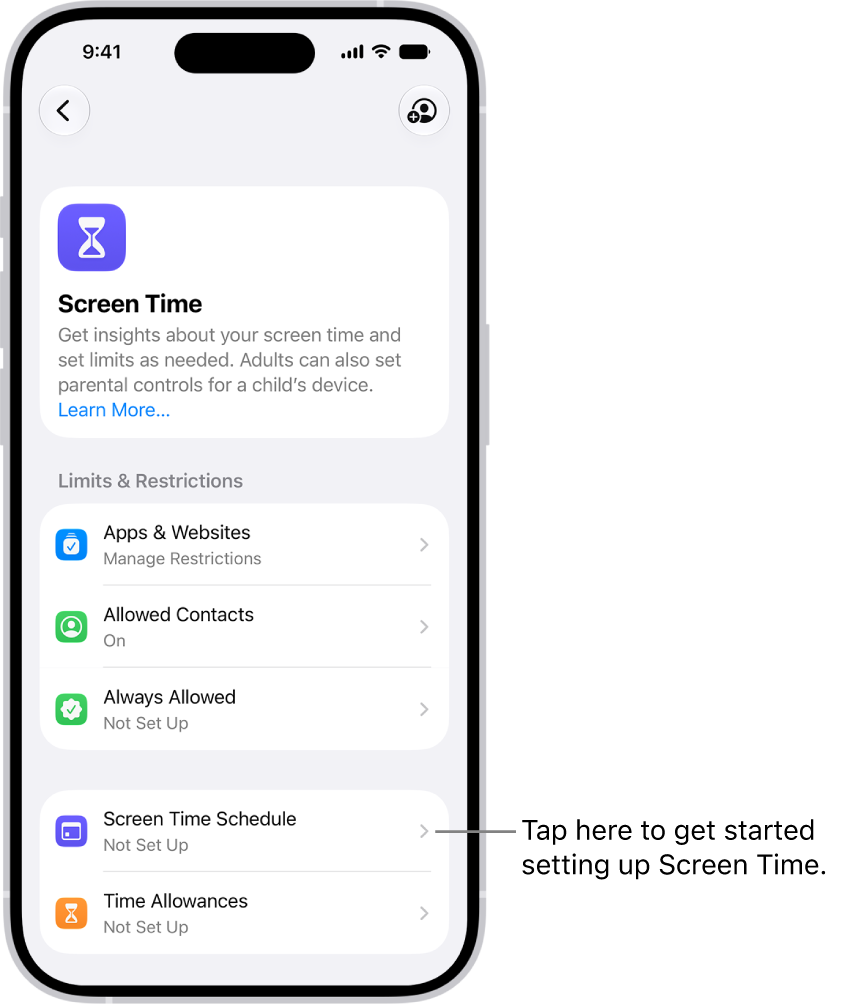
On iPhone, you can create a passcode that you must enter before changing Screen Time settings you selected for yourself. After you set a passcode, you can change or remove it later in Settings.
It’s a four-digit passcode. And if you set up Screen Time Passcode Recovery, you can use your Apple Account to reset it if you ever forget it.
Here’s how to create, change, or remove a Screen Time passcode on iPhone.
Create a Screen Time passcode
Before you change the settings you’ve chosen for yourself, you can choose to enter a Screen Time passcode.
- Open the Settings app on your iPhone.
- Tap Screen Time, tap Manage Screen Time, and then tap Lock Screen Time Settings.
- Enter a four-digit passcode and then enter the passcode again to verify it.
Note: You can also set up Screen Time Passcode Recovery after setting a passcode for yourself. That way, if you ever forget your Screen Time passcode, your Apple Account can be used to reset it.
Change a Screen Time passcode
- Open the Settings app on your iPhone.
- Tap Screen Time and tap Change Screen Time Passcode. Tap Change Screen Time Passcode.
- Enter your current passcode, enter a new four-digit passcode, and then enter the new passcode again to verify it.
Remove a Screen Time passcode
- Open the Settings app on your iPhone.
- Tap Screen Time, tap Change Screen Time Passcode, select Turn Off Screen Time Passcode, and enter your current passcode.