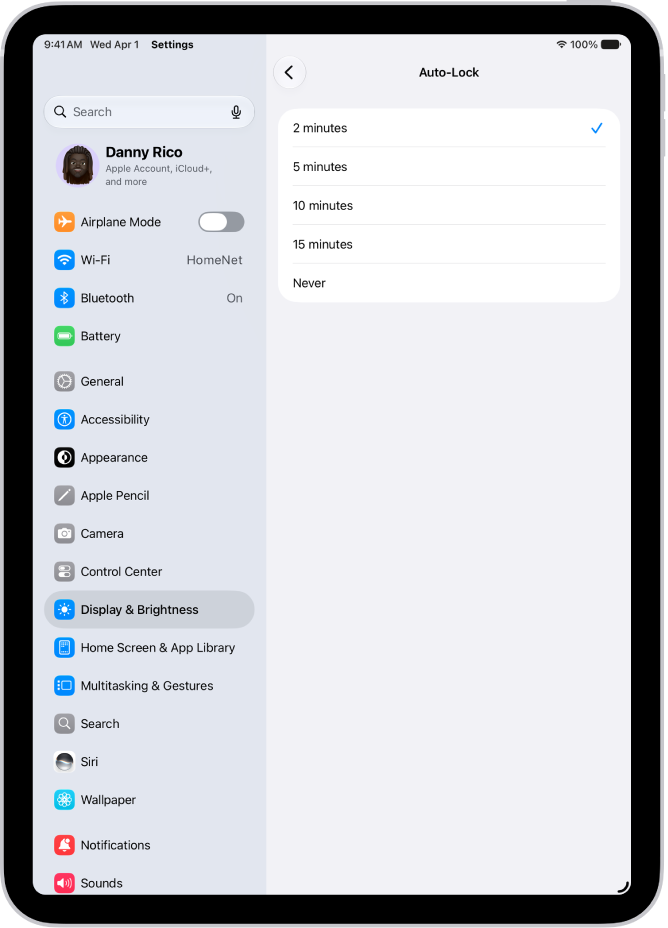
You can choose how long the iPad display stays on before iPad locks automatically, and you can also prevent iPad from locking when it’s in use for a task like reading or following a recipe.
Many apps, like Maps, video players, and reading apps, keep iPad from locking while they’re in use. Delaying Auto-Lock may increase power consumption, though. And when you can’t change Auto-Lock, it may be because Guided Access is turned on.
Here’s how to keep the iPad display on longer.
Change when iPad automatically locks
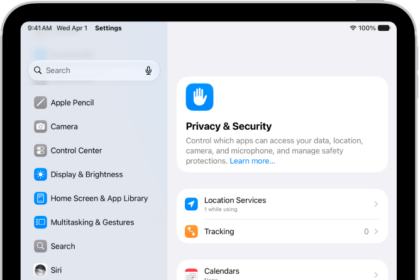
- Open the Settings app on your iPad.
- Tap Display & Brightness and tap Auto-Lock.
- Choose a time interval.
Note: Delaying or preventing Auto-Lock may increase power consumption.
If you can’t change Auto-Lock, Guided Access might be turned on, and it disables Auto-Lock while it’s active. For more, see our guide, Set up Guided Access.
Keep the display on while using an app
When they’re actively being used, many apps, such as reading apps, video players, and Maps, keep iPad from locking automatically. There’s no need to change Auto-Lock for these apps.
If an app locks the screen when you don’t want it to, check whether the app has a setting to prevent Auto-Lock.
When iPad is connected to an external display or Stage Manager is on, your screen may stay on past your Auto-Lock setting. And while content is displayed on the external screen, iPad stays active.
See also