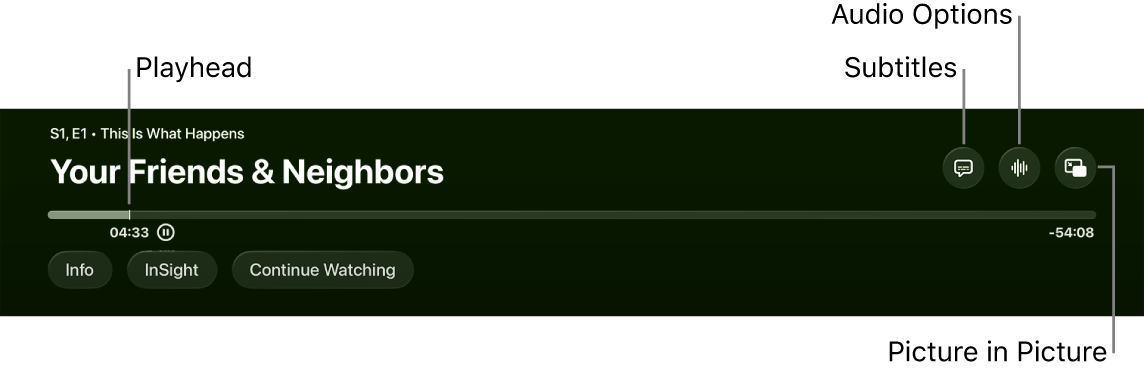
By default, Apple TV 4K automatically chooses the language for subtitles and turns subtitles on when you mute or skip back. You can change these subtitle settings, though. For example, subtitles can show automatically if the language of a video you’re watching doesn’t match your preferred language. You can also choose a subtitle language yourself or let Apple TV 4K pick it, and Show on Skip Back temporarily shows subtitles when you skip back up to 30 seconds.
- Go to Settings on Apple TV 4K.
- Go to Video and Audio and navigate down to the Automatic Subtitles section. Adjust any of the settings listed below.
Option Description Show for Different Languages Turn on to automatically show subtitles when the language of the video you’re watching doesn’t match your preferred Apple TV 4K language. Subtitle Language Choose the language you want to use for subtitles, or choose Auto to let Apple TV 4K pick the subtitle language automatically. Show When Muted Turn on to automatically activate subtitles when volume is muted or turned all the way down. (This feature is not supported when TV volume is controlled by an infrared remote.) Show on Skip Back Turn on to temporarily show subtitles when you skip back up to 30 seconds.
Not all features and content are available in all countries or regions or on all Apple TV hardware models.