Your remote comes automatically paired with your Apple TV 4K. If it disconnects or you get a replacement remote, though, you’ll need to manually pair it to Apple TV 4K. And if your remote isn’t responding, you can reset it, then pair it again. Resetting a remote unpairs it with Apple TV 4K, and each Apple TV 4K can have only one remote paired with it at a time, so pairing a new one unpairs the other.
Here’s how to pair your Apple TV 4K remote — and how to reset it if it stops responding.
Reset the remote
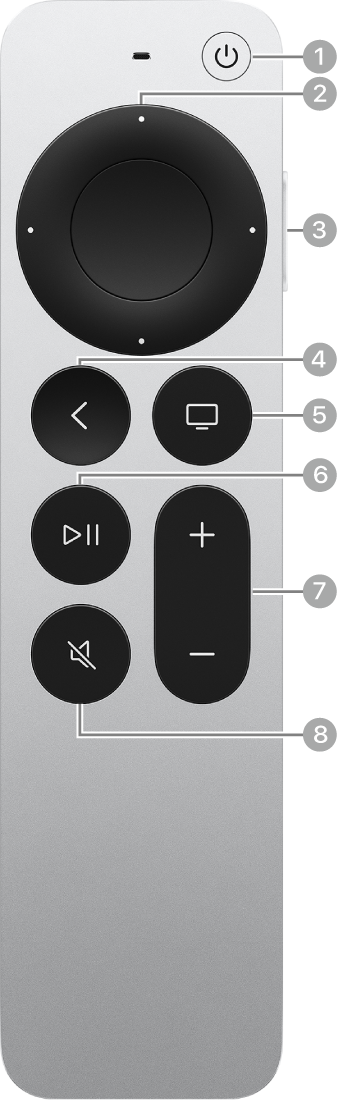
- Press and hold the Volume Down button and the TV button on your remote for at least 5 seconds.
Resetting a remote unpairs it with Apple TV 4K. Follow the instructions below to pair it again.
Pair a remote with Apple TV 4K
- Turn on Apple TV 4K.
- Position the remote so it’s within 3 to 4 inches (8 to 10 cm) of and pointing at the front of your Apple TV 4K.
- Press and hold the Volume Up button and the Back button or the Menu button on your remote for 2 seconds.
When the remote is successfully paired, an onscreen message appears.
Note: You can pair only one Apple TV 4K remote with an Apple TV 4K at a time. When you pair a new remote, any other remote that’s paired unpairs automatically.
Not all features and content are available in all countries or regions or on all Apple TV hardware models.
See also