Restart HomePod when it’s not responding normally, for example, when it displays a flashing white light. You can restart HomePod by unplugging it from power and plugging it back in, or with the Home app on your iPhone or iPad for a single HomePod or a stereo pair.
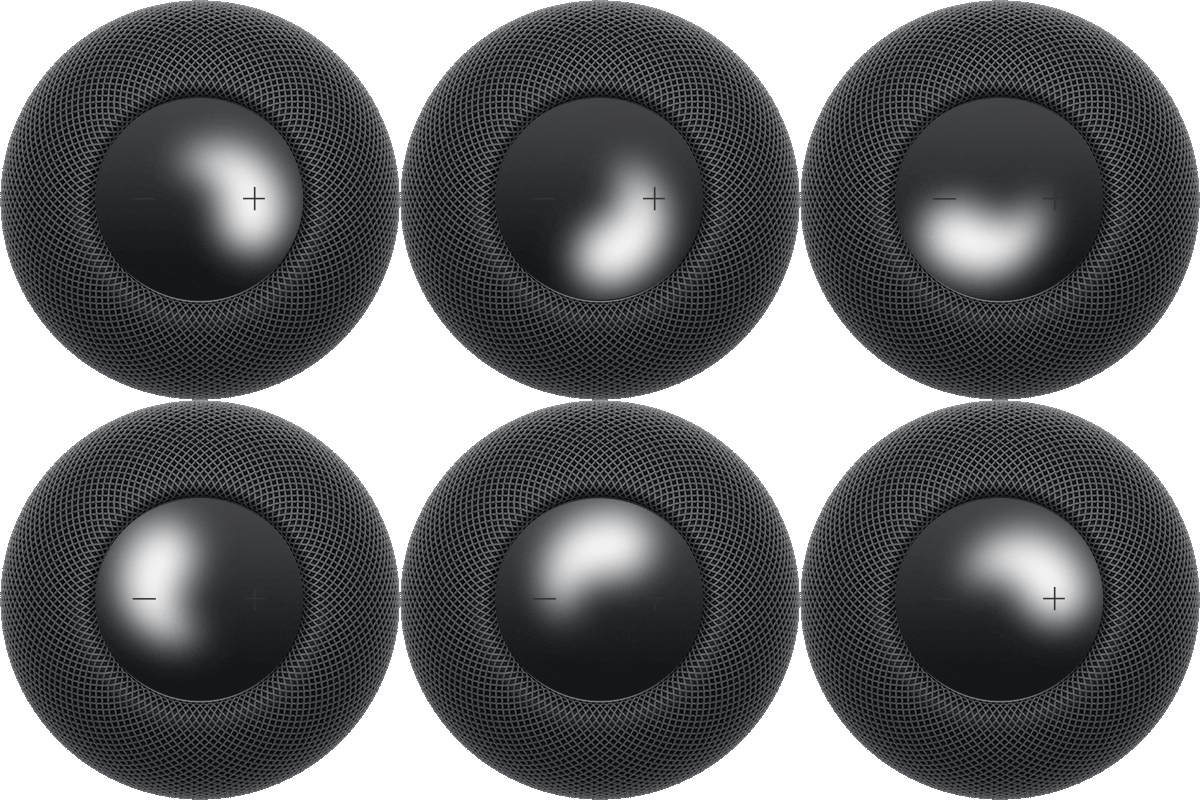
A spinning white light then indicates HomePod is turning on again. If the flashing white light reappears afterward, you may need to reset HomePod.
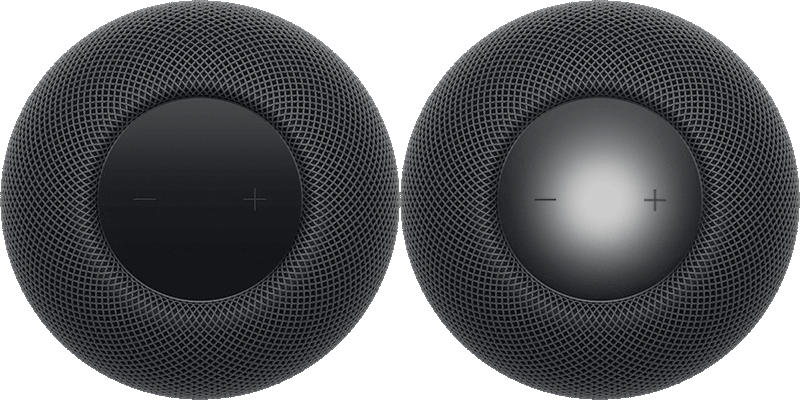
To restart HomePod, unplug it from power, wait 15 seconds, then plug it back in.
You can also try the following:
- Open the Home app on your iPhone or iPad.
- Tap HomePod and then tap the Settings button.
- Do one of the following:
- For a single HomePod: Tap Reset HomePod, then tap Restart HomePod.
- For a stereo pair: Tap Restart HomePod.
A spinning white light indicates HomePod is turning on.
This guide is for HomePod software version 27 or later.
See also