





KEY TAKEAWAYS
- If your outgoing messages on iPhone 16 appear as green bubbles, it means iMessage isn’t working and they’ve been sent over SMS instead of iMessage.
- You can try toggling iMessage off and on again in your settings, or log out of your Apple Account and log back in.
- Make sure iMessages in iCloud is enabled to ensure your conversations sync across all your devices, and check your receiving addresses to enable all relevant accounts.
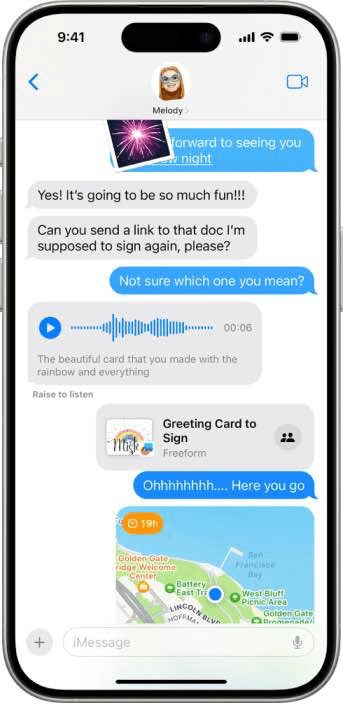
iMessage is a secure messaging service that you can use to send and receive text messages in the Messages app on your iPhone 16. iMessages are texts, photos, or videos that you send to another iPhone, iPad, iPod touch, or Mac over Wi-Fi or cellular-data networks. These appear in blue bubbles. All other text messages use RCS, SMS, or MMS and require a text-messaging plan. Those appear as green bubbles. Well, you can when it’s working. Here are some fixes for anyone having iMessage problems on an iPhone 16, iPhone 16 Plus, iPhone 16 Pro or iPhone 16 Pro Max.
Signs That iMessage Isn’t Working on iPhone 16 or iPhone 16 Pro
The most obvious sign that iMessage isn’t working on your iPhone 16 or iPhone 16 Pro is that your outgoing messages show up as green bubbles. This indicates that they have been sent over SMS rather than iMessage (which would appear as blue bubbles).
This is normal if you’re chatting with someone who doesn’t have an iPhone or a Mac. Chatting with Android users via the Messages app is one such example. But if you’re chatting with someone you know who has an iPhone, you should expect to see blue bubbles instead.
How to fix iMessage problem on iPhone 16 and iPhone 16 Pro
Make sure that you’re connected to a cellular data or Wi-Fi network
The first port of call if iMessage isn’t working on your iPhone 16 or iPhone 16 Pro is to check the Internet connection on your device. iMessage is an online service, unlike standard SMS. It’s more like WhatsApp or Signal in that it requires an internet connection to work. If your iPhone 16 is not connected to internet, iMessage won’t work.
Make sure that you’re connected to a cellular data or Wi-Fi network. Open a web browser and try a website like apple.com or geekschalk.com to test your internet connection.
If you can’t load the website, that will explain why iMessage isn’t working on your iPhone 16. You might need to troubleshoot your internet connection if you’re encountering this problem. Try connecting to a different Wi-Fi network or check how much data you’ve got left. You should also try disabling your VPN if you’re using one to rule that out as a cause.
Strangely, you can’t always activate iMessage over Wi-Fi. So if you’re trying to use iMessage for the first time on your iPhone 16 but can’t get it working at all, try disabling Wi-Fi from the Control Center and activate iMessage on your iPhone 16 over cellular data instead.
Update your iPhone to the latest version of iOS
The next step is to ensure that the software on your iPhone 16 is up-to-date.
It is possible that Apple has changed a requirement of the software so that it is necessary to update your iPhone to use the service. You can update your iPhone to the latest version of iOS wirelessly by going to Settings > General > Software Update. If an update is available, tap Install Now. If you see Update Now instead, tap it to download the update, enter your passcode, then tap Install Now.
Toggle iMessage On and Off
Switching it off and on again fixes so many computer and internet-related issues, and iMessage is no different. Go to Settings > Apps > Messages. Turn iMessage off and then back on.
When activating iMessage on your iPhone 16, you might see one of these messages:
- Waiting for activation
- Activation unsuccessful
- An error occurred during activation
- Could not sign in, please check your network connection
- Unable to contact the iMessage server. Try again.
iMessage activation doesn’t happen right away, so have a little patience while the service activates.
Sign Out and Re-Authenticate iMessage
To sign out of iMessage on your iPhone 16, go to Settings > Apple Account > Sign Out, but this will sign you out of your Apple Account completely across the whole operating system. You’ll need to sync everything again if you go this route.
Messages Not Syncing? Make Sure iMessages in iCloud is Enabled
Your conversations should automatically appear on all of your devices thanks to iCloud, which allows you to pick up conversations on any device. You may have to enable (or toggle) this setting if things aren’t working as they should using your iMessage settings.
To check this, go to Settings > Apple Account > iCloud and under “Apps Using iCloud” tap on the “Show All” button. From here, tap on “Messages” and make sure that “Sync this iPhone” is enabled. If it’s enabled and you’re having issues, try toggling it off and on again.
Messages can take a while to sync, so be patient while your iPhone downloads and uploads your conversations to the cloud.
Double-Check Your Receiving Addresses
iMessages can be sent to your standard mobile number, the email address associated with your Apple Account, and your iCloud email addresses. By default, all of these addresses may not be enabled.
To check, go to Settings > Apps > Messages > Send & Receive. Under “YOU CAN RECEIVE IMESSAGES TO AND REPLY FROM,” check any addresses that you want to enable.
Alternatively, if you’re having problems with spam coming to a specific account you might want to disable it under these settings.
Check your Blocked list
If you can’t receive iMessages from one particular contact, double check that you haven’t accidentally added the person trying to message you to a Blocked list. Go to Settings > Apps > Messages > Blocked Contacts and check that they are not listed here.
If they are tap on Edit, then tap the red Remove icon next to their name and Unblock.
Fix iMessages Sending from the Wrong Account
If someone sends you a message you will automatically reply from the receiving account. But if you start a new conversation, you can choose which account sends your message by default.
To do this, go to Settings > Apps > Messages > Send & Receive. Look for the “START NEW CONVERSATIONS FROM” option, then nominate an email or a phone number.
You can choose different addresses for different devices if you want.
You Can Always Reply with an SMS Instead
If I message is still not working on your iPhone 16, you can enable “Send as SMS” by going to Settings > Apps > Messages to send an SMS by default when iMessage isn’t available. When this is disabled iMessages will fail and place a notification in your conversation, which you can tap to try sending the message again.
The Recipient May Have iMessage Switched Off
If you’ve noticed that iMessage is failing on one particular contact, consider that the issue isn’t on your end. iMessage can be switched off by going to Settings > Apps > Messages. It can also stop working for seemingly no reason, hence the fixes listed above.
You could always send a contact this article or simply suggest they check their Messages settings instead. Alternatively, you may be blocked (something that’s surprisingly easy to do by mistake). Contacts can be blocked or unblocked on an iPhone in the Phone (or Contacts) app.
Make sure that your time zone is set correctly
Check that the time and date are set correctly on your iPhone 16. Go to Settings > General > Date & Time and check that the Set Automatically option is set to On (and that Time Zone is set to your current location).
Turn off and restart iMessage
- Go to Settings > Apps > Messages and turn off iMessage.
- Restart your iPhone.
- Go to Settings > Apps > Messages and turn iMessage back on.
Is iMessage down?
Though rare, outages can happen. You may want to check the Apple System Status website to confirm that iMessage is functioning normally.









I received my new 16 Pro Plus iPhone today and have had a terrible time setting up iMessage. I receive messages but my responses “failed to send”. I have tried everything and your suggestions have been the most thorough. Thank you….but..iMessage still not working on my end! When I go to “send and receive”, “START NEW CONVERSATIONS HERE”….it shows my phone #, and my two emails. By my phone number, there is a buffering star that is continuously trying to buffer, while my two emails have a blue check sign. I have tried EVERYTHING….and the buffering star is still buffering by my phone number!! I will call APPLE and see if they know what’s going on! Thank you for your sharing your expertise!