Is Bluetooth not working on your iPhone 16? You may experience connecting or pairing issues when you want to connect your car stereo, Apple Watch, or Bluetooth accessory (wireless headphones, keyboards, speakers, etc) to your iPhone 16, iPhone 16 Plus, iPhone 16 Pro or iPhone 16 Pro Max. If you are having Bluetooth issues, there’s a lot you can do to troubleshoot before going to Apple or the manufacturer. Sure, sometimes there’s an issue with your headset, speaker, or in-car radio, but often enough it’s a software issue that a few simple steps can fix. This article explains how you can troubleshoot your Bluetooth issues on iPhone 16, iPhone 16 Plus, iPhone 16 Pro or iPhone 16 Pro Max.
Common iPhone 16 Bluetooth problems include:
- You can’t connect any Bluetooth accessories with your iPhone 16.
- You may get error messages saying “Connection Unsuccessful”.
- Bluetooth keeps disconnecting.
- Intermittent connectivity issues.
If you are facing any of these problems, try these troubleshooting steps until you’re problem is fixed.
1. Make sure that your Bluetooth accessory is on and fully charged or connected to power
First, make sure that your Bluetooth accessory is on and connected to power (or charged). If it uses batteries, make sure its batteries are good.
2. Make sure the devices are ready to be connected
Bluetooth devices aren’t always ready to connect. Most dedicated Bluetooth devices — speakers, headphones, and more — need to be put in discovery mode. If you aren’t sure how to make it discoverable, check the instructions that came with your accessory or contact the manufacturer.
Once you’ve put your Bluetooth device into pairing mode, open the Settings app on your iPhone and tap on Bluetooth. Turn on Bluetooth and stay on this screen until you complete the steps to pair your accessory. To pair, tap your accessory name when it appears onscreen. You might need to enter the PIN or passcode. If you aren’t sure what your PIN or passcode is, check the documentation for your accessory.
After you pair your accessory, you can use it with your iPhone. If you can’t pair or connect your Bluetooth accessory to your iPhone 16, move on to the next step.
3. Toggle Bluetooth off and on
It’s amazing how many problems can be solved simply by turning things off and then back on again.
- Open the Settings app on your iPhone 16.
- Go into Bluetooth.
- Tap the switch next to Bluetooth to toggle it off, then tap it again to turn it back on.
Once you do this, try connecting again. If it works, great. If not, keep reading.
4. Make sure that your Bluetooth device and iPhone 16 are close to each other
In general, Bluetooth devices need to be within at least 30 feet of each other to connect well. If you’re having issues, try bringing your iPhone 16 and your bluetooth device closer together.
5. Restart your iPhone
The next thing to try is a simple restart. This may seem like a cliche fix but sometimes bad bits get stuck and need to be flushed out.
- Simultaneously press and hold the side button and either volume button until the sliders appear, then drag the Power Off slider.
- Wait about 15 seconds for your iPhone to turn off completely.
- Press and hold the side button until the Apple logo appears.
Once your iPhone 16 has rebooted, try connecting it in again. If it works, you’re good. If not, go on to the next step.
6. Restart your Bluetooth accessory
Turn your Bluetooth accessory off and back on again.
7. Allow an app’s access to Bluetooth
If there’s an app that you use with the Bluetooth accessory, you might see an alert that says you need to enable Bluetooth before you can pair an accessory with Bluetooth. If this is the case, follow these steps:
- Go to Settings > Privacy & Security and tap Bluetooth.
- Turn on Bluetooth for the apps that you want to use.
8. Pair different
If you have more than one iOS device available, even if you have to borrow it from a family member, friend, classmate, or coworker, try using it to connect to your Bluetooth accessory. If it works, the problem is with your iPhone 16 and you’ll need to keep on troubleshooting.
If a family member, friend, classmate, or coworker has the same Bluetooth accessory as you, it’s worth checking to see if their’s will work with your iPhone 16 as well. If it doesn’t work, the problem might be with your Bluetooth accessory and you should either take it back (if you can exchange it) or contact the manufacturer for assistance (if you can’t exchange it).
If it works, we’re back to troubleshooting your iPhone 16 and you’re back to reading.
9. Forget the Bluetooth device
If it’s not the radio, something might have gone wrong with the setup. Forgetting the Bluetooth device lets you redo that.
- Open the Settings app on your iPhone 16.
- Go into Bluetooth.
- Tap on the Info (i) button next to the device you want to forget.
- Tap on Forget This Device at the top.
- Tap Forget Device to confirm.
To add the Bluetooth accessory to your iPhone again, place it back in discovery mode and pair your device. If it works, fantastic. If it doesn’t, keep going.
10. Update your iPhone!
Apple’s Bluetooth stack—the set of software that controls the radio—isn’t without its occasional quirks. Sometimes brand new versions of iOS introduce compatibility problems and sometimes they fix them. If you’re having Bluetooth connectivity problems, however, you’re better off upgrading than not. If it’s already broke, the update is your chance for a fix.
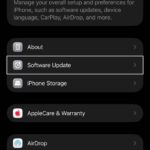
- Go to Settings > General, then tap Software Update.
- If an update is available, tap Update Now and follow the onscreen instructions.
Once you’re done updating, try to connect again. If it works, awesome. If not, repeat the step 3, above, to forget and reconnect with the Bluetooth device. If even that doesn’t work, there’s more to try!
11. Reset network settings
Resetting is a bit of a hassle, but if something has gone wrong with the way your iPhone 16 connects to other devices, it’s totally worth it.
- Go to Settings > General > Transfer or Reset iPhone > Reset.
- Tap Reset Network Settings and follow the onscreen instructions.
You’ll have to reconnect to every Wi-Fi and Bluetooth device you own or use, but once you’re done, see if your accessory starts to work. If it does, it was all worth it. If not, let’s keep going.
12. Contact Apple support
Sometimes a problem really is a problem. Like any electronics, Bluetooth radios and the various connections to them can have problems. If you can’t turn on Bluetooth or the setting is grayed out on your iPhone 16, your device might be having a hardware issue. Since your new iPhone 16 is under one year limited warranty, don’t walk, run to the nearest Apple Store to get it fixed.
If you don’t live close to an Apple Store, you can call 1-800-MY-APPLE in order to set up a mail-in repair.
Your fixes?
If you had an iPhone 16, iPhone 16 Plus, iPhone 16 Pro, or iPhone 16 Pro Max that you couldn’t connect to your favorite Bluetooth accessory or your car’s infotainment system, and one of the above fixes worked for you, let me know! If something else worked, let me know that as well!