KEY TAKEAWAYS
- To fix iPhone 16 Pro volume buttons not working issue, try restarting your phone first.
- Try cleaning the buttons using alcohol.
- If the volume button is broken, you can open the Control Center and adjust the volume slider.
- If you are looking for other ways to control iPhone volume, consider using Siri or AssistiveTouch.
Note: information in this article apply to iPhone 16, iPhone 16 Plus, iPhone 16 Pro and iPhone 16 Pro Max.
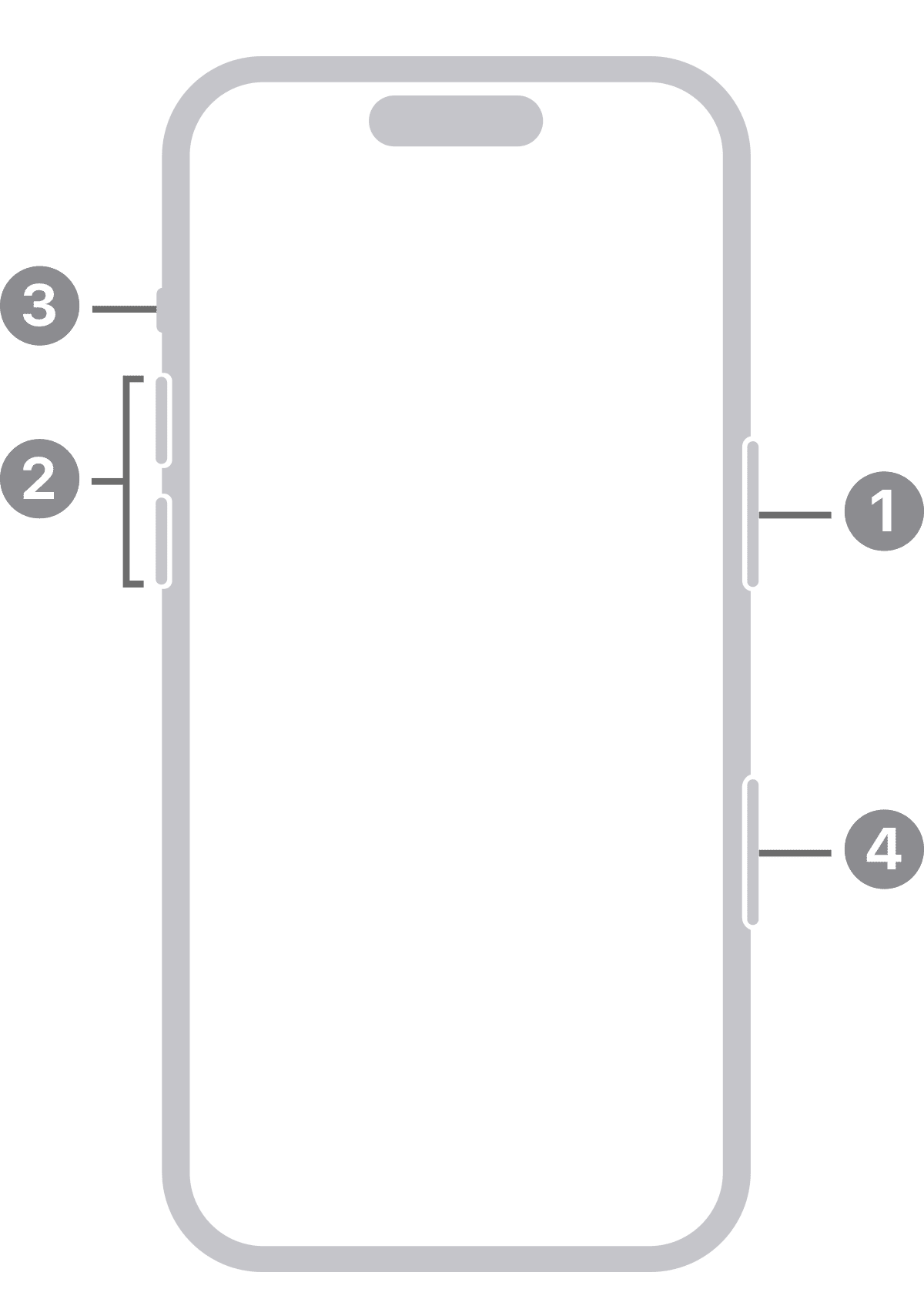
You can use your iPhone 16 Pro volume buttons to toggle the volume up and down, restart device, take screenshot and more. What are you supposed to do if these buttons are stuck or stop working? Don’t worry, you’re not stuck with the current volume level forever.
If your iPhone 16 Pro volume buttons are stuck or not working properly, you should fix them as soon as possible. Luckily, there are plenty of solutions, and you can do many of them yourself.
How to fix iPhone 16 Pro volume buttons when they are not working
1. Check for Software Issues
Before we dive into the actual troubleshooting for why your iPhone 16 Pro volume buttons are not working, you should make sure the issue is an actual hardware malfunction.
If you’re lucky, your malfunctioning volume buttons is due to a software glitch. To find out, you’ll need to restart your iPhone. Restarting your phone will fix small bugs which may have caused the volume buttons on your iPhone 16 Pro to stop working.
The good news is, you can still restart your iPhone 16 without volume buttons.
- Navigate to Settings > General
- Swipe down and tap Shut Down
- Swipe the power off slider from left to right. After your iPhone has shut down completely, press the power button to turn your iPhone back on.
There’s also a new way to shut down an iPhone, and the good thing is that it doesn’t involve holding any physical buttons. All you’ve to do is swipe down from the top right corner of the screen to open the Control Center and press and hold (then release) the power button for a second. Then, you can simply drag the familiar power slider to turn off your iPhone. After your iPhone has shut down completely, press the power button to turn your iPhone back on.
Another way to shut down your iPhone is via Siri. All you need to do is say, "Hey Siri, turn off my iPhone." Siri should respond with a confirmation, asking, "Just to confirm, you want to power off this device?" Then, tapping on the turn-off button shuts down your iPhone right away.
If this solved your problem, you are one lucky iPhone owner. If it didn’t move on to the next method.
2. Remove a case if you are using one
Oftentimes, the volume buttons on your iPhone 16 Pro may not work properly if you’re using a thick or rugged case.
To find if this is the issue, try removing the case you’re using and then try using the volume buttons. If they work fine, it’s time to get a new case for your phone.
3. Clean the volume buttons
Dirst, dirt, or dirt in the bottom of your purse or pocket — any of these things can damage your iPhone 16 Pro volume buttons.
To fix this, you’ll need a cotton swab and 99 percent isopropyl alcohol, which can be found at hardware stores.
Use the cotton swab to clean around your volume button the best you can. If you can push down on the buttons, doing so might help you clean it better. There’s no need to overdo it with the alcohol, as it doesn’t take much to work.
Wipe clean, and wait about 10-16 minutes before checking to see if that did the trick. If your volume buttons are working now, great! If they are only working a bit better, that’s a sign that they are still dirty, and you should keep cleaning them. If they’re still not working at all, you might want to move on to the next fix.
4. Water Accident? Let It Dry
If your iPhone 16 Pro volume buttons are not working and it recently came into contact with water, then water damage is the likely culprit.
One of the most common consequences of water damage on your phone is a malfunctioning buttons. The liquid can quickly make its way to the internal component through the gaps around the volume buttons. So if you’ve had volume buttons issues on your iPhone 16 Pro after such an accident, let your phone dry off.
There are several methods to dry a wet phone, like blowing hot air into it—although putting it in rice won’t dry your phone. Whatever you do, turn your phone off immediately and let it completely dry
5. Adjust the volume using AssistiveTouch
“Assistive Touch” is part of Apple’s great suite of Accessibility tools. It allows you to put a floating button on your screen that can be used for a number of shortcuts. That includes mimicking the behavior of the physical buttons.
Assistive Touch is a very handy iPhone feature, especially if your iPhone 16 Pro volume buttons are stuck or not working.
To get started, open the “Settings” app on your iPhone.
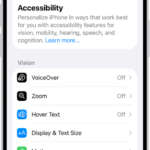
Next, tap Accessibility > Touch.
Tap Assistive Touch**and turn on the AssistiveTouch option.
You’ll notice a floating button appear on the screen. Now we can decide how you want the volume shortcuts to work. We’ll add them to the shortcut menu by selecting “Customize Top Level Menu.”
Select one of the shortcuts and replace it with “Volume Up.”
Now repeat that same step with a different shortcut and replace it with “Volume Down.”
If you want even easier access to adjusting the volume, you can put “Volume Up” and “Volume Down” as the Single-Tap, Double-Tap, or Long Press options for the floating button.
After you’ve set it all up, simply tap the floating button and select the “Volume Up” or “Volume Down” shortcut. If you used the custom tap options, you only need to tap the floating button however many times you chose for the shortcuts.
You’re all set! It’s hardly an ideal solution, but it’ll hold you over until you’re ready to purchase a new phone or get your current one fixed.
6. Use “Hey Siri” to adjust iPhone volume
You can also use Siri to turn the volume up or down.
**Siri: **Say something like: “Turn up the volume” or “Turn down the volume.”
7. Adjust iPhone 16 Pro volume in Control Center
When iPhone is locked or when you’re using an app, you can adjust the volume in Control Center.
Launch the control center by swiping down from top right of the screen then drag the volume slider.
8. Lock the ringer and alert volumes in Settings
- Go to Settings.
- Tap Sounds & Haptics.
- Turn off Change with Buttons.
9. Get your iPhone 16 Pro volume Buttons Repaired
If you have tried all of these tips and they have not worked for you, it is definitely time to get the volume buttons repaired!
If your iPhone doesn’t show signs of accidental damage, head on over to Apple. Since your iPhone 16 is still covered by warranty, the company will replace your phone or perform any necessary repairs.