- If your iPhone Air speaker is not working, there are some simple ways to troubleshoot possible problems.
- To start, make sure that the speaker isn’t muted with Silent mode or with Focus mode.
- You should also make sure AirPlay isn’t enabled and your phone isn’t connected to a Bluetooth audio accessory.
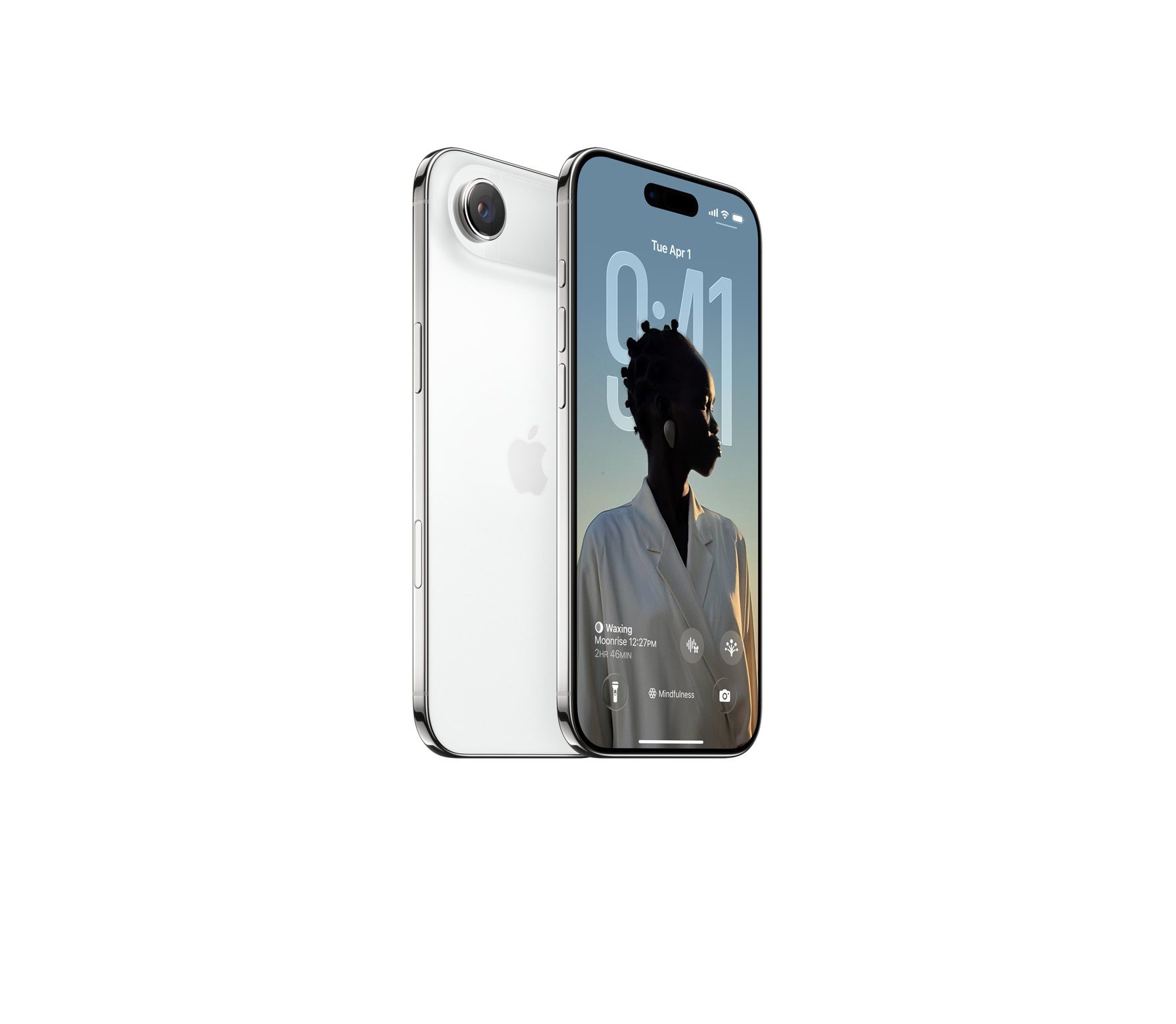
, the iPhone Air only has a single speaker. The earpiece at the top of the device doubles as a speaker, but there is no speaker on the bottom of the device. The holes to the left and right of the USB-C port are for microphones. If your iPhone Air speaker isn’t working, that’s a serious problem — you can’t hear phone calls, music, podcasts, Siri, or notifications. There could be numerous reasons why your iPhone Air speaker isn’t working. Here are the top ways to troubleshoot your iPhone Air speaker not working and hear your audio once again.
Make sure the audio isn’t silent or muted
It’s possible you accidentally set your iPhone Air to a silent mode, so the speaker works fine — it’s just muted. Go to Settings ⇒ Sounds & Haptics and make sure Silent Mode is turned off.
In addition, make sure your phone isn’t in a Focus mode like Do Not Disturb. Swipe down from the top of the screen to reveal the Control Center and make sure the Focus button says Focus rather than another setting. If it says Do Not Disturb, Personal, or another setting, tap it to disable Focus mode.
Make sure you’re not sending audio to AirPlay
If you’ve recently used AirPlay to send audio or video to your TV or another AirPlay device, it’s possible it’s in AirPlay mode. To check, swipe down from the top of the screen to reveal the Control Center and then tap the AirPlay icon at the top right of the music playback section. If another device is receiving audio with AirPlay, tap iPhone to revert back to your own device.
Disconnect audio accessories
Perhaps your speaker is fine, but the sound is going through another device like headphones, earbuds, or a portable speaker that’s still connected to your phone. If that device is far away or has the volume set low, you might not realize it’s playing the iPhone’s sound. The easiest way to solve this problem is to make sure no accessories are plugged into your iPhone and to disconnect Bluetooth. Go to Settings ⇒ Bluetooth to see a list of connections. Disable any Bluetooth headphones, speaker, or other devices that you don’t want to play through.
You can also turn Bluetooth off altogether by toggling the button at the top. However, this will cut off other connections, such as smartwatches. Tap a connected device to disconnect it, or select the i on the relevant device and choose Forget This Device to prevent it from pairing in the future.
Clean your speaker
Is the speaker blocked, obscured, or dirty? That could be keeping you from hearing audio the speaker is trying to play. To clean your iPhone Air speaker, remove your iPhone screen protector if it’s affecting the speaker in any way. Then check to see if it’s dirty. If necessary, carefully use a small, dry soft-bristled brush to clear away any lint, dirt, or grime.
Note: , the iPhone Air only has a single speaker. The earpiece at the top of the device doubles as a speaker, but there is no speaker on the bottom of the device. The holes to the left and right of the USB-C port are for microphones. For stereo audio, use AirPods or a capable external speaker.
Restart your iPhone
If you’ve gotten this far and your iPhone Air speaker is still not working properly, you might have a glitch that’s best resolved by turning your iPhone off and then back on again. That can flush out any corrupt data or glitchy software that might be causing your speaker to fail to work properly. Restart your iPhone and then test your speaker again.
Check your sound settings
If certain kinds of sound aren’t playing properly, it’s a good idea to check your iPhone’s settings to make sure they’re not actually disabled or set too low to hear. Go to Settings ⇒ Sounds & Haptics. In the Ringtone and Alerts section, drag the volume slider to the right. You should hear some audio — if you don’t, you may need to seek service from Apple’s customer service.
Reach out to Apple customer support
If your iPhone Air speaker is still not working, it’s possible that there is a serious hardware problem with your phone. You should seek help from Apple customer service.