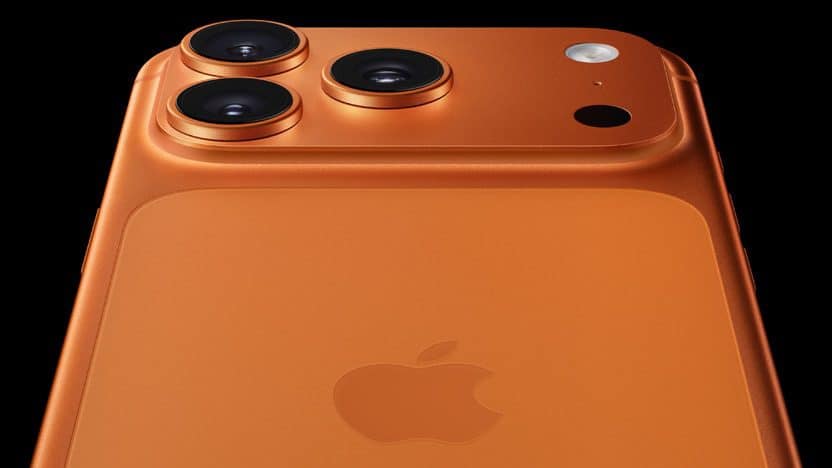
According to Apple, charging on hold notification may appear on an iPhone 17 Pro and iPhone 17 Pro Max when it gets too hot or cold. This message appears on your Lock Screen and in Settings > Battery: ”Charging On Hold. Charging will resume when iPhone returns to normal temperature.”
Follow these instructions to get your iPhone 17 Pro from charging on hold and continue charging your device. – If your iPhone 17 Pro:
- Is too hot, move it to a cooler place, including away from direct sunlight.
- Is too cold, move it to a warmer place.
- Is in use, lock the screen or put it to sleep.
However, if the “Charging on Hold” alert constantly keeps popping up even when your device’s temperature feels normal, there’s either something wrong with your iPhone or the charger you’re using.
Fortunately, there are several things you can do to get rid of this annoying notification. Below, we’ll explore some easy fixes to help you resolve the Charging on Hold issue on your iPhone 17 Pro.
1. Close Apps Running in the Background
One of the reasons your iPhone 17 Pro keeps showing the Charging On Hold alert could be the power-intensive apps running in the background. Even though most apps running in the background remain in a suspended state, some apps, such as music players or news apps, keep refreshing in the background and fetch new data.
Force closing these apps may help cool down your iPhone and resume charging. First, you’ll want to open the App Switcher. To do this, swipe up from the bottom of your screen.
Once the app switcher is open, use your finger to swipe your apps up and off the top of the screen. You’ll know your apps are closed when they no longer appear in the App Switcher.
Now that you’ve closed all your apps, check if the charging on hold message has gone away. If you are still seeing the message, try turning off Background App Refresh to prevent apps from consuming system resources in the background. Go to Settings > General > Background App Refresh and turn off the apps you don’t want to refresh in the background. This can help cool down your device and stop it from giving the Charging On Hold notification.
2. Uninstall Suspicious Apps
It’s possible that an app that you recently downloaded to your iPhone 17 Pro carries a bug that’s triggering the Charging On Hold feature. There are a few signs that suggest that an app carries a bug, such as when the app keeps crashing or slows down your device significantly while you’re using it. Deleting the app from your iPhone will likely solve this issue.
To delete an app, find its icon on the Home screen or App Library. Press and hold the app icon until the menu appears. Tap Remove App > Delete App > Delete to uninstall the app on your iPhone.
3. Don’t Use Your iPhone While Charging
While it’s fine to use your iPhone 17 Pro while it’s plugged in, prolonged heavy use may overheat your phone’s battery, slowing down the charging rate and eventually putting it on hold.
Therefore, it’s best to keep your iPhone aside for a while and let it fully charge before using it again.
4. Turn Off Your iPhone for a While
Even if you think your iPhone isn’t abnormally hot to the touch, it’s likely the battery and internal components are overheating due to several reasons. Apple recommends turning off your device for a while and letting it cool down before turning it on again and putting it on charge.
To turn off your iPhone 17 Pro, press and hold the Side and Volume Up (or Volume Down) buttons simultaneously until Slide To Power Off appears.
Slide the red power icon from left to right to turn off your iPhone. Wait 5 minutes or so, until your iPhone has cooled down completely, and then turn your iPhone back on by holding the Side button down until the Apple logo appears on the screen. Try charging your iPhone once your phone has fully restarted.
5. Turn On Airplane Mode
Airplane Mode disables cellular data and Wi-Fi on your iPhone, preventing it from receiving any calls or text notifications and from constantly searching for signals. Turning the Airplane Mode on might help reduce the load on the battery and prevent it from overheating, which might solve the Charging On Hold issue.
To turn on Airplane Mode, swipe down from the top-right corner of your screen to bring up the Control Center. Locate the Airplane toggle in Control Center and tap it. The icon should turn orange, indicating it has been enabled.
6. Update Your iPhone
Another possible reason why your iPhone 17 Pro shows Charging on Hold notification is due to a software bug. To update your iPhone, go to Settings > General > Software Update. Tap Update Now if a new update is available. Also, make sure Automatic Updates are enabled so you don’t have to manually check for updates every time.
7. Use a Different Charger or Cable
If none of the above methods work, the problem is likely with your iPhone’s charging adapter or cable (or both). But before you toss it into the bin and head to the store for a replacement, there are a few things that you can do that might help.
Unplug your charger from the power source, wait for a few minutes, and then plug the charger back in. You can also try using a different USB port or power outlet to see if that makes any difference.
It’s also possible that the adapter and cable you’re using to charge your iPhone are of low quality. In that case, try charging your iPhone with a high-quality MFI-certified lightning cable and adapter.
If the problem persists, opt for slow charging for a while. Fast charging generates more heat than slow charging, which may be why your iPhone 17 Pro is overheating and giving you the Charging On Hold notification. Connecting your iPhone to an adapter with a low rating might help solve the issue.
Get Rid of the Charging On Hold iPhone 17 Pro Alert
The Charging On Hold notification is useful only when it’s working properly. If you keep getting the notification every time you charge your iPhone 17 Pro, you’re either using a low-quality charger or your device is sending a false alert.
It’s also possible that your iPhone is actually getting hot due to heavy-duty apps working in the background or because you’re using it while charging. The troubleshooting methods we discussed should resolve the issue, but if none of them helped, it’s best to contact Apple Support.