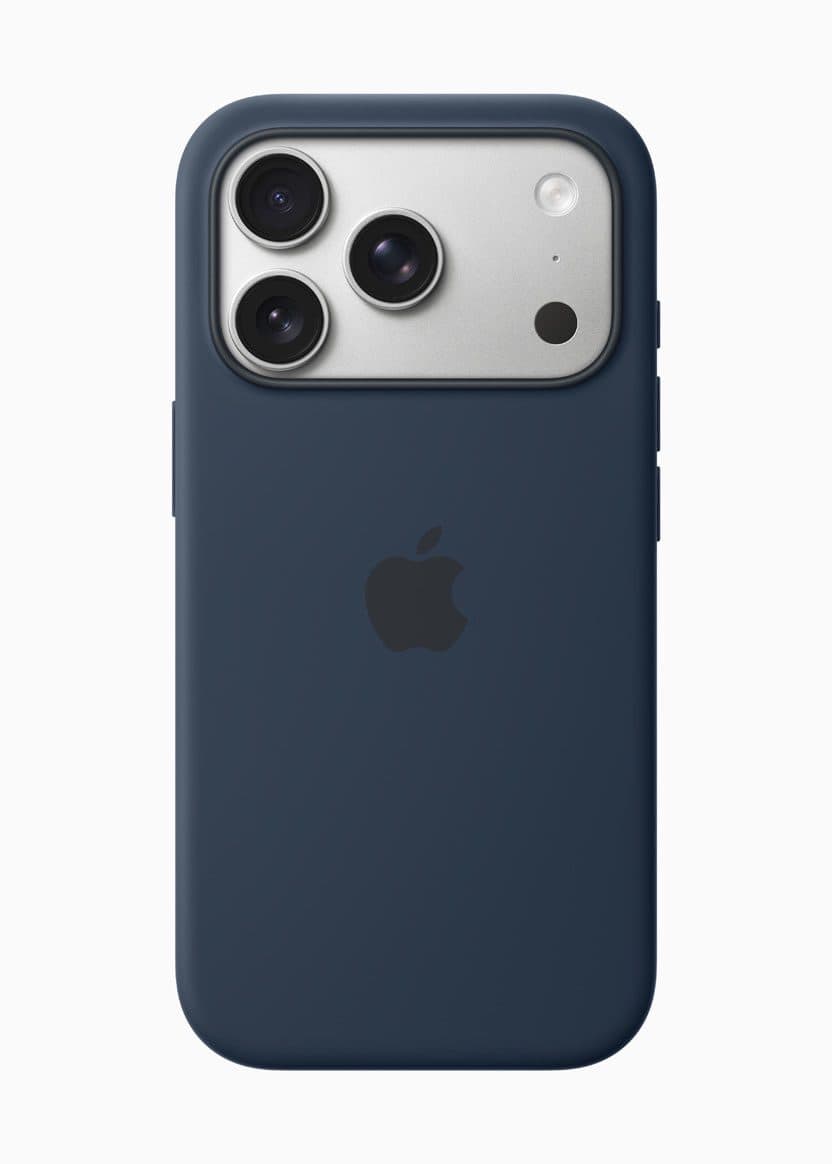
- You can fix an overheating iPhone 17 Pro by restarting it, closing apps, or removing the charging cable.
- If your iPhone 17 Pro is in direct sunlight or other hot conditions, you should remove it right away.
- You can also update the software, limit processor-intensive tasks, and enable Low Power Mode.
If you just bought an iPhone 17 Pro or iPhone 17 Pro Max, you might have started to wonder how to make it stop overheating so often. According to Apple, the vapor chamber is a hardware bit that’s integrated into the iPhone 17 Pro’s aluminum chassis via laser welding. It contains a minuscule amount of liquid—deionized water, to be precise—which shifts heat away from the phone’s processor. The heat transforms the water into vapor, which shifts away from the chip to the rest of the vapor chamber and into the iPhone 17 Pro’s aluminum unibody.
Despite The introduction of the new cooling tech, many people have reported that their iPhone 17 Pro is overheating during simple tasks, such as browsing the Internet, playing a YouTube video, texting, or using FaceTime. Users have reported the following issues:
- iPhone 17 Pro is overheating when charging
- iPhone 17 Pro is getting hot during light usage.
- iPhone 17 Pro is heating up even when you are not using it.
- iPhone 17 Pro is getting hot and battery draining too quickly.
Here’s why your iPhone 17 Pro is overheating and how to stop it.
Why does my iPhone 17 Pro get hot?
If it’s hot outside and you leave your iPhone 17 Pro or iPhone 17 Pro Max in direct sunlight or in the car, chances are it will get hot.
It can also happen if your iPhone 17 Pro is running too many apps, or other processor-intensive functions — such as gaming, streaming HD video, or using GPS navigation.
There are other conditions which can cause iPhone 17 Pro to run warmer than expected. The iPhone 17 Pro might feel warmer during the first few days after setting up or restoring the device because of increased background activity.
Upon initial use, some GeeksChalk writers, including myself, experienced extreme heat from our new iPhone 17 Pro, which seemed to resolve the problem after 24 hours.
What happens to an iPhone 17 Pro when it overheats?
When your iPhone 17 Pro gets too hot, you’ll see a number of warning signs. It will feel hot to the touch, but you may also notice that it’s running slower, the display has gone black, it’s failing to charge, or the camera is refusing to take pictures.
Under normal circumstances, overheating should not happen. The iPhone 17 Pro sensors warn you long before it gets to a dangerous or damaging temperature, and the iPhone 17 Pro is designed to dissipate heat. You may get a temperature warning when your device exceeds the temperature limit, saying, “iPhone needs to cool down before you can use it.” At that point, your phone is inoperative until it cools off, except for emergency calls.
Heat is not good for your iPhone, and it can damage internal components, especially the battery and processor, if you leave it running hot for too long.
How to stop your iPhone 17 Pro from overheating
When you notice your iPhone 17 Pro has gotten too hot, acting quickly is the best way to avoid damage to its internal components. Here’s to stop your iPhone 17 Pro from overheating:
1. Close all apps
Having multiple processes running simultaneously makes your iPhone work harder and feel hotter. So closing all apps should be the first thing you do.
- On the Home screen of the iPhone 17 Pro, or while in an app, swipe up from the bottom of the screen and pause for a moment while still pressing the screen, then let go when the App Switcher appears.
- Now use a quick swipe upwards on each app to close it.
2. Turn down your screen brightness
Having your iPhone 17 Pro brightness at maximum can cause overheating and drain your phone’s battery quickly. You can fix this by turning down iPhone’s screen brightness. To do this, tap-and-drag from the top-right corner to reveal the Control Center and manually lower the brightness bar. Alternatively, you can lower your screen brightness by going to Settings > Display & Brightness or if you prefer to be verbose, you can ask Siri to reduce the brightness.
3. Restart your iPhone
If your iPhone 17 Pro is running hot, restart the device. Turn your iPhone off entirely and then turn it back on again
- Swipe down from the top-right corner of your iPhone 17 Pro screen to open Control Center.
- Press and hold the Power button in the top-right corner.
- Slide to power off when the shutdown screen appears.
- Let the iPhone cool down for a few minutes.
- Hold down the Power button on the right side of your iPhone for a few seconds and release it when you see the Apple logo on the screen.
4. Turn off background app refresh
Apple’s Background Refresh feature lets apps that you aren’t actively using and haven’t yet closed out check for updates and new content.
This background activity could be causing the overheating issue. You can turn off Background App Refresh all together or choose which apps can refresh in the background.
Go to Settings > General > Background App Refresh. Tap the name of the feature again, located at the top of that screen. From there, you can select off to disable the feature altogether or choose to have it activate only when connected to Wi-Fi, which doesn’t cause overheating as much as downloading over cellular.
From the main Background App Refresh screen, you can choose to turn Background App Refresh on just for your most used apps by tapping on the toggle next to each app in the list.
5. Install updates
Something else not to ignore? Updates. Apple and app developers roll out software updates on a regular basis, and these updates come with performance improvements that can prevent your iPhone 17 Pro from overheating.
First, go to Settings > General > Software Update. If a new iOS version is available, tap Update Now.
Next, launch the App Store and tap the Profile icon in the top-right of the screen. Scroll down to Available updates, and tap Update all.
6. Reset your iPhone
If you find that your iPhone 17 Pro is still getting too hot after trying the steps mentioned above, you should try resetting the phone to return it to its factory settings.
This will delete all apps and customized settings, but it could potentially help you troubleshoot the overheating problem.
Quick tip: Make sure to back up your iPhone using iCloud or a computer before performing the factory reset to save your data and restore it later.
7. Get your iPhone repaired
If your iPhone 17 Pro is still overheating, contact Apple for assistance. Every new Apple phone comes with a year of free hardware support, so take advantage of this. At the minimum, Apple support might offer some new advice on what to do or give you a new phone for your troubles.
How to cool down an overheating iPhone 17 Pro
There are a few more ways to cool down your iPhone 17 Pro when it has already started overheating.
1. Limit processor-intensive tasks
If you notice that your iPhone 17 Pro gets too hot when performing a demanding task, such as playing 3D games, you might want to limit that task.
If there are other devices in your vicinity that do the same thing — like a PC or game console — use them instead so you don’t overheat your phone.
2. Remove it from the heat source
Whether you left it in direct sunlight or in a hot car, remove the iPhone immediately to stop the internal temperature from continuing to rise.
3. Take off the case and fan the phone
While your iPhone 17 Pro is cooling down, remove it from its case to increase airflow – a case can prevent your iPhone 17 Pro from releasing heat.
While you’re at it, fan your iPhone or place it somewhere cool to help get the heat out quicker.
4. Disconnect the charger
If your iPhone 17 Pro gets too hot while charging, unplug it right away. It is totally normal for your iPhone 17 Pro to warm up a little while charging, but if your handset feels hot to the touch, there’s something wrong.
Make sure you charge your iPhone 17 Pro using an Apple-certified charger and cable. While there are many iPhone chargers out there, few are MFi certified or fully support the handset.
Also, ensure that the USB-C port on your iPhone 17 Pro is clean and free of any dirt or lint. Any piled-up lint or debris may prevent the charger from working properly, resulting in overheating.
You should also check for any damage on the power cord and charging adapter. Do see any physical damage? If so, dispose of it safely and use one without damage.
Even if there’s nothing physically wrong with the charger, double-check that it’s from a reputable brand. Ideally, you’ll only charge your phone with the cable that comes in the box. Otherwise, make sure the cable was made by Apple, or stick with a known brand, such as Anker.
5. Keep your iPhone in cool places
It goes without saying that leaving your iPhone 17 Pro in direct sunlight is a big no-no. And if it’s getting hot in the car, lower the windows, turn on the AC, or park in the shade to prevent the temperature from rising.
Also, when you’re sleeping, avoid putting the phone under your pillow, especially if you’re charging it, as the pillow will block the heat from leaving.
You might want to keep the phone away from other heat-producing devices as well to prevent exchanging of heat. If your iPhone must be near them, make sure they are switched off.