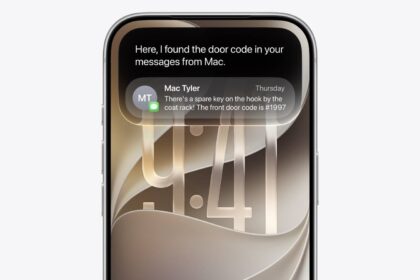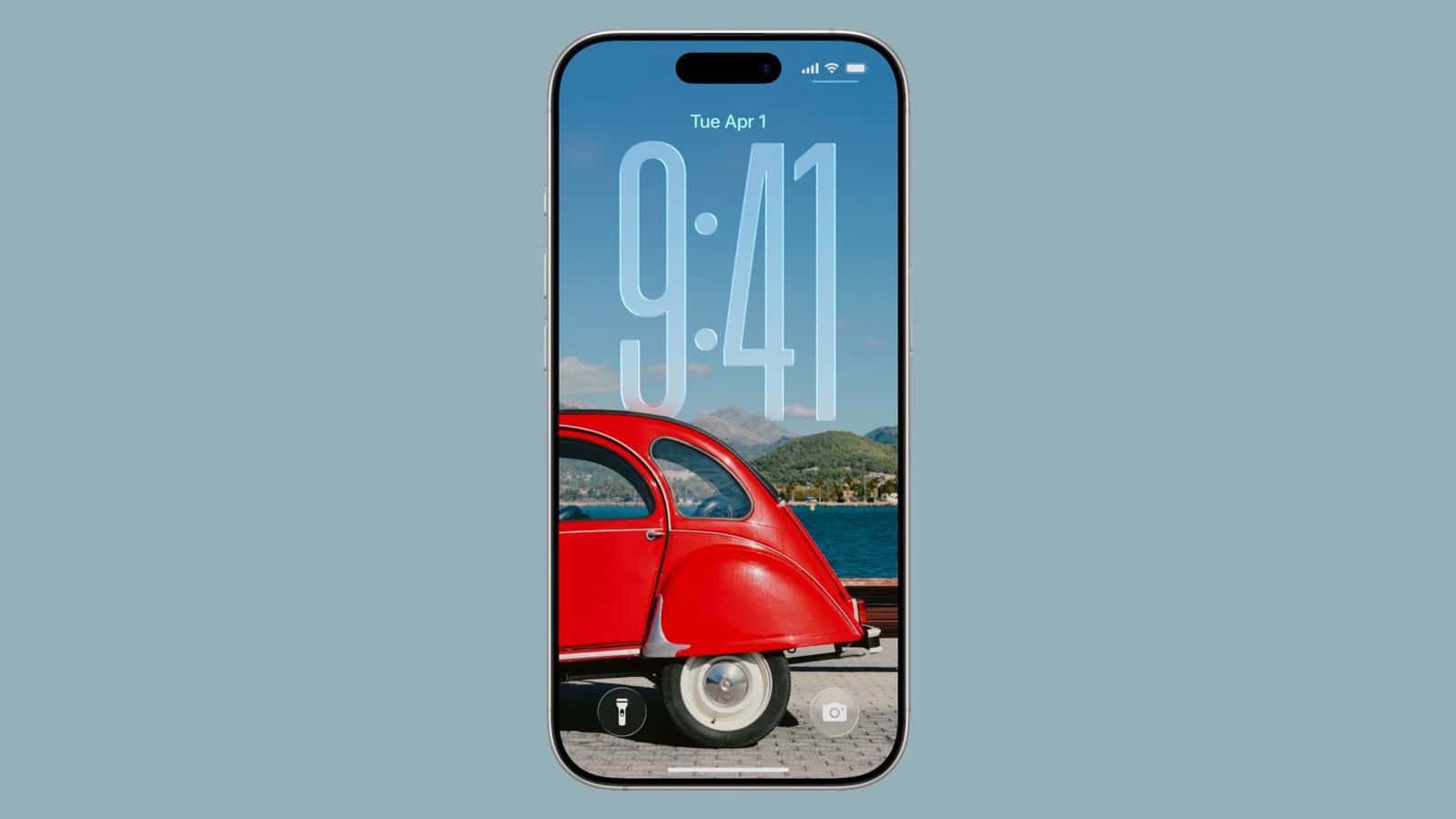
In iOS 26, Apple has made it so that the clock on the iPhone Lock Screen can be expanded to fill more of the display, making it easier to read. If your clock is so big on your iPhone lock screen, you can resize it to appear smaller. This guide explains how to change clock size on iPhone Lock Screen in iOS 26.
You can change clock size on your iPhone Lock Screen in iOS 26 with Customize mode thanks to a new drag handle on the bottom-right corner of the selection frame around the time.
You can make the digits take up half of the screen, though if you have any widgets, they will slide down to the bottom of the display. In addition, if you have a depth effect applied to a photo and pinch to crop, the time will automatically adjust to accommodate the subject. Bear in mind that the ability to expand the time depends on the selected photo — if there’s no space above the photo’s subject, the drag handle won’t appear.
How to change the size of the clock on iPhone Lock Screen
- Long press anywhere on the Lock Screen, then tap Customize.
- Rest your finger on the drag handle located at the bottom-right of the clock frame.
- Drag down to resize the clock, then up to adjust if it’s too big.
- Make any other desired changes to the Lock Screen, then tap Done to finish.
See also: How to change iOS 26 Lock Screen Clock to Liquid Glass