This article explains how to use iPhone while on a phone call. While you’re making a call on your iPhone, you can switch to other apps by using either App Switcher or the Home screen.
Adjust the audio during a call
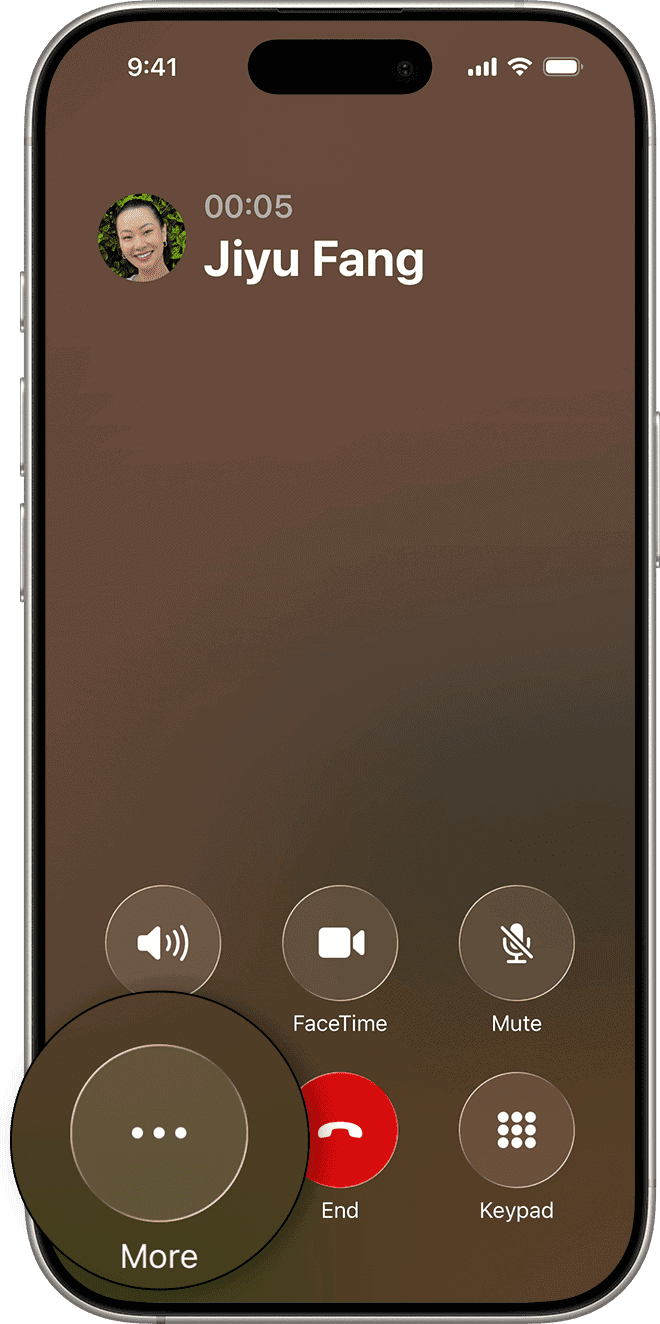
To adjust the volume during a phone call on an iPhone, press the volume buttons on the side of iPhone. Or swipe down on the call banner, then do any of the following:
- Mute a call: Tap Mute. Tap Mute again to unmute the sound.
- Place a call on hold: Long-press the Mute icon until it changes to a Hold icon. Tap the Hold icon to take the person off hold. You might put a caller on hold to answer another incoming call or to make a second call yourself.
- Talk handsfree: Tap the Audio button, then choose an audio destination.
Receive a notification when you’re no longer on hold
When you’re placed on hold during a call, you can use the Hold Assist feature on your iPhone to notify you when a live agent is available so you don’t have to stay on the line.
This feature, new in iOS 26, detects when you’ve been placed on hold during a call by identifying hold music or automated loops. Hold Assist then displays a Hold this call? prompt; if you tap the Hold button, the Phone app monitors the line and alerts you when a live person picks up. You can then tap the alert to rejoin the call.
Note: Available on iPhone 12, iPhone SE (3rd generation), or later. Hold Assist isn’t available in all countries or regions.
- Open the Phone app on your iPhone.
- When you’re in a call and put on hold, tap the More button, then tap Hold Assist.
Important: Check your ring settings before you step away from the call. If your iPhone is on silent or Do Not Disturb, you won’t hear the incoming call when an agent is available. See how to silence iPhone.
Hold Assist will notify you when an agent is available and transcribe the part of the call you missed. Tap the Answer Call button to rejoin the call.
Note: Phone can also automatically detect hold music and prompt you to start Hold Assist. Go to Settings > Apps > Phone, then turn on Hold Assist.
Respond to a second call on the same line
When you’re already on the phone with someone and another call comes in on your iPhone, you can take the following actions:
- Ignore the incoming call and send it to voicemail: Tap Send to Voicemail button.
- Respond to the second call with a text message: Tap Message.
- Set a reminder to return the call: Tap Remind Me, then choose when you want a reminder to return the call.
- End the current call and answer the new call: When using a GSM network, tap End & Accept button. With a CDMA network, tap End; when the second call rings back, tap Accept, or drag the slider if iPhone is locked.
- Put the current call on hold and answer the new call: Tap Hold & Accept.
- To switch between calls when you have a call on hold, tap Swap to switch between calls, or tap Merge Calls to talk with both parties at once.
See also: How to make a conference call on your iPhone
Use another app while on a call
- On your iPhone, go to the Home Screen, then open the app.
- To return to the call, tap the green call indicator at the top of the screen.