- You can make a conference call on your iPhone with up to five total people.
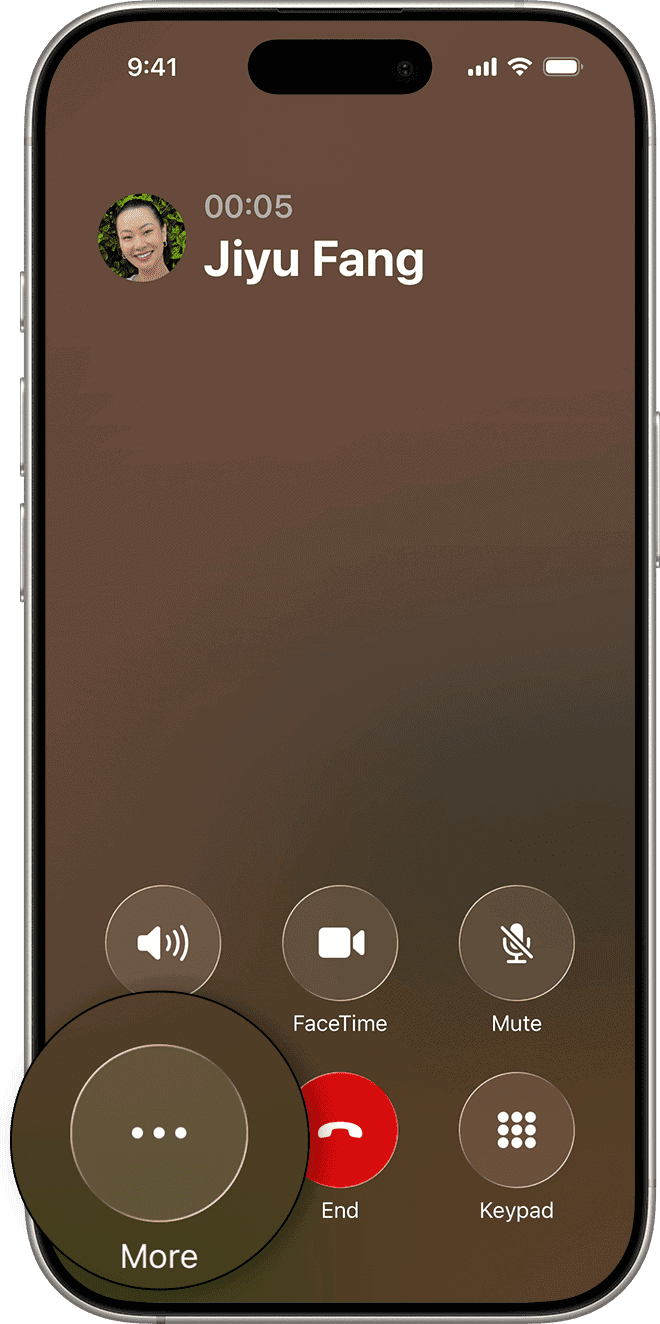
- To start a conference call, tap the More button, tap Add People, then tap merge calls.
- You can drop individual participants by tapping the blue ‘i’ at the top of the screen.
You might not realize it, but your iPhone is capable of making conference calls with up to five participants at once, including you.
You can even break off into private calls with individual participants, or end the call for only certain participants.
Here’s everything you need to know about conference calling on iPhone.
Note: The number of people on a conference call — and the ability to add, merge, or disconnect callers — depends on your carrier. Contact your carrier for more information.
How to make a conference call from your iPhone
- Open the Phone app on your iPhone.
- Dial the first person and wait for the call to connect.
- Tap the More button, then tap Add People.

- Select the second person, and wait for the call to connect.
- Tap Merge to combine calls into one conversation. If you don’t see this, your carrier might not support it.
Once your iPhone has merged the calls, you see both callers’ names at the top of the screen.
If you need to add another person to the call, tap the Add Call button, and then dial the contact, which puts the other callers on hold. Once you’ve gotten hold of the person, tap the Merge Calls button to reestablish the conference call, including the new person.
If you need to drop one of the callers, tap the i -in-a-circle to display the Conference screen, and then tap the End button for that caller. Alternatively, tap the Private button to speak privately to that caller, which puts the other callers on hold. Tap the Merge Calls button when you’re ready to return to the conference call.
Note: Only the person who started the conference call can see the names of all participants. But if a participant adds someone else, they can see the name of the person they added and the person who started the conference call.
Tip: The number of people you can add to a conference call depends on your carrier, not directly on your iPhone. Between five and ten people is typical.
Add an incoming caller to the conversation
- If you’re on a conference call and someone calls you, tap Accept to add the new caller to the conversation.
- After the call connects, tap Merge. If you don’t see this option, your carrier might not support this.