With iPhone 14 or later (all models), you can use Emergency SOS via satellite to text emergency services when you’re off the grid.
iPhone displays SOS via satellite icon when you’re outside cellular and Wi-Fi coverage; Emergency SOS via satellite may still be available.
Emergency SOS via satellite can help you connect with public emergency services under exceptional circumstances when no other means of reaching emergency services are available.
If you call or text emergency services but can’t connect because you’re off the grid — somewhere with no cellular and Wi-Fi coverage — your iPhone tries to connect you via satellite.
To connect to a satellite, you need to be outside with a clear view of the sky and horizon. When you use a satellite connection, the experience is different than sending or receiving a message via cellular.
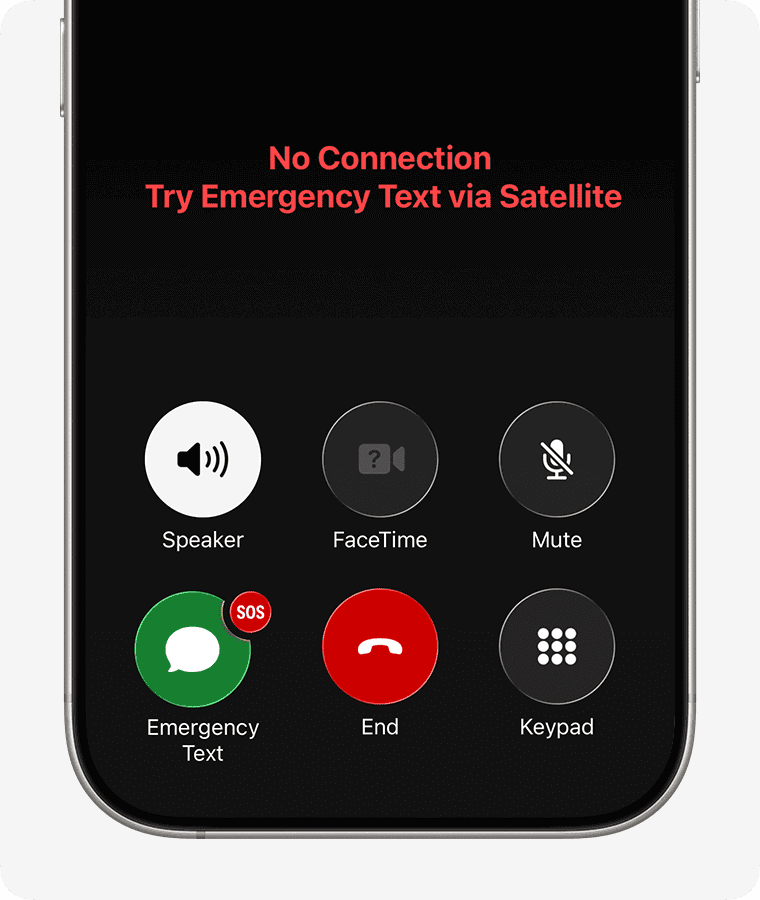
If you and your iPhone Air, iPhone 14, iPhone 15, iPhone 16, or iPhone 17 are in trouble somewhere without a phone signal, you can use the Emergency SOS via Satellite feature to send text messages to get help. When the Phone app shows the message No Connection: Try Emergency Text via Satellite.
Text emergency services via satellite on iPhone
- Tap Emergency Text via Satellite to text emergency services.
You can also go to the Messages app and text 911 or SOS, then tap Emergency Services. - Tap Report Emergency.
- Using simple taps, answer the emergency questions to best describe your situation.
- Choose to notify your emergency contacts that you contacted emergency services, along with your location and the nature of your emergency.
- To connect to a satellite, follow the onscreen instructions.
- After you’re connected, continue following the onscreen instructions to stay connected while you send your message to emergency services.
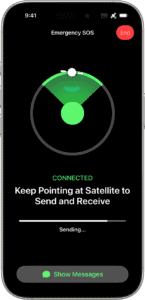
Once you’re connected, your iPhone starts a text conversation with emergency responders by sharing critical information like your Medical ID and emergency contact information (if you have set them up), the emergency questionnaire answers, your location (including elevation), and remaining battery life for your iPhone.
You might be asked to respond to additional messages. This service supports English, Canadian French, Dutch, French, German, Italian, Japanese, Portuguese, and Spanish.
*In the address field of the new message, you can also type "emergency," "emergencies," "SOS," "help," or "send help" to text emergency services via satellite. To make sure that you can access Emergency SOS via satellite with these key words, update your iPhone to the latest software before going off the grid.
End an Emergency SOS via satellite session that you started accidentally
If you started an Emergency SOS via satellite session but don’t need emergency services, don’t quit the session. Instead, wait until a responder answers and then explain that you don’t need help.
Share information with your emergency contacts
If you set up emergency contacts in the Health app, you can choose to notify and share information with them when you text emergency services with Emergency SOS via satellite. When you choose to share this information, your emergency contacts get these messages automatically.
If your emergency contacts use iMessage on iOS 16.4 or later, you can share a live transcript of your conversation with emergency services. This transcript includes:
- Your answers to the emergency questionnaire.
- A map with your location.
- The messages that you exchange with emergency services.
If your emergency contacts have a non-Apple device or don’t have iOS 16.4 or later, they receive a text message that alerts them about your emergency. In the U.S. and Canada, this message comes from the number 767911. In Europe, this message comes from 767112. In Japan, this message comes from 0005990037. In Mexico, this message comes from 27911.
The message says, "You’re receiving this message because someone you know chose you as an emergency contact and used Emergency SOS via satellite."
To receive additional text messages, your emergency contacts need to respond "YES" to the first message within 48 hours. If they respond "NO" or "STOP," they won’t receive any more messages about Emergency SOS via satellite notifications for this or future emergencies.
If your emergency contact responded "NO" or "STOP," they can resume these notifications by texting "RESTART" to the same number.
The additional messages include your name, the time that you contacted emergency services, your location, and the information that you provided about your emergency.
Your emergency contacts can’t respond to the messages, other than replying "YES" or "NO" when necessary. They don’t need to contact emergency services, because emergency services has already been contacted for the emergency.
You can use the Roadside Assistance via Satellite to text AAA, the largest roadside assistance provider in the US, for assistance if your vehicle breaks down somewhere with no cellular or Wi-Fi coverage.
Note: Emergency SOS via Satellite and Roadside Assistance via Satellite are available only in the US and are free for two years after you activate any iPhone Air, iPhone 14, iPhone 15, iPhone 16, or iPhone 17 model.
See also: iPhone stuck on Emergency SOS mode? Here’s how to fix it