SUMMARY
- Random vibrations on your iPhone can be caused by app notifications, system alerts, haptic feedback, bugs, hardware issues, or out-of-date software.
- Restarting your iPhone, turning off Haptics for Ringtones and Alerts, and updating your iPhone and apps can help stop the random vibrations.
- If none of those fixes work, a factory reset or taking your iPhone for repair may be necessary to resolve the hardware issue causing random vibrations.
You’re not imagining things. The vibrations are real. iPhone vibrations are normal, but when they happen for no reason, they can become annoying. You don’t need to fret; there is a way out. With our easy fixes, you can stop your iPhone from vibrating randomly.
Why Does Your iPhone Keep Vibrating Randomly?
There is quite a number of possible reasons why your iPhone is vibrating randomly. The most common is incoming app notifications. When your iPhone gets an alert for messages and updates, your iPhone will vibrate if it is set to vibrate mode. If you have a lot of notifications coming in, it might feel like your iPhone is constantly vibrating.
Vibrations can also occur on your iPhone when you perform some actions, such as when you touch and hold any icon on the Home Screen thanks to Haptic feedback feature. Similarly, if you enable haptic for Keyboard Feedback on your iPhone, you will get vibrations when you type on your keyboard or use your keypad.
Finally, these random vibrations can also stem from hardware issues. If the iPhone’s motor that causes the vibrations becomes faulty, it can cause unending rogue vibrations.
How to Stop Random Vibrations on iPhone
To fix your randomly vibrating iPhone, try these solutions one after the other until the buzzing stops.
Restart Your iPhone
Restarting your device should be the first fix to tried if your iPhone vibrates randomly. Restarting clears your device’s memory, resets processes, and gets rid of bugs. Sometimes, this can fix a minor software glitch causing your iPhone to vibrate randomly.
To restart your iPhone, go to Settings > General > Shut Down. Drag the power button from left to right and wait for your iPhone to power off.

Power on your iPhone by pressing the Side button. When it turns on, your iPhone should stop vibrating randomly.
Turn Off Vibration in Settings
If restarting your phone doesn’t fix the problem, you can turn off vibrations in the Settings app. Open the Settings app, and go to Sounds and Haptics.
Tap Haptics, then choose Never Play.

Now, the vibrations will stop, and you can use your phone normally.
Turn Off Keyboard Feedback Haptic
You can turn off Keyboard Feedback haptic in your Sounds and Haptics settings. Open Settings and go to Sounds and Haptics. Then, tap on Keyboard Feedback.
Turn off the toggle next to Haptic.

Now, there will be no vibration when you type.
Turn Off System Haptics
Similarly, you can turn off System haptics in your Sounds and Haptics settings. Open Settings and go to Sounds and Haptics. Then, turn off the toggle next to System Haptics.
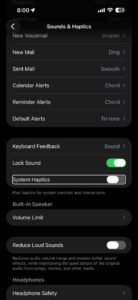
Try to use your iPhone. The vibrations should have stopped.
See also: iPhone System Haptics, What They are, Turn On or Off
Update All Apps on Your iPhone
Updating your apps might get rid of any bugs causing your iPhone to malfunction. To update your apps, open the App Store and tap on your account profile on the top-right corner of the screen.

If there are updates available, you can tap on Update All to start updating all apps. Doing this will activate all bug fixes and get your iPhone working optimally again.
Update iOS on your iPhone
Out-of-date software can pose problems for your device. Updating iOS on your iPhone can help get rid of these random vibrations, and will often have performance enhancements that help too.
To update iOS on your iPhone, go to the Settings app, tap on General, then tap on Software Update.
If your iPhone has a pending software update, select the Update Now option.
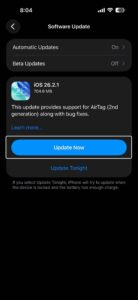
Wait a while for the software update to complete and then your iPhone should be rid of the random vibrations.
Factory Reset Your iPhone
If your iPhone software is up-to-date, and you have a random vibration problem, a factory reset might be all your phone needs to normalize it. See how to factory reset your iPhone.
Take It in for Repair
If all the fixes above fail, the vibrations are most likely a hardware issue. It would be best if you took your iPhone to Apple or an authorized service provider to get it checked and fixed. If you decide to take your iPhone to Apple, make sure to book a genius bar appointment first.