AirPods let you do a lot of things. Apple’s wireless AirPods let you make phone calls, listen to music and even use Siri. To use AirPods, you need to set them up with your iPhone 18 Pro, Mac, or any other Bluetooth devices like Android phones.
It seems that several users are having a sound issue. More specifically, users are reporting that their AirPods have stopped playing sound. Are you having this problem too with one or both of your AirPods? This article explains what to do when there is no music, audio playing even though your device indicates a connection.
To resolve this problem, try the following:
- The first thing you should check is if your AirPods are clean. AirPods can pick up a lot of dirt and debris. You may need to clean it occasionally. It is important that you clean them properly so that you do not damage them.
- Update your devices.
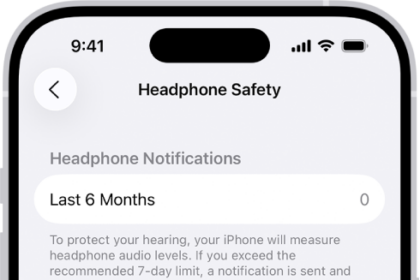
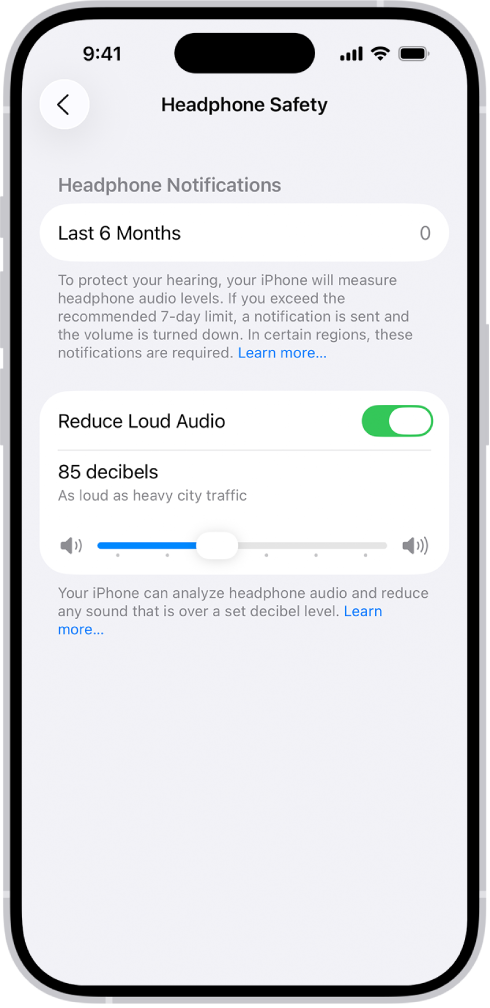
- Make sure that your volume level is not too low. There is an optional setting on iPhone that lets you set a system wide volume limit. This is a maximum level setting. This setting will override the Music app volume settings. It is possible that you may have set this too low (this is off by default). To check, go to Settings > Sounds & Haptics > Headphone Safety > Reduce Loud Audio.
- Make sure that your iPhone 18 Pro is connected to your AirPods.
- Ensure that your AirPods are charged. So check your battery level. If it is low, charge them. If you want to charge them, you may place them in your case. Charge your AirPods for a few hours.
- On your iPhone or other device, turn off Bluetooth, and wait a few seconds and turn it back on. Here is how:
- iOS: Settings > Bluetooth > and toggle off Bluetooth
- Try resetting your AirPods. This may resolve your issue. Here is how:
- Place your AirPods in their case
- Close the lid
- Then open the lid
- Press and hold the Set up button for several seconds until the status light starts flashing amber and then white. For AirPods 4 models, AirPods 5 models, and AirPods Pro 3, double-tap the front of the case while the status light is on, double-tap again when the status light flashes white. When the status light flashes faster, double-tap a third time, until the status light flashes amber, then flashes white.
- Disconnect your AirPods. On your device, go to the Bluetooth Settings (e.g., on your iPhone 18 Pro, go to Settings > Bluetooth) and then tap Forget This Device. And then re-pair them.
- Restart your paired device, e.g., iPhone 18 Pro, Mac, Apple Watch etc. Then try again.
- Disable Automatic Ear Detection to see if this fixes your problem. Simply go to Settings > Bluetooth > AirPods and turn off Automatic Ear Detection.
If everything fails, you may want to consider booking a Genius Bar appointment. Apple also offers live chat support.