You can share your Apple Card with your friends and family members. Several users have said that they are unable to add people to their Apple Card account. Users have said that they get an error message saying “unavailable for sharing” when trying to invite someone to join the Family Sharing group or to invite an account co-owner or a participant. Some users have further said the Family Sharing settings (people’s names) are grayed out and thus participants or co-owners cannot be added. It further appears that this error message may appear both on the inviter’s (the account owner) or the invitee’s device. This means that your family member or trusted friend may not accept your Apple Card invitation because of this error.
It is important to mention that you do not need to have a familial connection with your participants and co-owners.
This article explains how you can fix this Apple Card invitation error. These steps can help.
Review these steps first
- Please ensure that you have the latest version of iOS on your iPhone 18 Pro. You can update your iPhone wirelessly by going to Settings > General > Software Update.
- Go to Settings > General > Language & Region and ensure that your region is set to the USA. Furthermore, participants and co-owners regions are also set to the United States.
- You can only add 5 people to your Apple Card. If you are trying to add the 6th person, you will not be able to do so.
- Participants must be 13 years and older and co-owners must be 18 years and older. If required, the birth date associated with your Apple Account can be updated:
- Use the Apple Account page: Visit the account page (https://account.apple.com/), sign in, find the Account section and click the Edit button.
- Use your iPhone 18 Pro: Go to Settings > [Your Name] > Personal Information > Birthday.
- You can use your iPhone 18 Pro to add people. Ensure that your device (as the account owner) and the participant’s devices are compatible with Apple Pay.
- Please ensure that there isn’t an Apple Card outage. You can check this by going to the Apple System Status website.
Troubleshooting steps
If you are still having this problem, please try these steps:
- Restart your iPhone 18 Pro and then try again.
- If you are using a VPN, turn off the VPN and then try again.
- Reset all settings. You may want to do this if you are still having this problem. This will not erase everything. You will keep all of your data. However, you may want to do this, if you want to return the settings to defaults. You can do so by going to Settings > General > Transfer or Reset iPhone > Reset > Reset All Settings.
- Check the date and time settings on your device. Tap Settings > General > Date & Time. Ensure that the date and time are correct. You may also want to turn on Set Time Automatically.
Contact Apple Card Support
This is simple. Here is how:
- Open the Wallet app.
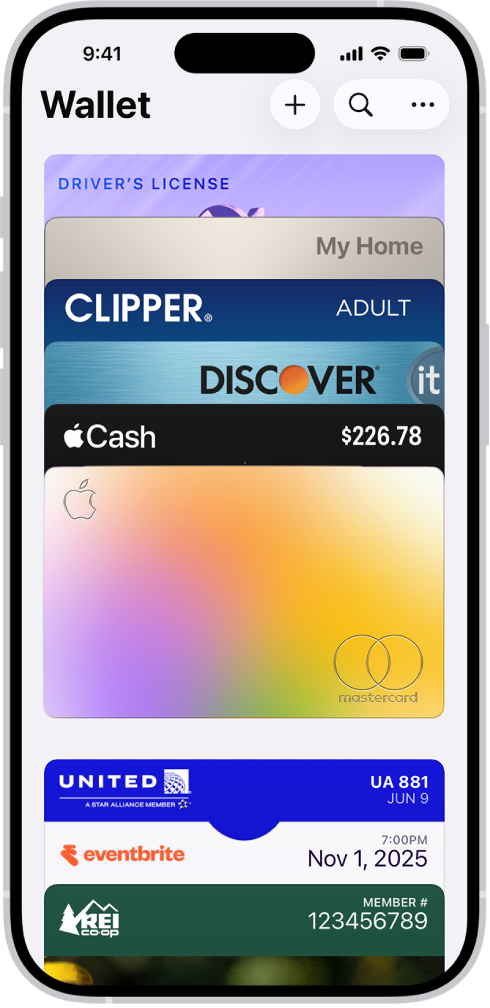
- Open your card.
- Tap the More (…) button.
- Then tap Message or Call.