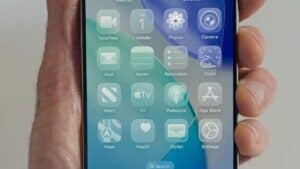
Soon after I installed the iOS 26 developer beta on my iPhone, I noticed how the transparency of Liquid Glass clashes with the way the Control Center appears on top of certain elements, like the icons on my home screen, or very busy web pages.
iOS 26 features a whole new design material that Apple calls Liquid Glass, with a focus on transparency that lets the content on your display shine through the controls.
The problem with Liquid Glass is that the space surrounding icons in Control Center is too transparent. Now, this isn’t a visual distraction when I’m running apps that are showing mostly one solid color, but it looks messy when I access it on my home screen. This is because there’s not as much separation between the overlaid Control Center with all the icons on my home screen.
After digging through the settings, i found a fix that changes the way Liquid Glass looks on my iPhone and iPad.
If you installed iOS 26 and are finding it difficult to view the Control Center icons or just prefer a solid background, simply enable the Reduce Transparency setting to limit the effects of Liquid Glass.
Toggling on Reduce Transparency adds a darker background to translucent areas like the Control Center, app icons, and app folders, improving contrast.
- On your iPhone or iPad, open up the Settings app.
- Go to Accessibility.
- Select Display and Text Size.
- Turn on the Reduce Transparency toggle.
Once activated, you’ll notice a dramatic change in the appearance of the Control Center. The background blur will be replaced with a more opaque design, making icons and toggles easier to see—particularly in low-light or cluttered screen conditions. This adjustment not only enhances visibility but also makes for a more distraction-free experience.
Activating Reduce Transparency does not remove all translucency from the Control Center, but it does reduce the transparency of the Liquid Glass design. It does not change the shape of buttons or return things to a pre-iOS 26 look.
See also: How to Get Clear App Icons on iPhone & iPad in iOS 26/iPadOS 26